If you are looking for an alternative to Yahoo Finance Portfolio, you can easily import your Yahoo Finance Portfolio into EquityStat. Recently, we enhanced our import feature to work with Yahoo portfolios.
To import your Yahoo portfolio into EquityStat, just follow these easy steps.
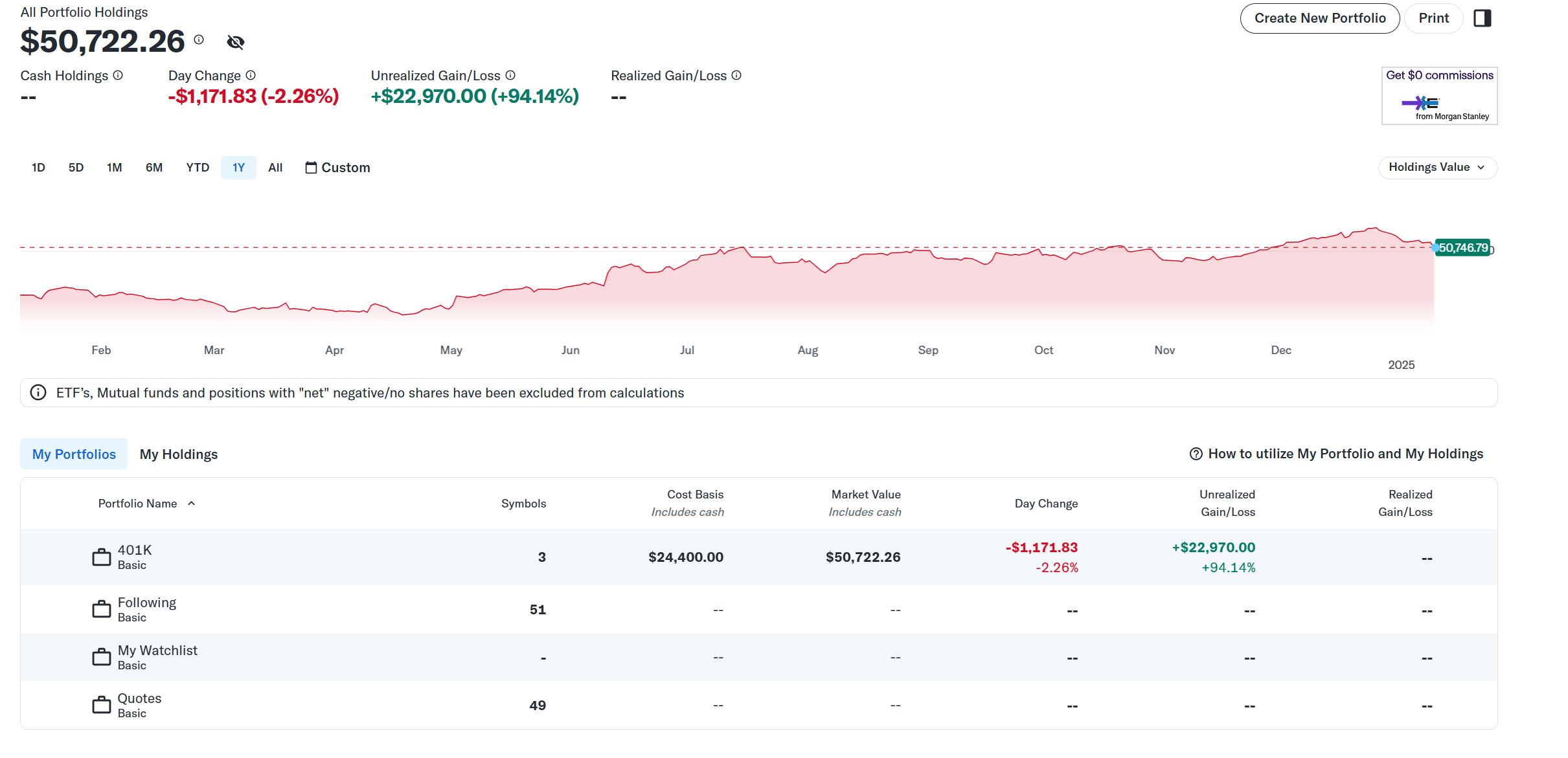
Step #1 Login to your Yahoo Finance Portfolio and click on a portfolio with holdings.
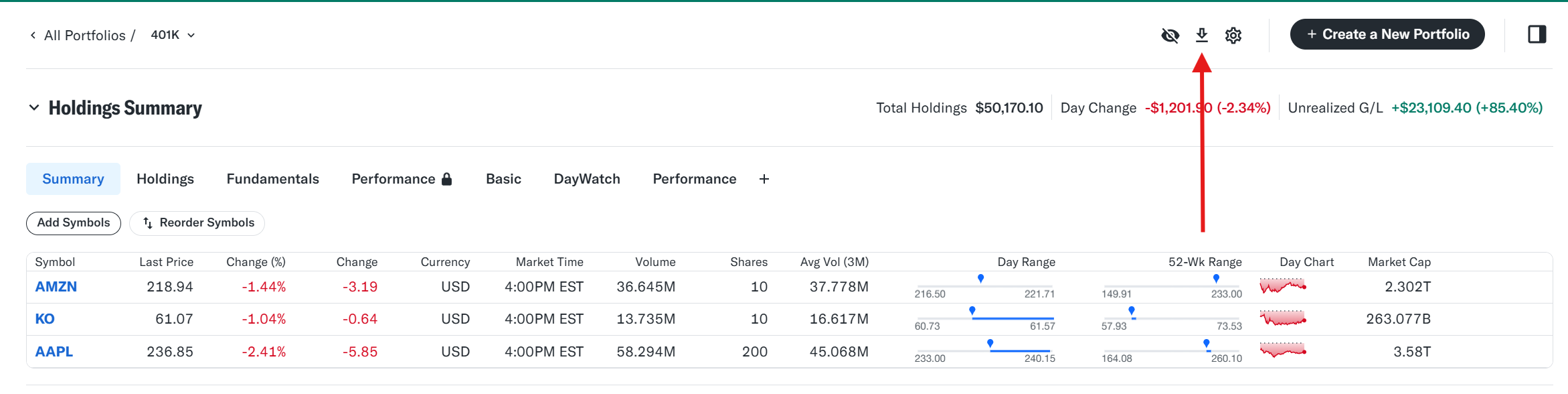
Step #2 On page that displays your holdings, click the down arrow icon in the upper right hand corner.
You will then be prompted to either Print the portfolio or Save the portfolio as a CSV. Choose the Save option. Your CSV file will then be saved to your Downloads folder on your computer.
Step #3 Login to your EquityStat account and click the New menu at the top and choose Import Transactions from the drop down menu. Choose the portfolio you want to import into. Next, choose the file you saved in Step #2.
If you have any questions, contact our support by clicking here.
If you are searching for a Stock Market Eye alternative, here is what you need to know. Stock Market Eye’s stock portfolio manager has been discontinued, and anyone who relied on it for tracking their investments now needs a new home for their data.
What Happened to Stock Market Eye
Stock Market Eye was a popular tool for tracking stocks, but the software is no longer available or supported. Former users are left looking for a portfolio tracker that can pick up where it left off, both in terms of features and in terms of keeping their existing investment history intact.
Why EquityStat Is a Strong Stock Market Eye Alternative
EquityStat’s portfolio manager was built to track, manage, and analyze stocks, ETFs, mutual funds, and other investments in one place, which makes it a natural next step for anyone leaving Stock Market Eye behind.
How to Move Your Data from Stock Market Eye to EquityStat
Switching is straightforward. Export your existing data from Stock Market Eye to an Excel spreadsheet or a CSV file. Once the file is exported, follow the formatting instructions to prepare it, then upload it directly into EquityStat.
If you run into any trouble importing your transactions, reach out through the support page and the EquityStat team will help you get set up. You also have the option to enter your transactions manually if you prefer a fresh start instead of importing your history.
Missing a Feature from Stock Market Eye?
If there was a feature in Stock Market Eye’s portfolio manager that you relied on and do not see in EquityStat, let the team know. Feature requests are taken seriously, and the goal is to keep improving EquityStat based on what users actually need.
For any other questions, the support page is the fastest way to get answers.
Do you have a lot of transactions that you need to import into EquityStat that you don’t want to manually enter? If so then you can use EquityStat’s import feature to import these transactions.
To import your transactions first get these transactions into a CSV (comma separated variable) file. The easiest way to generate a CSV file is to use Excel or any other spreadsheet application. With Excel you can enter your data into a spreadsheet and then save the file as a CSV file.
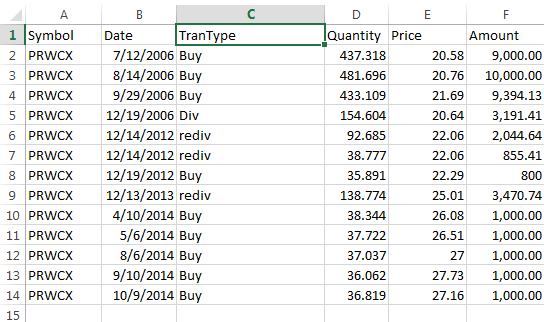
The CSV file must be in a certain format for you to import your transactions into your portfolio. The first line in the file must identify what each column is. The following column indentifiers are valid – Symbol, Date, TranType, Quantity, Price, Amount, Commission.
The valid values for the TranType column are Buy, Sell, Div, Rediv (Re-invested Dividend), Longcg (Long-Term Capital Gain), Shortcg (Short-Term Capital Gain), Relongcg (Re-Invest Long Term Capital Gain), Reshortcg (Re-Invest Short Term Capital Gain).
If you have a TranType value of Div then you will need an Amount column and you will not need the Quantity and Price column. If you have a TranType value of something other than a non re-invested dividend or non re-invested capital gain, you will need a Quantity and Price column. All rows must have a Symbol and Date column.
Here is a screen shot of a sample Excel file in the proper format.
Import transactions into EquityStat
Once you have your data entered in your spreadsheet, save it as a CSV file.
Next, login to your portfolio and click the New menu and choose Import Transactions. Then from the Import page, upload your CSV file from your computer. The transactions that will be imported will then be displayed. If everything is correct, continue the import process.
If you have any questions with how to do an import, feel free to contact our support desk by clicking the Help link from our home page.