Explore Your Past Portfolio Performance with EquityStat’s “View On Date” Feature

Investing is not just about tracking today’s number, it’s about understanding your portfolio’s journey over time. That’s why EquityStat, your all-in-one stock portfolio tracker, is excited to introduce a powerful new feature: View On Date. Now, you can look back at your holdings and portfolio performance on any past date, giving you deeper insight into your investment strategy.

Introducing “View On Date”

The View On Date feature allows you to examine your portfolio exactly as it appeared on a specific past date. When you select a past date:

  • Only the investments you held on that date will be displayed.
  • Performance metrics are calculated using the closing prices from that date, giving you an accurate snapshot of your historical portfolio performance.

Whether you’re reviewing historical performance, analyzing past trades, or comparing growth over time, this tool gives you precise insight into your investment history.

How to Use “View On Date”
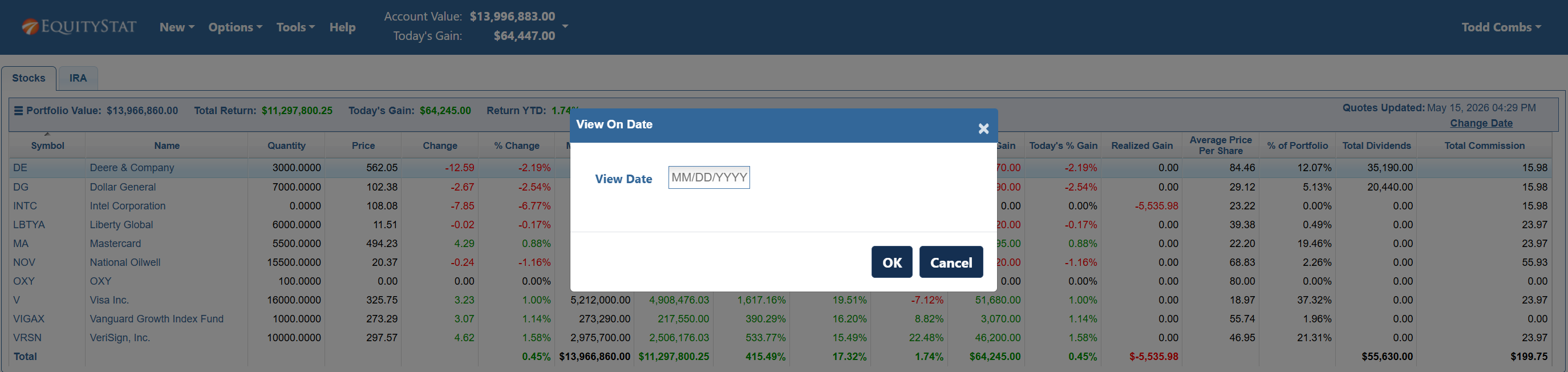
View your EquityStat stock portfolio on a past date.
  1. Via the Options Menu:
    • Click the Options menu at the top of your portfolio dashboard.
    • Select View On Date from the dropdown.
    • Enter the past date you want to review in the dialog box.

  2. Using the Change Date Link:
    • Underneath the “Quotes Updated” date, click Change Date to select a past date.

  3. Portfolio Analysis for Past Dates:
    • In the upper right-hand corner of your portfolio dashboard, click the View On Date link to access historical portfolio analysis.

Once you’re viewing your portfolio on a past date, a banner message at the top of the page will show the date you’re analyzing. To return to your current holdings, simply click Revert To Today.
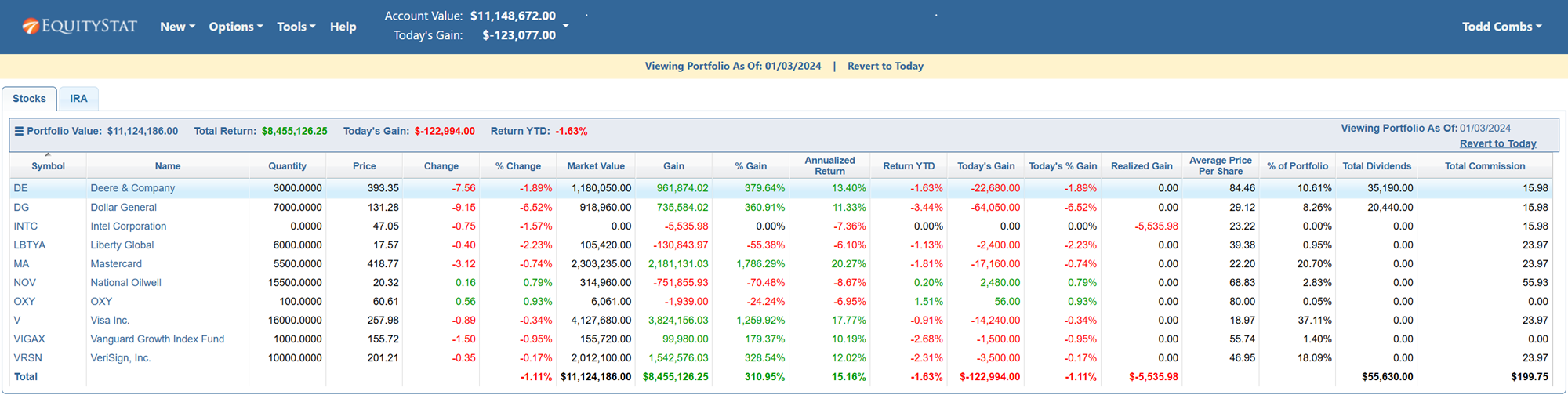
View your EquityStat stock portfolio on a past date.

Why Investors Will Love This Feature

  • Historical Insights: Understand how your portfolio has performed over weeks, months, or even years.
  • Performance Analysis: Evaluate the impact of past decisions to refine your investment strategy.
  • Simplified Tracking: No more manual tracking or spreadshee, see past performance directly in EquityStat.

This feature makes EquityStat not just a real-time portfolio tracker, but a historical analysis tool that empowers investors to make smarter decisions.

Start Exploring Your Portfolio History Today

With EquityStat’s View On Date feature, you have complete control over your portfolio insight, past, present, and future. Stay informed, track your progress, and make confident investment decisions all from a single platform.
How to Add a New Investment to Your Portfolio From Your Phone

Adding a new stock, ETF, or mutual fund to your portfolio from your phone only takes a few seconds. It used to mean knowing the investment’s exact ticker symbol before you could type it into the mobile app. If you forgot whether a company traded under one symbol or a slightly different one, you were stuck looking it up somewhere else before you could even start. EquityStat’s mobile symbol search fixes that by letting you search by name or symbol right inside the app.

How Symbol Search Works on Mobile

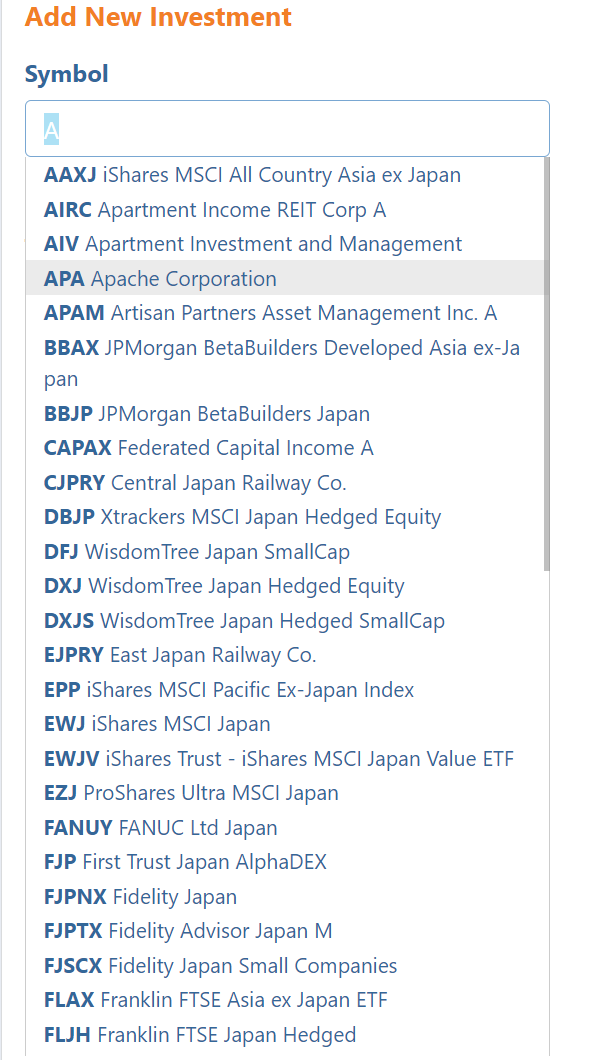
Adding an investment now works the same way on your phone as it already does on desktop. When you are adding a new investment to your portfolio, start typing in the Symbol field. As you type, EquityStat shows you a list of matching symbols and investment names in real time.

For example, type the letter A and you will see every symbol and investment name that matches, all narrowed down as you keep typing. Once you spot the investment you want, tap that line to select it, and the correct symbol is filled in automatically.

Lookup a symbol when adding a new investment to your EquityStat stock portfolio on a mobile device.
Example of the new symbol lookup when adding a new investment on a mobile device.

What If You Cannot Find Your Symbol

If your investment does not show up in the list, you can still type the symbol in directly and move to the next field. EquityStat will check whether it is a valid symbol. If it is not recognized, you will see an Invalid Symbol message so you know right away, rather than finding out later that your entry did not go through correctly. The Invalid Symbol message will display under the symbol in read. If it is a valid symbol, then the name of the investment will display under the symbol field in green.

Why This Makes Adding Investments Easier

Small friction points add up, and having to leave an app to look up a ticker symbol is exactly the kind of thing that makes portfolio tracking feel like a chore. With symbol search built directly into the mobile add investment screen, you can build out or update your portfolio from your phone just as easily as you can from a computer, whether you remember the exact symbol or just the company name.

Frequently Asked Questions

Do I need to know the exact ticker symbol to add an investment on mobile? No. You can start typing the company name or symbol in the Symbol field, and EquityStat will show you matching results as you type.

What happens if I type a symbol that is not found in the results? You can still type it in directly and move to the next field. EquityStat checks whether it is valid and shows an Invalid Symbol message if it is not recognized. If it is a valid symbol, then a Valid Symbol will be displayed.

Does adding an investment work the same way on mobile and desktop? Yes. The mobile symbol search was built to match the existing desktop experience, so the process feels the same on either device.

How to Share Your Stock Portfolio

Sharing your stock portfolio is now simple with EquityStat’s Share Portfolio feature. Whether you want to display what stocks you own on a personal website, show what you recommend on an investment forum, or post your holdings on X, Facebook, Reddit, or email, this feature makes it possible in just a few clicks.

How to Share Your Portfolio

To get started, click the Tools menu at the top of the page and choose Share Portfolio from the dropdown.

On the Share Portfolio page, choose the portfolio you want to share and click the Generate button. EquityStat will create an image of your portfolio that you can link to on a website or social media post. You can also download the image itself and use it in an email or upload it directly to a social media post.

For example, here is an image of a shared portfolio showing Berkshire Hathaway’s top stock holdings.

Linked Images vs Downloaded Images

There is an important difference between the two ways you can share your portfolio. If you link to the image, it will always display the most recent prices for the stocks in your portfolio, updating automatically over time. If you download the image file and share that instead, the prices shown will be frozen at whatever they were when the image was generated. Choosing between the two depends on whether you want a live, always current view or a fixed snapshot of your portfolio at a specific moment.

Customizing What Your Shared Portfolio Shows

You are not limited to a fixed set of columns when sharing your portfolio. Click the Select Columns link on the Share Portfolio page to choose exactly which columns appear in the image, whether that is current price, gain, return, or any other metric you want visible to whoever sees it.

Start Sharing Your Portfolio Today

Whether you are showing off your results, discussing a stock pick on a forum, or just want an easy way to keep friends and family updated on your investments, the Share Portfolio feature turns your EquityStat holdings into something you can post anywhere.

Investment Symbol Search – A Faster Way to Add Stocks in EquityStat

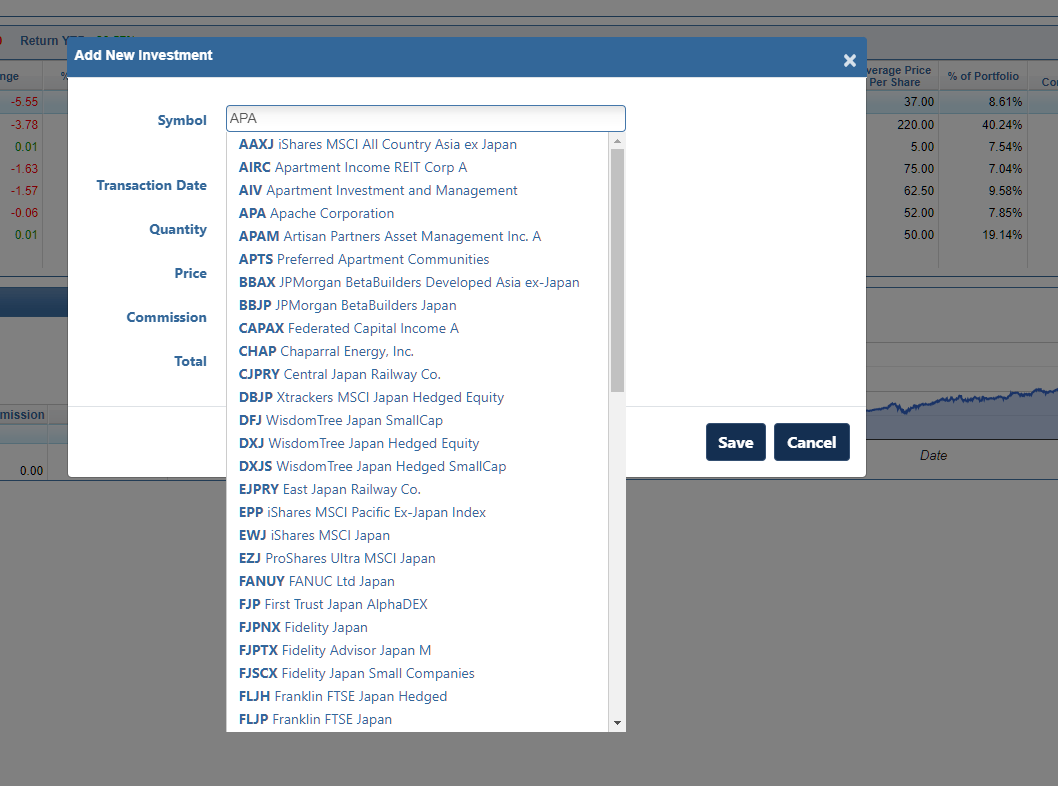
EquityStat’s investment symbol search makes adding a new stock, ETF, or mutual fund to your portfolio faster and easier than ever. In the past, adding an investment meant you needed to already know its exact ticker symbol. Now, you can simply start typing in the Symbol field and EquityStat will display a list of matching symbols and investment names as you type.

Lookup a symbol when adding a new investment to your EquityStat stock portfolio.
Example of the new symbol lookup when adding a new investment

How Investment Symbol Search Works

When you click New from the menu and choose New Investment, the Symbol field is now searchable. For example, as seen in the screenshot above, typing “APA” in the symbol field brings up a list of every symbol and investment name that matches that text. Instead of guessing at a ticker or leaving the site to look one up, you can scan the list and find the exact investment you are looking for in a few keystrokes.

To choose a symbol, simply select the line with the investment you want to add to your portfolio, and EquityStat fills in the rest.

What to Do If Your Symbol Is Not Listed

If you already know the symbol and it does not appear in the search results, you can still type it in directly and tab to the next field. EquityStat will check the symbol to confirm it is valid. If the symbol does not match a real investment, you will see an “Invalid Symbol” message so you know to double check it before continuing.

Why This Makes Tracking Your Portfolio Easier

Small friction points, like having to look up a ticker symbol before you can even add an investment, add up over time, especially if you are entering several positions at once. Investment symbol search removes that extra step, so building out your portfolio in EquityStat is quicker whether you are setting up your account for the first time or adding a new position you just purchased.

This feature also works the same way on mobile, so you get a consistent experience whether you are updating your portfolio from a desktop or adding a quick transaction from your phone.

Mutual Fund Investments Now Show the Last Update Date

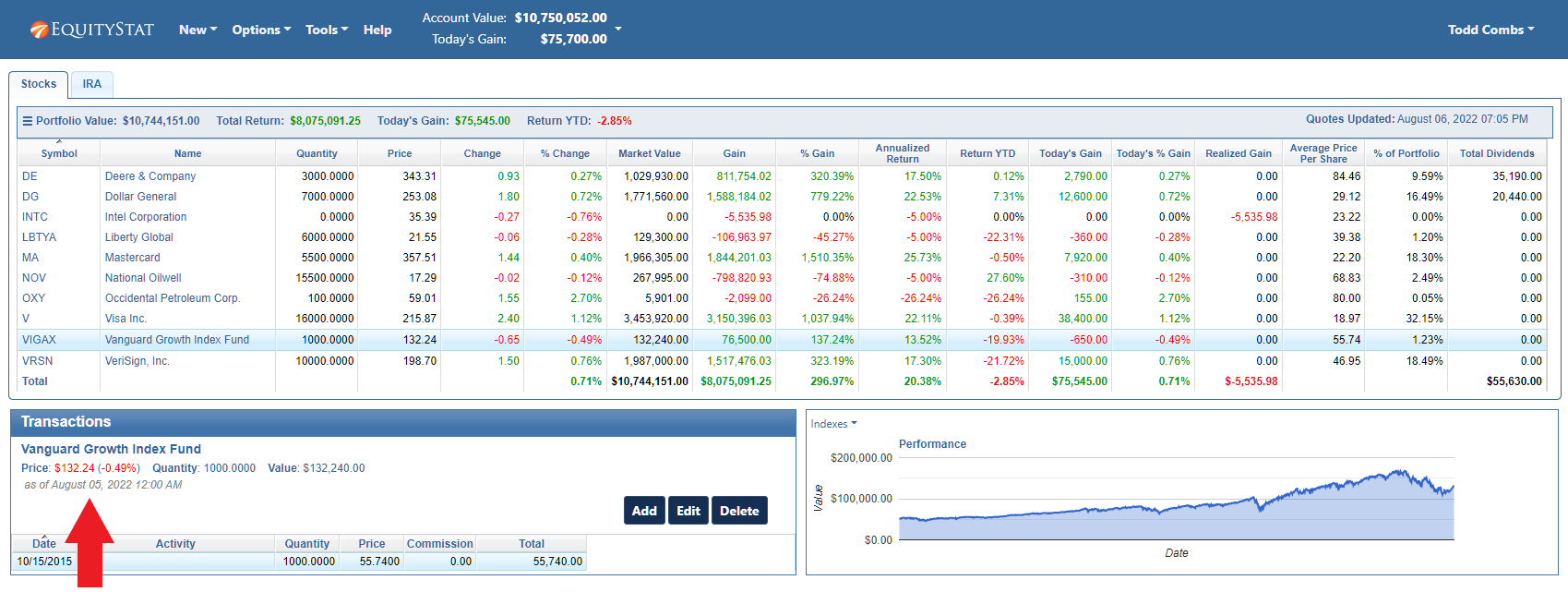
Mutual fund prices now show the exact date they were last updated, right in your transaction panel. We added a date stamp directly next to the price, so it is easy to tell how current the price is.

Why Mutual Funds Only Update Once a Day

Unlike stocks and ETFs, mutual funds do not trade throughout the day. Their price, known as the net asset value, is calculated once the market closes and is not posted until sometime after that. Because of this timing, it has always been hard to tell whether the price you are looking at reflects the current day or the day before, especially if you check your portfolio in the morning before the new price has come through. Now, next to every mutual fund price, you will see the exact date that price was posted. One glance tells you whether you are looking at a fresh number or one that is a day old.

EquityStat Mutual Fund Price Date

More Transaction Panel Changes

Percent Change Now Shown In the Transaction Panel

Another user interface change to the transaction panel is that we are now showing the percent change in the transaction panel for every investment, alongside the dollar figure.

Quick Access to Financial Details from the Transaction Panel

We also made it easier to see financial detail on any holding without leaving your portfolio. Click the name of any investment in the transaction panel and you will be taken straight to its page on MSN Money, where you can dig into news, charts, and additional details.

A Faster, Clearer Portfolio Review

Together, these changes are meant to make your daily portfolio review faster and clearer. You should never have to wonder if a number is stale or squint to figure out which holdings moved. With the updated date stamps and color coded percent changes, that information is right there in front of you.

If you track mutual funds, stocks, ETFs, or a mix of everything, log in and take a look at your transaction panel to see the changes for yourself.

Feature Highlight – Compare Your Investment Performance to the Dow Jones, the Nasdaq or the S&P 500 Index

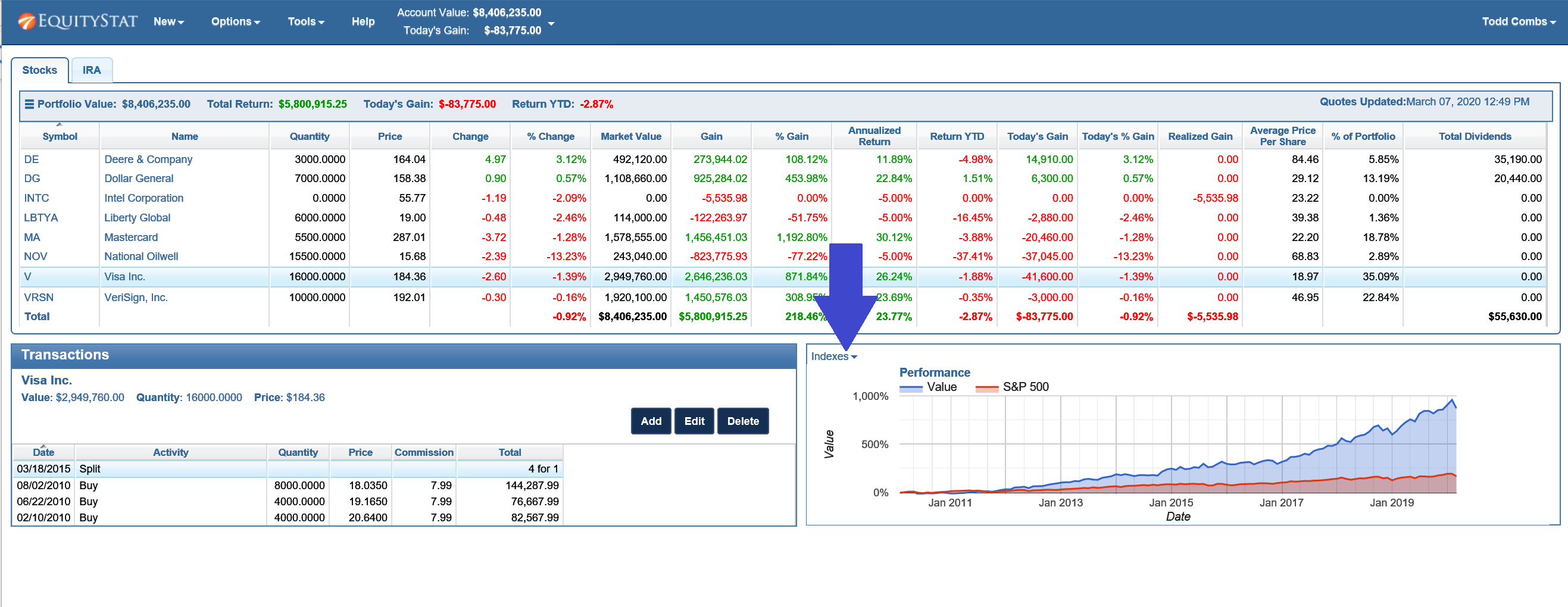
If you want to see how your investment performance is doing compared to an index, you can easily add an index to your investment’s performance graph.

To do this, select the index you want to compare, by clicking on the Indexes drop down menu link in the upper left hand corner of the performance graph.

Compare Stock Performance to Indexes
Compare Investment Performance to Indexes

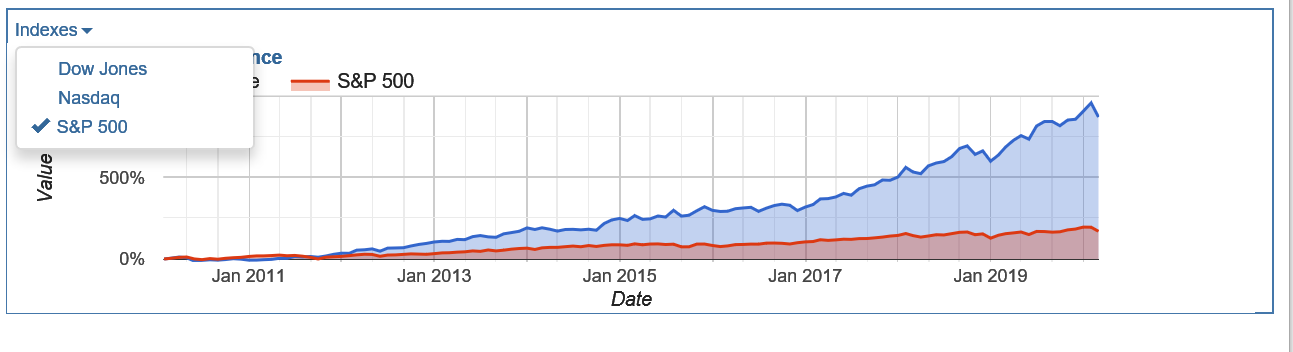
When you click on the Indexes drop down menu link, you can choose from a list of indexes.

Choose to compare your stock's performance to the Dow Jones index, the Nasdaq index or the S&P 500 index
Choose to compare your stock’s performance to the Dow Jones index, the Nasdaq index or the S&P 500 index

Choose the Dow Jones index, the Nasdaq index or the S&P 500 index. You can choose one index or multiple indexes. When you choose an index, you will see a checkbox next to the index.

Once an index is chosen, you will see the index in your performance graph and how it compares to your investment’s performance.

To remove an index, click on the Indexes drop down link and select the index again. This will remove the checkbox from the index menu item and remove the index from your performance graph.

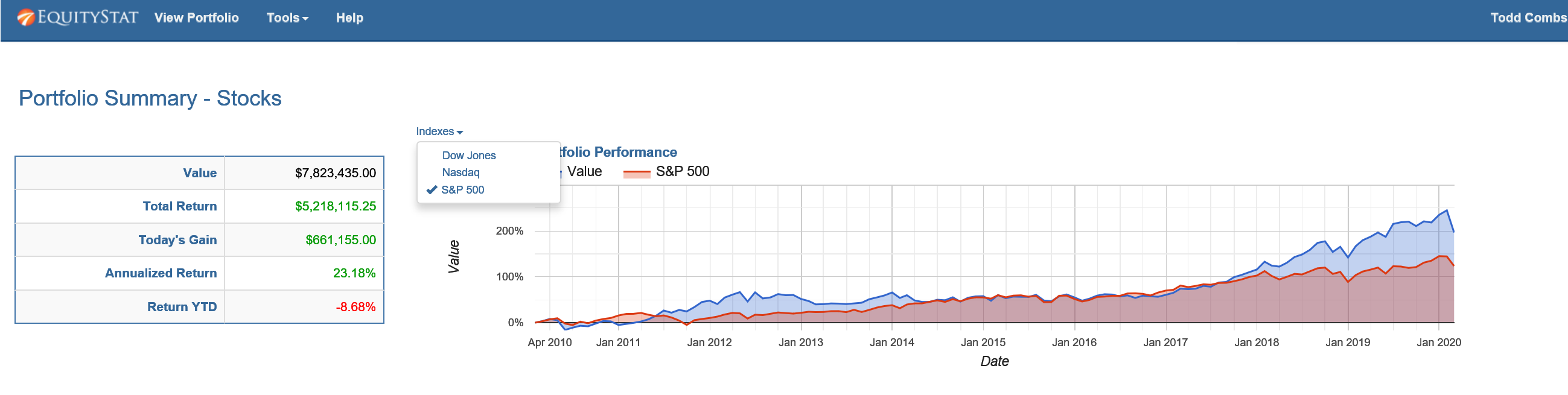
You can also compare your account/portfolio performance to an index. To do this, go to the Portfolio Analysis page by choosing the Tools menu at the top and selecting Analyze Portfolio from the drop down menu. From the Portfolio Analysis page, click the Indexes link above the performance graph and choose the index or indexes you want to compare.

Choose to compare your account/portfolio performance to the Dow Jones index, the Nasdaq index or the S&P 500 index

How to Track Cash Transactions in Your Investment Portfolio

Tracking cash transactions in your investment portfolio gives you a complete picture of your account, not just the shares you hold. Besides your stocks, ETFs, and mutual funds, a portfolio also includes the cash sitting in the account, and now that cash can be tracked directly alongside your investments.

How to Add a Cash Transaction

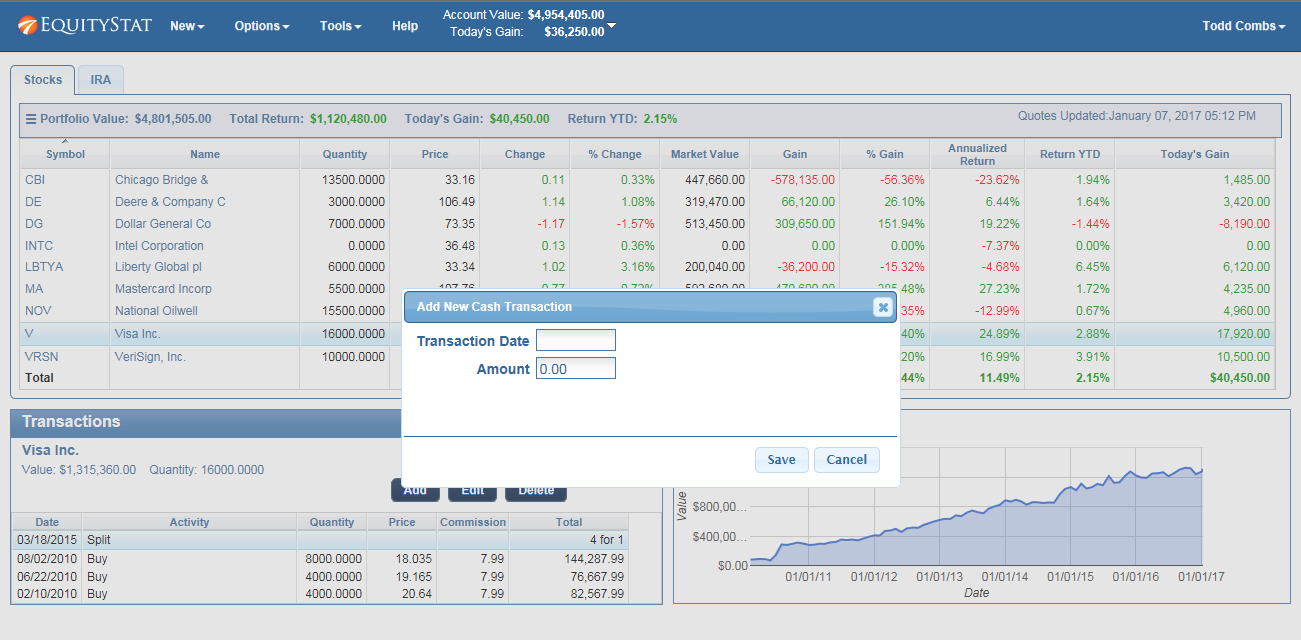
To add a cash transaction, click the New menu and choose New Cash Transaction from the dropdown. In the popup dialog, enter the date of the transaction and the amount, then save it. The transaction is added to your portfolio’s cash balance right away.

Adding a cash transaction to an EquityStat investment portfolio

How Cash Transactions Work with Dividends

To have dividends flow into your cash balance automatically, two settings need to be turned on From there, turn on “Enable Cash Transactions”, and also turn on “Dividend Transactions Deposit Into Cash”. Once both of these preferences are turned on, any dividends from your other investments that are not reinvested will be added to your cash balance automatically. This means you do not have to manually log every dividend payout as a separate cash deposit. If a dividend is paid out rather than reinvested, it flows into your cash total on its own, keeping your overall portfolio value accurate without extra work on your part.

Why Tracking Cash Matters

Cash is often the piece investors forget to account for. A portfolio that only tracks stocks, mutual funds and ETFs can understate your actual holdings, especially if you regularly receive dividends that are not reinvested or if you hold cash between trades. Recording cash transactions closes that gap, so your total portfolio value reflects everything you actually have, not just what is invested in the market at any given moment.

New in EquityStat: Multiple Portfolios, Expanded Performance Metrics, and a Maximize View

Managing investments effectively requires tools that are flexible, intuitive, and powerful enough to handle real-world portfolios. These enhancements to EquityStat’s Portfolio Manager adds three specific improvements: the ability to create multiple portfolios, three new performance metrics (quarterly return, P/E ratio, and dividend yield), and a Maximize Portfolio view that expands your investment list to fill more of the screen. Together, these changes make it easier to organize multiple accounts, analyze performance more deeply, and view your investment data in a cleaner, more streamlined layout.

Whether you’re tracking stocks, mutual funds, ETFs, or retirement accounts, these new features help you stay on top of your financial picture with greater accuracy and efficiency.

Create and Manage Multiple Portfolios with Ease

One of the most significant upgrades is the ability to create multiple portfolios within your EquityStat account. This feature is ideal for investors who want to separate or categorize their holdings across different accounts or investment strategies.

Why Multiple Portfolios Matter
  • Better organization – Keep your brokerage accounts, retirement accounts, and long‑term holdings separate.
  • Clearer insights – Compare performance between strategies (e.g., growth vs. income).
  • Simplified reporting – Generate cleaner summaries for taxes, advisors, or personal tracking.

How to Create a New Portfolio

You can create a new portfolio directly from the New menu by selecting New Portfolio. Once created, each portfolio can be customized with its own set of investments, performance metrics, and display preferences.

New Performance Metrics for Deeper Investment Analysis

To help investors make more informed decisions, EquityStat has added several new performance‑focused data columns:

Newly Added Metrics

  • Quarterly Return – Track short‑term performance trends and identify momentum.
  • P/E Ratio (Price‑to‑Earnings) – Evaluate whether a stock is undervalued or overvalued.
  • Dividend Yield – Quickly see which holdings generate income and how much.

These metrics can be enabled from the Options menu under Change Columns, allowing you to tailor your dashboard to the data that matters most to you.

Maximize Your Portfolio View for Better Visibility

Large portfolios can sometimes require scrolling or navigating between panes to see all your holdings. To solve this, EquityStat now includes a Maximize Portfolio feature that expands your investment list to fill more of your screen.

What Maximize Mode Does

  • Expands the investment section to show more rows at once
  • Moves the transaction section downward for a cleaner layout
  • Reduces the need for scrolling and window adjustments

This is especially useful for investors with extensive holdings or those working on smaller screens.

To activate it, click the three‑line menu icon in the upper‑left corner of your portfolio and select Maximize. You can return to the default pane layout anytime by choosing Restore.

Why These Updates Matter for Investors

These enhancements aren’t just cosmetic, they are designed to improve the way you interact with your financial data:

  • Faster decision‑making thanks to clearer metrics
  • More efficient navigation with customizable portfolios
  • Better organization for multi‑account investors
  • Improved user experience across devices

As the investing landscape becomes more complex, having a flexible and powerful portfolio tracker is essential. EquityStat continues to evolve its tools to support both new and experienced investors.

Have Ideas for Future Features?

EquityStat actively welcomes feedback from its users. If you have suggestions for new tools, metrics, or improvements, the team encourages you to reach out and share your ideas. User input plays a key role in shaping future updates.

Contact us and let us know.


Creating multiple portfolios – New Feature

We recently added a new feature to your EquityStat portfolio manager. You can now create multiple portfolios for your account. Having multiple portfolios gives you the ability to group and separate your investments. For example, you can have a portfolio for your individual stocks, a portfolio for your mutual funds and a portfolio for your 401K.

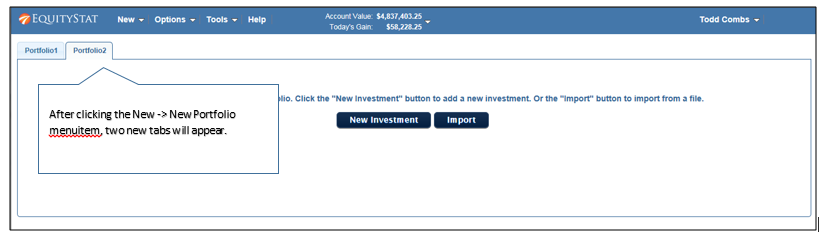
To add a new portfolio click the New menu and then chose the New Portfolio menuitem from the dropdown menu.

Create a New EquityStat Portfolio
How to create a new portfolio in EquityStat

You will then see two new tabs. A tab for your current portfolio and a tab for your new portfolio.

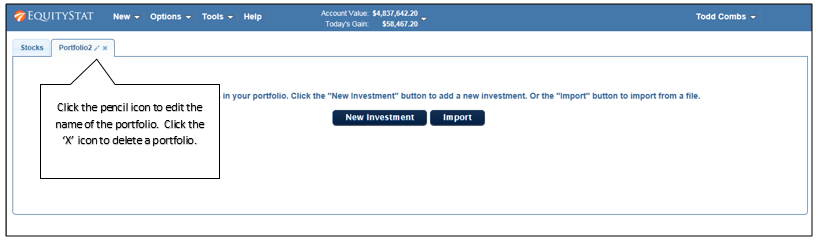
Change Portfolio Name EquityStat
How to change the portfolio name

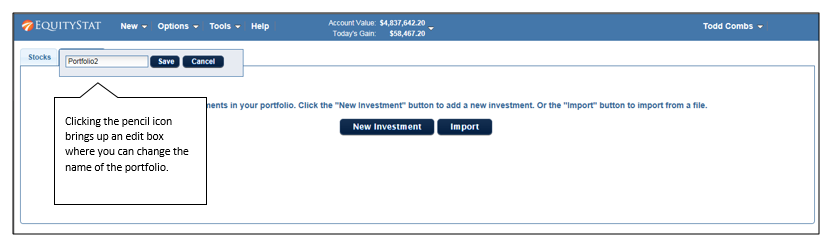
To edit the name of your portfolio click the pencil icon, which will display an edit box.

Edit Portfolio Name
How to edit a portfolio name.

Next type over the current portfolio name with the new portfolio name and click the Save button.

View portfolio investments
View a specific portfolio

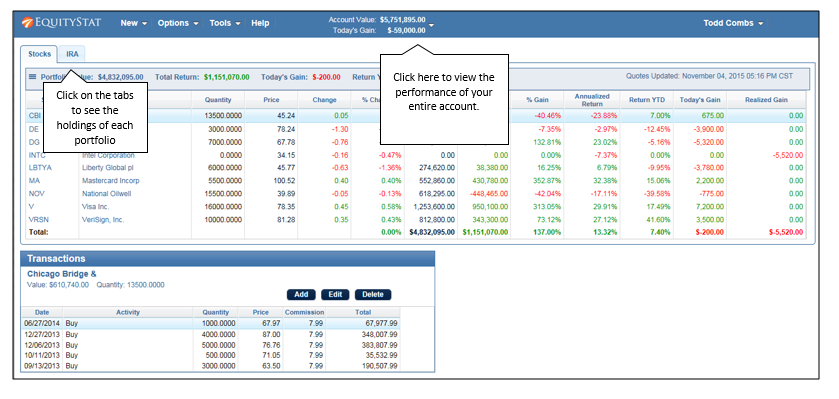
To view the investments of each portfolio click on the portfolio’s tab. From here you can also add new investments to the portfolio as well as edit investments.

To view the view the performance all your entire account (all portfolios) click the Account Value box at the top.

To delete a portfolio first delete all the investments in the portfolio. Once the portfolio is empty, click the ‘X’ icon in the portfolio tab.