‘Tis the Season For Dividends and Capital Gains

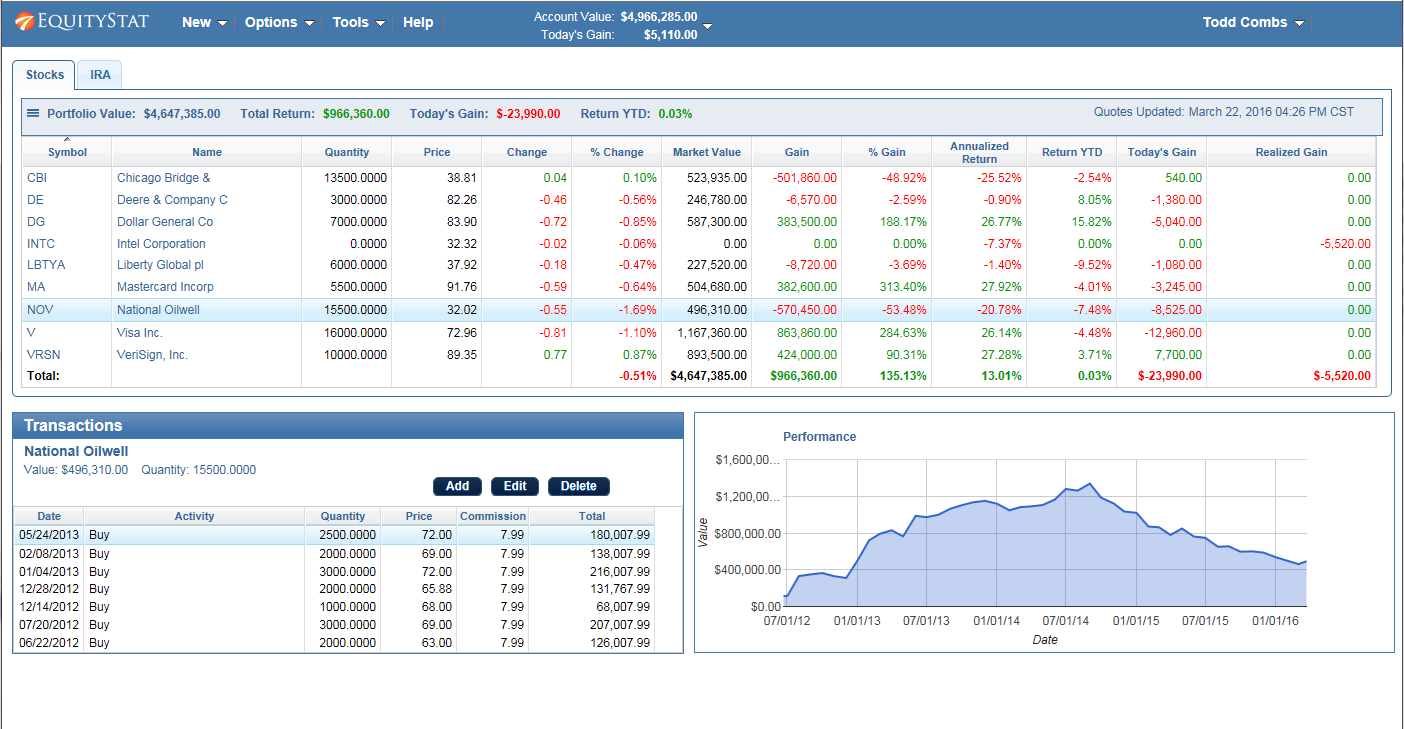
As year-end dividends and capital gains distributions arrive, you can easily track them using EquityStat’s portfolio manager.

With EquityStat’s powerful stock portfolio manager, handling these critical financial events across all your brokerage accounts is seamless and intuitive.

How to Record Distributions

Add dividend, short-term capital gains and long-term capital gains to your EquityStat stock portfolio.
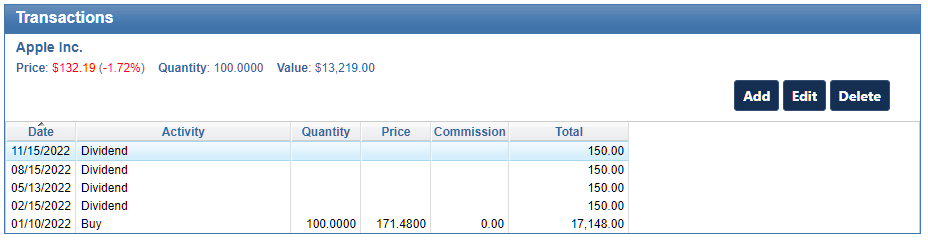
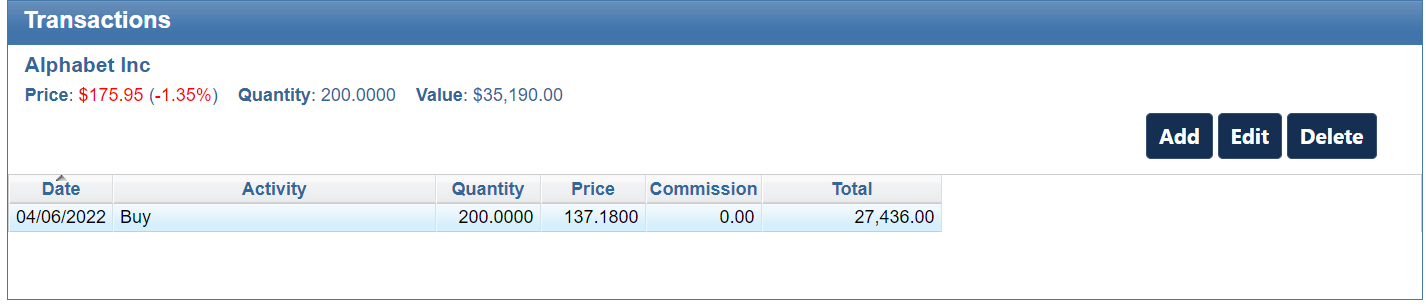
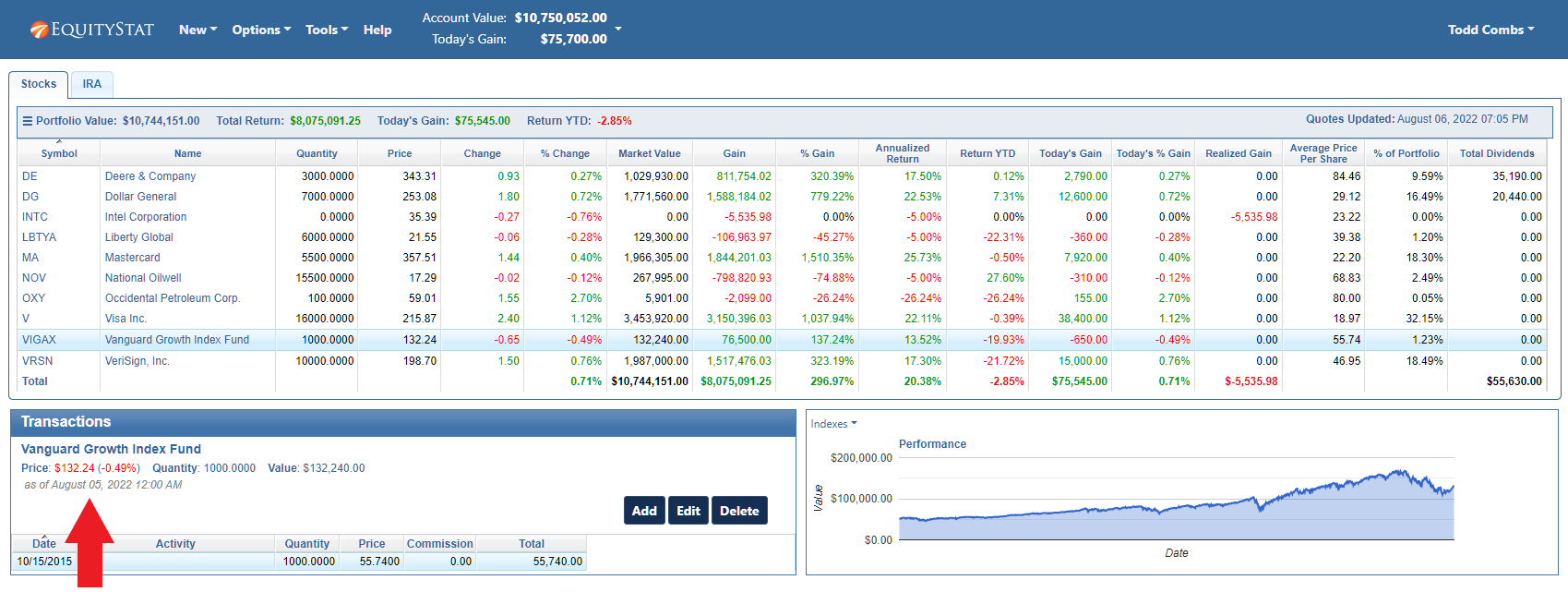
Transaction Panel Example

1. Select the investment from your portfolio list.
2. In the Transaction panel, click the Add button
3. Use the Activity dropdown to select the distribution type:
a. Cash Payments – Select Dividend, Short-Term Capital Gain, or Long-Term Capital Gain
b. Reinvestements – Select the “Re-Invested” version of these options if the funds were used to purchase more shares.
4. Enter the distribution details and click Add.

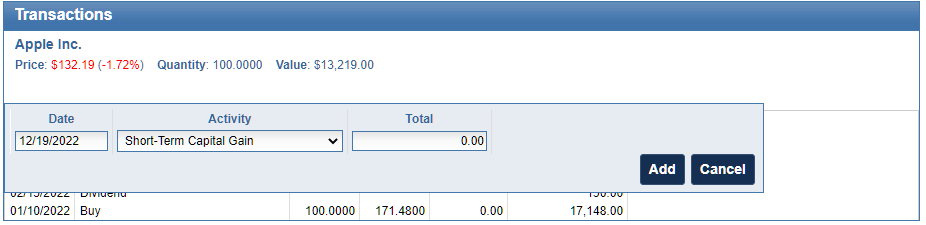
Add dividend, short-term capital gains and long-term capital gains to your EquityStat stock portfolio.
Example of entering a short-term capital gain.

How to View Your Dividend Totals
Knowledge is power. EquityStat helps you get a complete picture of dividends:

  • Customize Your View: Instantly see the Total Dividends (including capital gains) paid by each investment. Simply access the Options menu at the top and select Change Columns to add this key metric to your main portfolio display.
  • Analyze Your Entire Account: Get big-picture insights on your total income over time. The Analyze Portfolio page, found under the Tools menu, provides comprehensive, graphical performance metrics for your entire account or specific portfolios, helping you make better-informed decisions.

2024 8949 IRS Tax Form Released

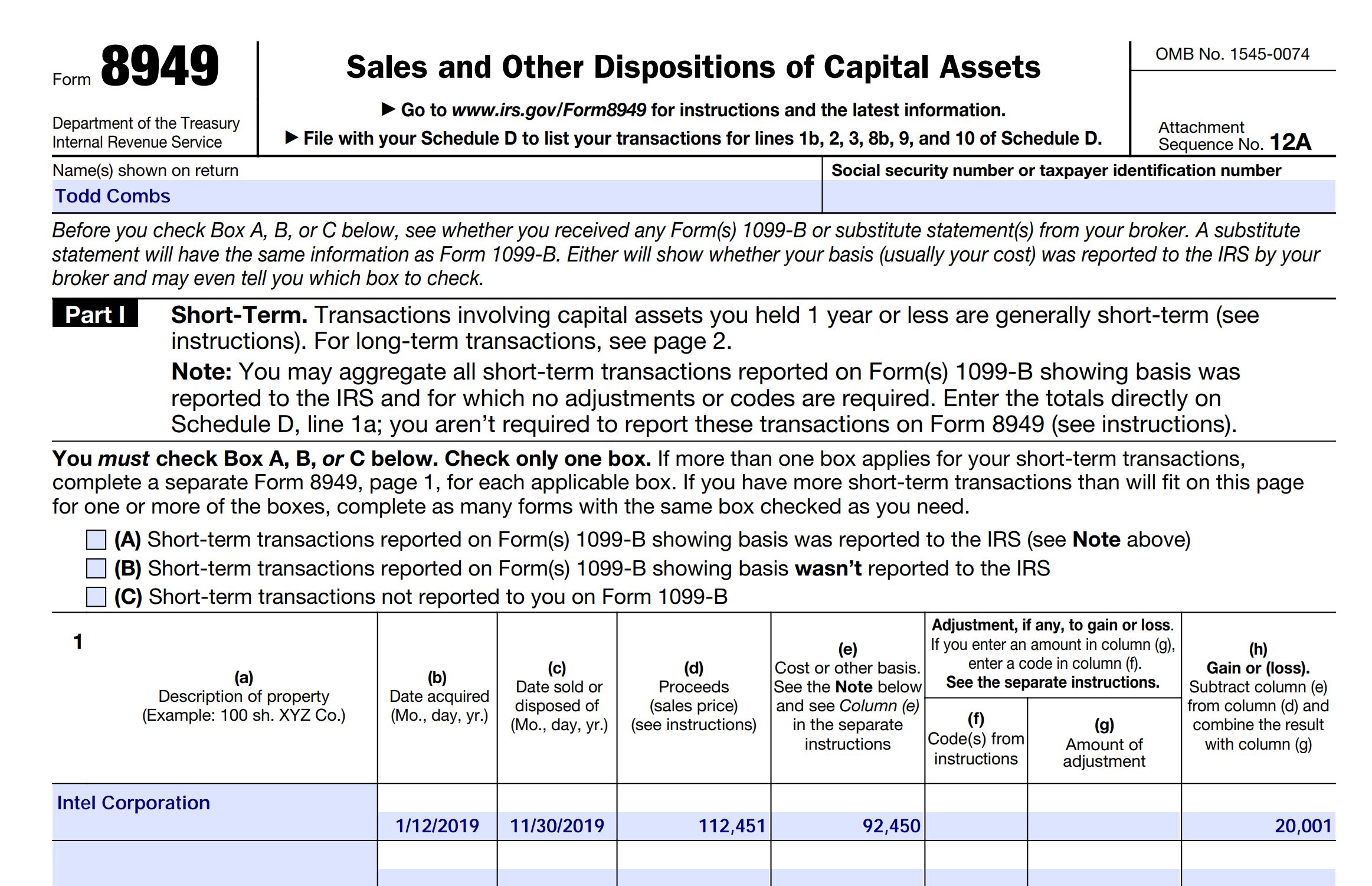
Did you sell any of your investments in 2024? If so, determining how much tax you owe on these sales requires calculating both short-term and long-term gains or losses.

EquityStat simplifies this process by allowing you to generate IRS Form 8949, which calculates these values for you. Follow these steps to create the form:

  1. Open the Tools menu and select Generate Form 8949.
  2. On the Generate Form 8949 page, click the Generate button.

Your short-term and long-term gains/losses on any investment sales will then be calculated, and a pdf format of IRS Form 8949 will be generated. This form has a short-term gains/losses section and long-term gains/losses section, which is what you need when filing your taxes.

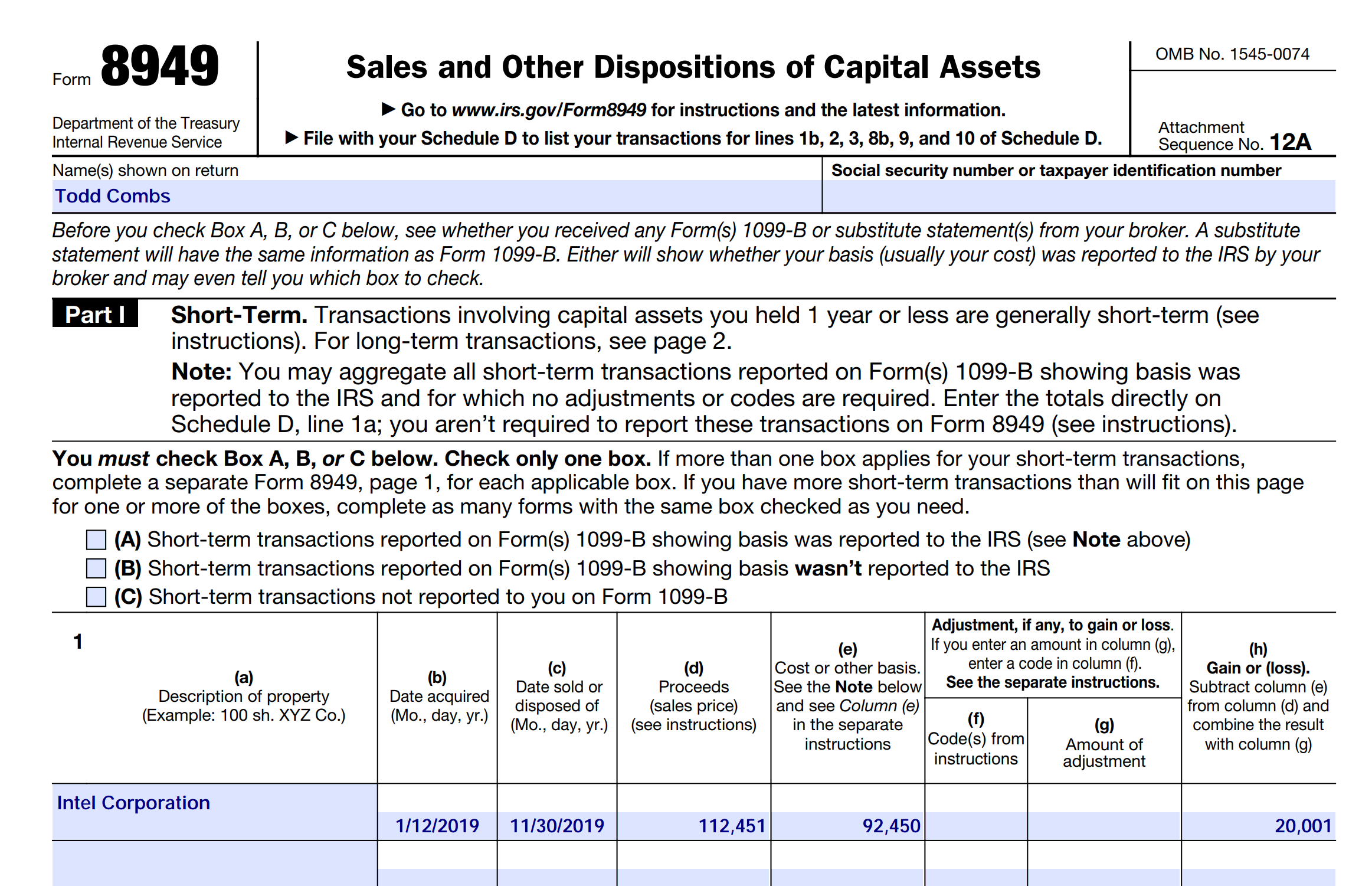
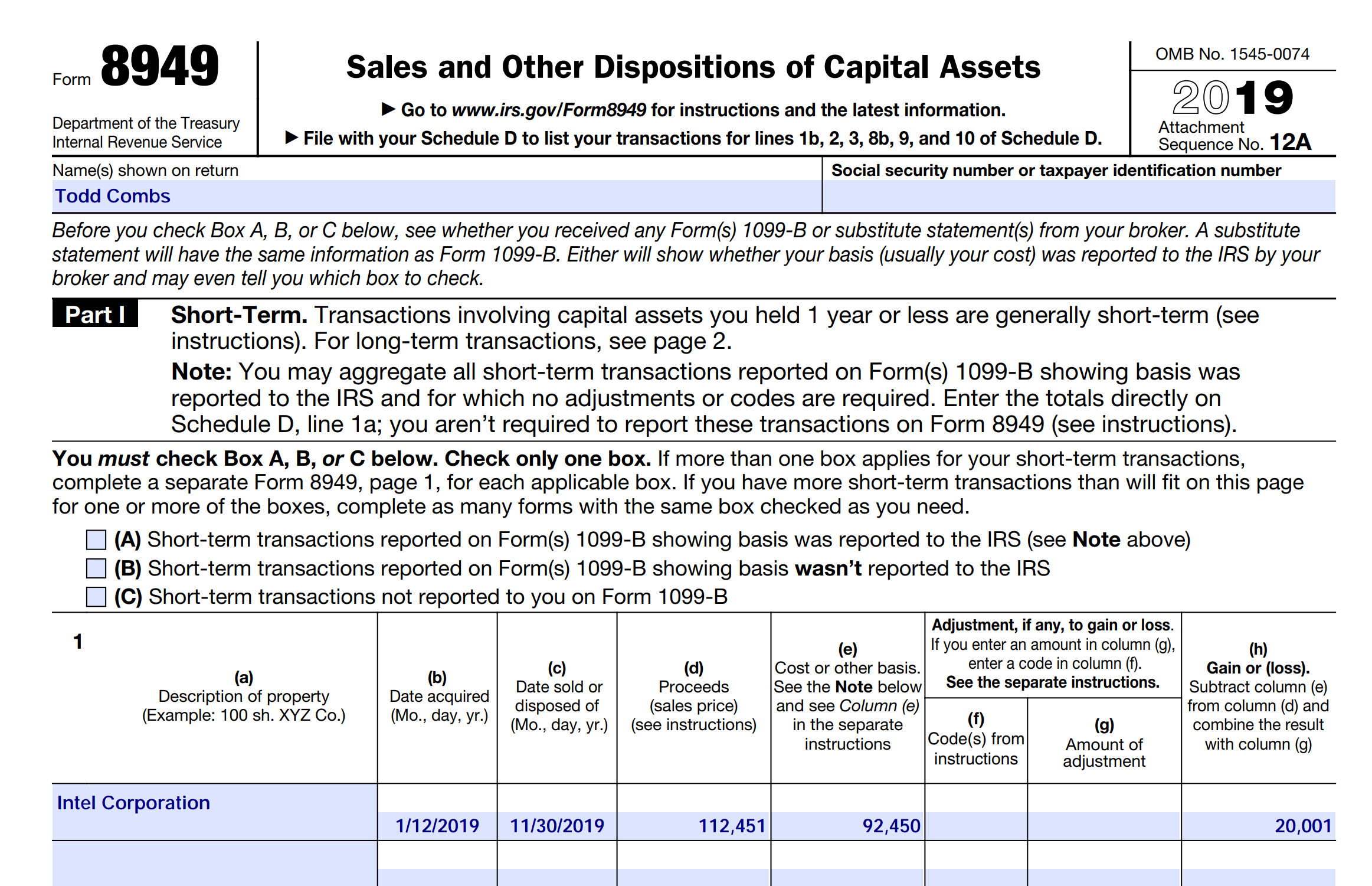
Here is an example of Form 8949.

IRS Form 8949 Example

Once this pdf form is generated, you can then email this pdf file to your tax preparer or print a copy of it. With this IRS form, your tax preparer can then calculate your taxes on your investment sales.

Best and Worst Stocks of 2024

The stock market ended 2024 near record highs. The Nasdaq Composite rallied by 30%, while the S&P 500 climbed over 24%. The blue-chip Dow Jones rose a more modest 13%. The S&P 500 clinched 57 records, making it one of the top five years for most all-time highs recorded by the benchmark index.

Technology and Communications Services were the standout sectors, thanks to the artificial intelligence boom. Big Tech stocks, including Nvidia, Tesla, Alphabet, Amazon, Apple, Microsoft, and Meta, posted significant gains. Nvidia, in particular, rallied more than 175%

Here are the best performing stocks of 2024.

Best performing stocks of 2024

Here are the worst performing stocks of 2024.

Worst performing stocks of 2024

You can read more about the best and worst performing stocks here and here.

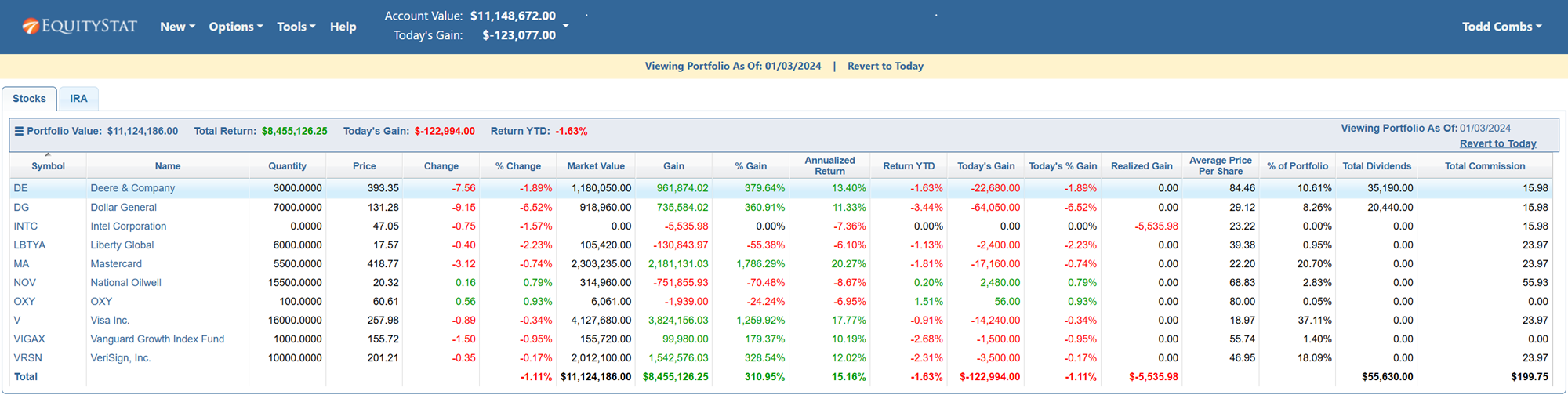
Note, if you want to share your portfolio in image format like you see above, go to here.

How to Import Your Yahoo Finance Portfolio Into EquityStat

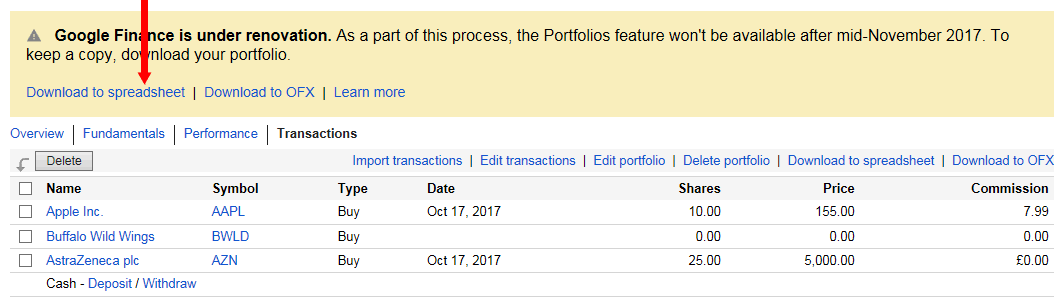
If you are looking for an alternative to Yahoo Finance Portfolio, you can easily import your Yahoo Finance Portfolio into EquityStat.  Recently, we enhanced our import feature to work with Yahoo portfolios.

To import your Yahoo portfolio into EquityStat, just follow these easy steps.

Step #1
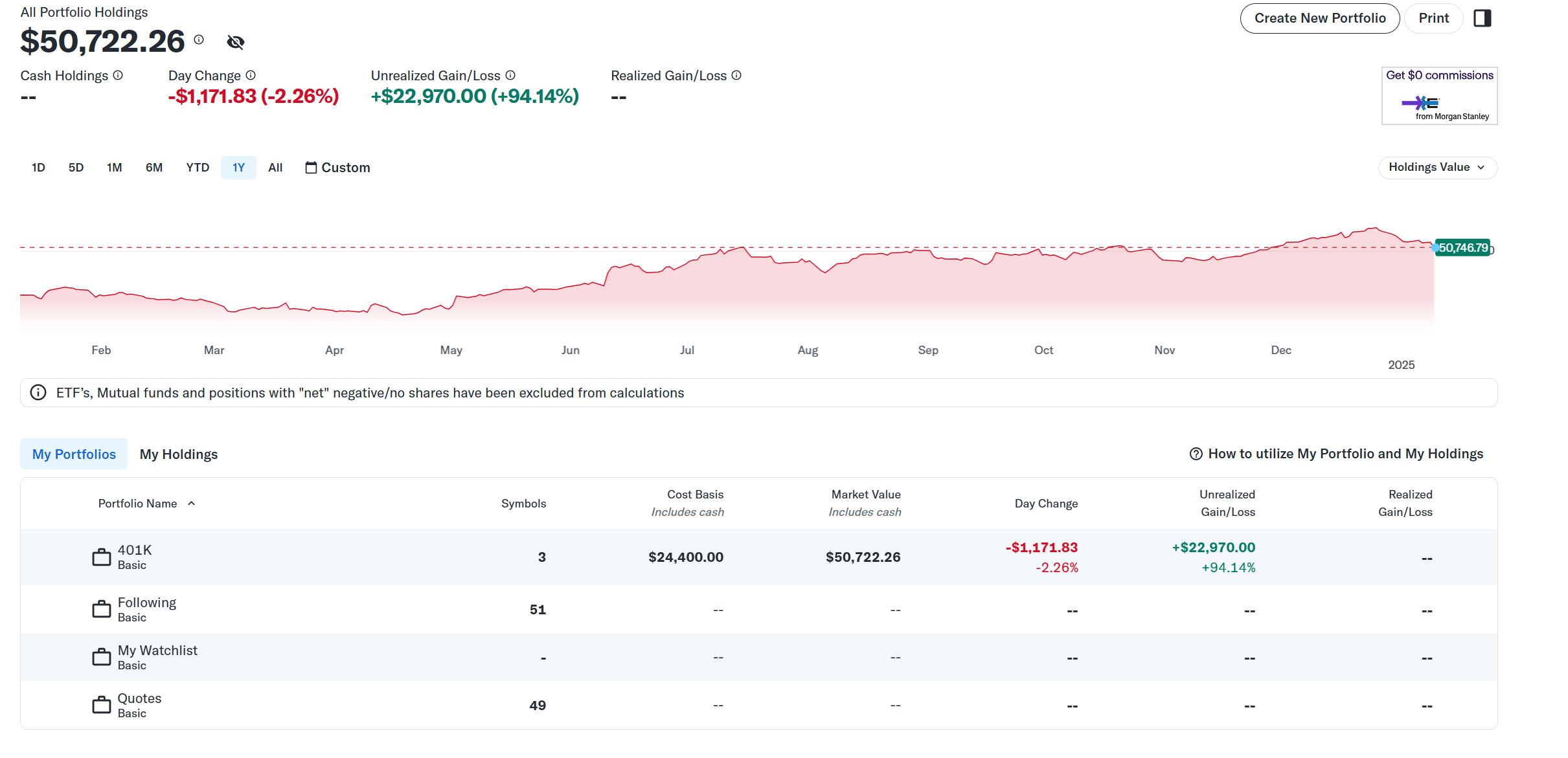
Login to your Yahoo Finance Portfolio and click on a portfolio with holdings.

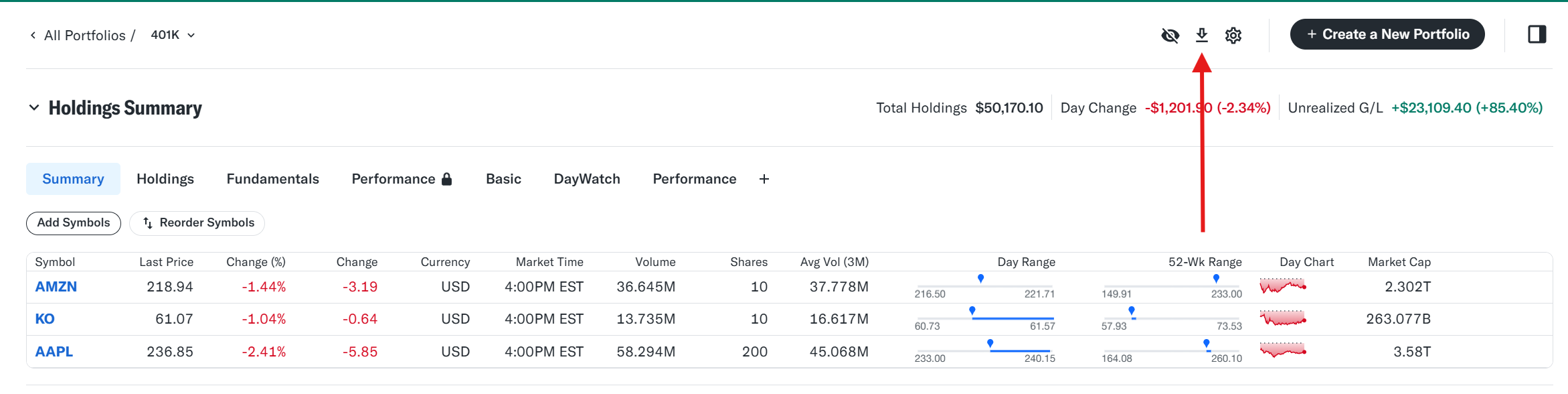
Yahoo Finance Portfolio example

Step #2
On page that displays your holdings, click the down arrow icon in the upper right hand corner.

You will then be prompted to either Print the portfolio or Save the portfolio as a CSV. Choose the Save option. Your CSV file will then be saved to your Downloads folder on your computer.

Step #3
Login to your EquityStat account and click the New menu at the top and choose Import Transactions from the drop down menu. Choose the portfolio you want to import into. Next, choose the file you saved in Step #2.

If you have any questions, contact our support by clicking here.


Kiplinger Magazine Names EquityStat A Great Tool For DIY Investors

Kiplinger Magazine has recently named EquityStat one of five great tools for DIY investors. Kiplinger consulted with veteran investors and veteran Wall Street watchers to come up with their list of tools.

Kiplinger Magazine Names EquityStat A Great Tool For DIY Investors

Kiplinger Magazine liked that with EquityStat you could quickly build a stock tracking portfolio. They also liked the number of performance metrics you could use to track your stocks as well as the clean interface.

You can read the article here.

https://www.kiplinger.com/investing/great-tools-for-diy-stock-investors
Alphabet/Google Dividend

On June 17, 2024, Alphabet (GOOGL/GOOG) will pay a $0.20 dividend per share. This is the first dividend paid by Alphabet in the history of the company.
With EquityStat’s stock portfolio manager, it is easy to add and track your dividends.

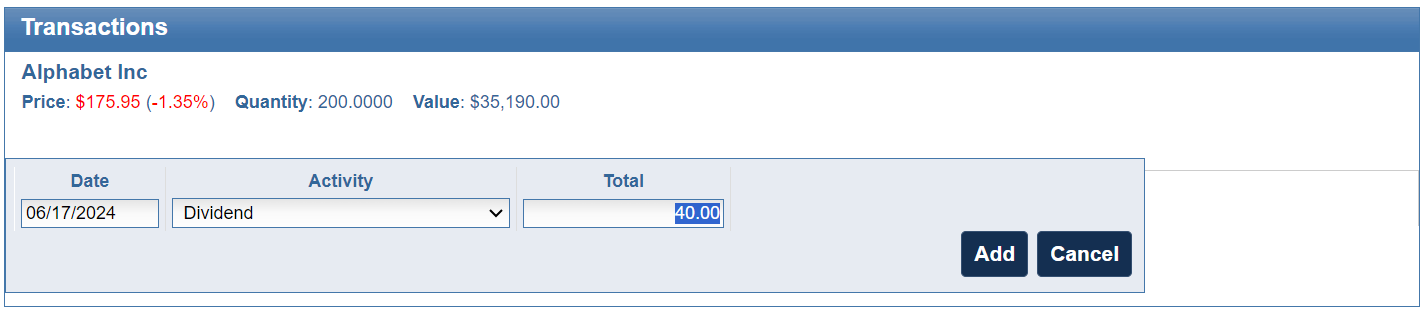
To add a dividend to your Alphabet investment, first select this investment in your investment panel. Then in the transactions panel, click the Add button to add a new transaction.

Add dividends to your EquityStat portfolio.
Alphabet dividend transactions example

Next, select either Dividend or Re-invested Dividend from the Activity drop down. If you didn’t re-invest the dividend, just enter the dividend amount in the Total field.

Add Alphabet dividend to your EquityStat portfolio.
Add Alphabet dividend transaction example

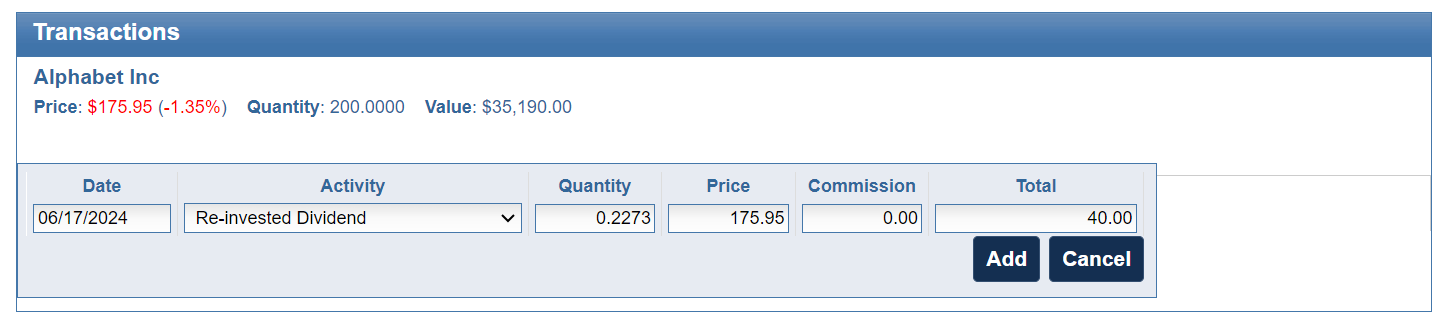
If you re-invested your Alphabet dividend, choose Re-invested Dividend from the Activity drop down. Enter the number of shares you purchased in the Quantity field and enter the price you paid for the shares.

Add a re-invested Alphabet dividend.
Add a Re-invested Dividend example

Once you have entered your dividend information, click the Add button to save the dividend transaction to your portfolio.

You can follow many of these same steps if you have a different investment that pays a dividend.

NVIDIA Stock Split in EquityStat

Nvidia’s (NVDA) stock is set to split on June 7th, 2024. It is a 10 for 1 stock split. So, for each share you own before the split, you get 10 shares.

If you owned Nvidia (NVDA) stock before the split and you are tracking this stock in your EquityStat portfolio, how do you record the split?

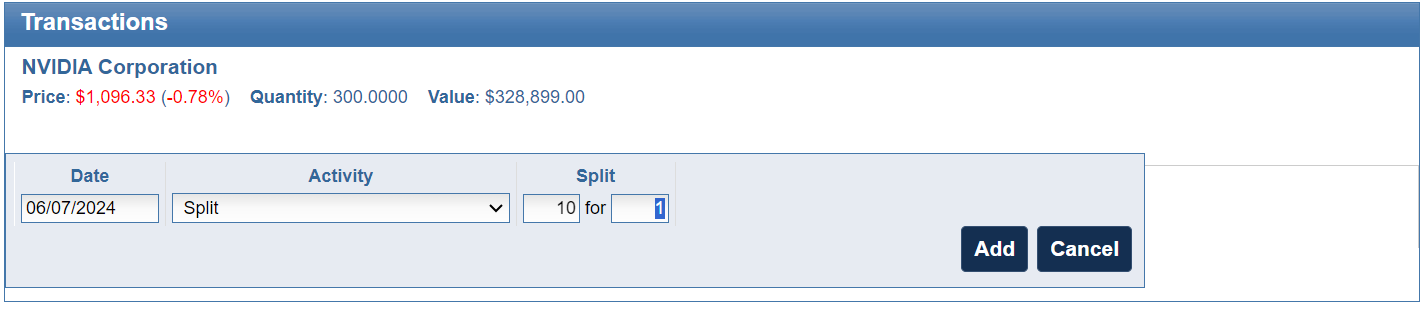
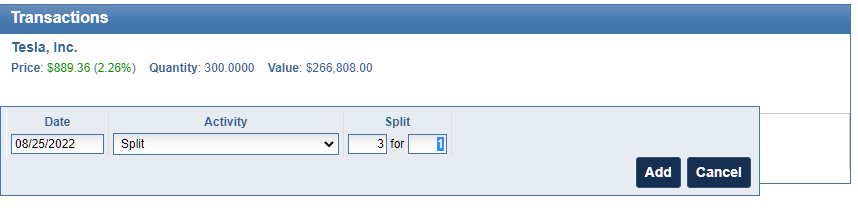
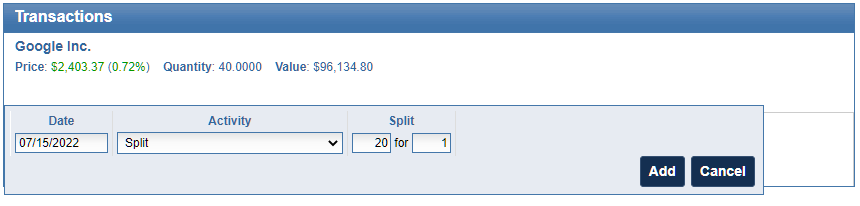
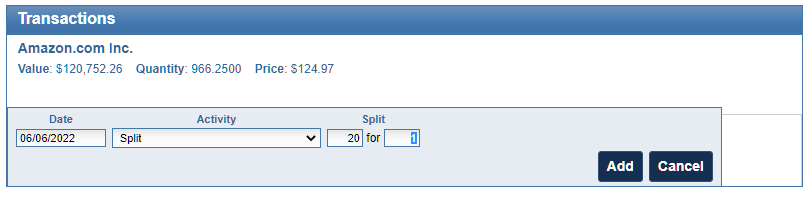
First, select the Nvidia stock in your investment panel. Next, in the transaction panel, click the Add button to add a new transaction. In the Activity drop down, choose a “Split” transaction. Enter how many shares were split, in this case it is a 10 for 1 split, and click the Add button to save the transaction.

EquityStat split Nvidia stock.
Nvidia stock split transaction

When the split transaction is saved, each transaction will be adjusted to reflect this split. The number of shares will be increased ten times and the price will be divided by ten.

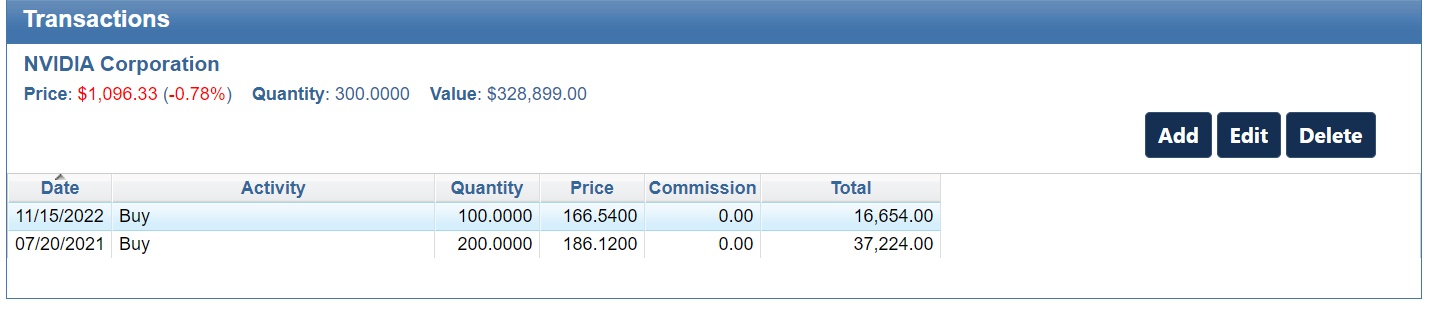
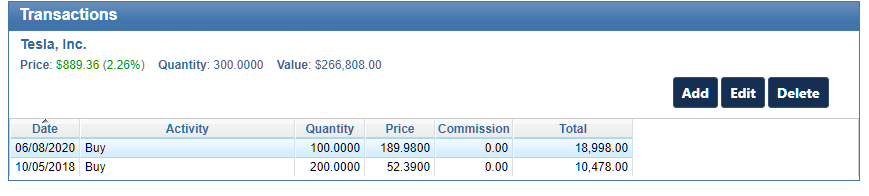
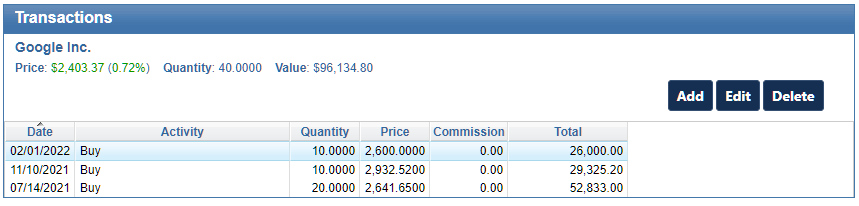
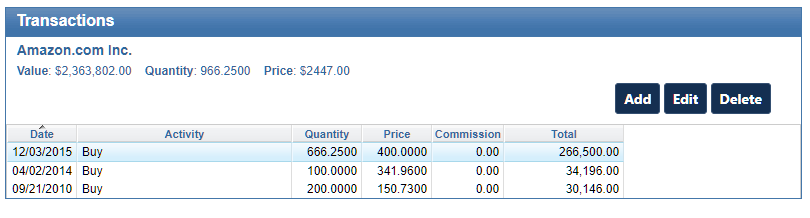
For example, if you had the following transactions before the split.

Nvidia transactions before the split in EquityStat stock portfolio tracker.
Nvidia transactions before the split.

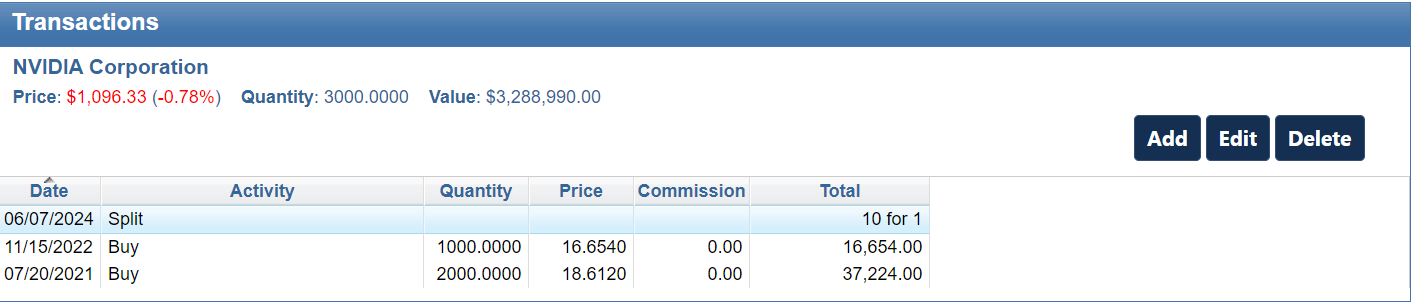
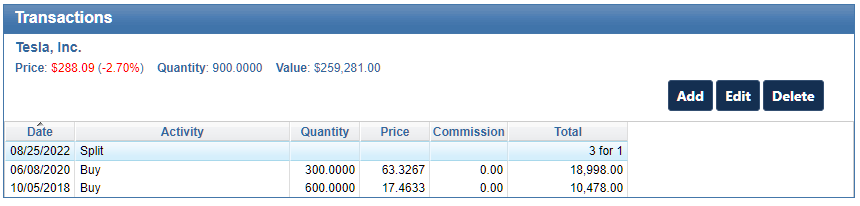
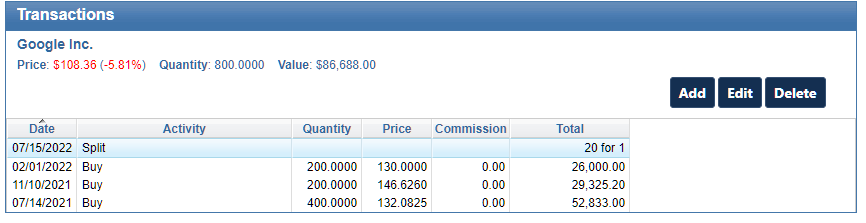
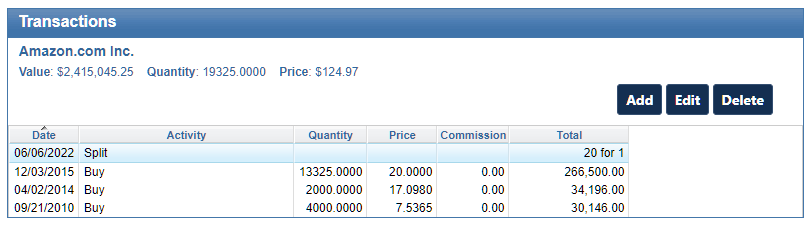
After the split your transactions will look like this.

Nvidia transactions after the split in EquityStat stock portfolio tracker.
Nvidia after the split

Notice that before the split there were two buy transactions. After the split, the number of shares has increased 10 times and the price has been reduced by a factor of ten. For example, the initial buy on 07/21/2021 was for a quantity of 200 shares. After the split, the purchased quantity is 2000 shares. The price the shares were bought on 07/21/2021 was $186.12. After the split, the price paid was $18.61. These adjustments are all automatically done when you enter the split transaction.

If you have other stocks that have split, you can use the same steps to record your split. Just make sure that you enter the correct split information.

New Mobile Feature – Investment Symbol Search

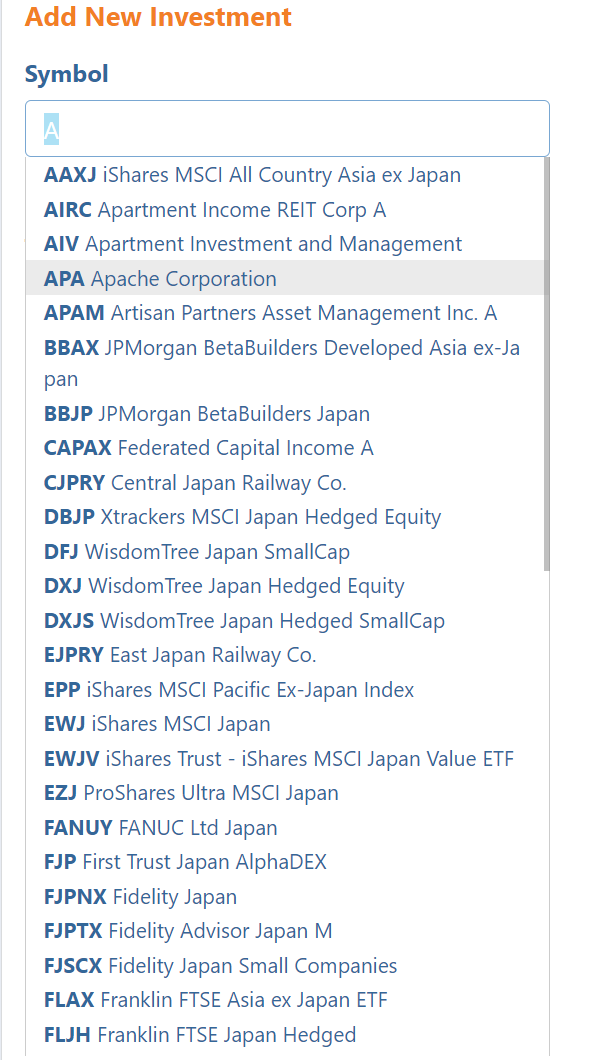
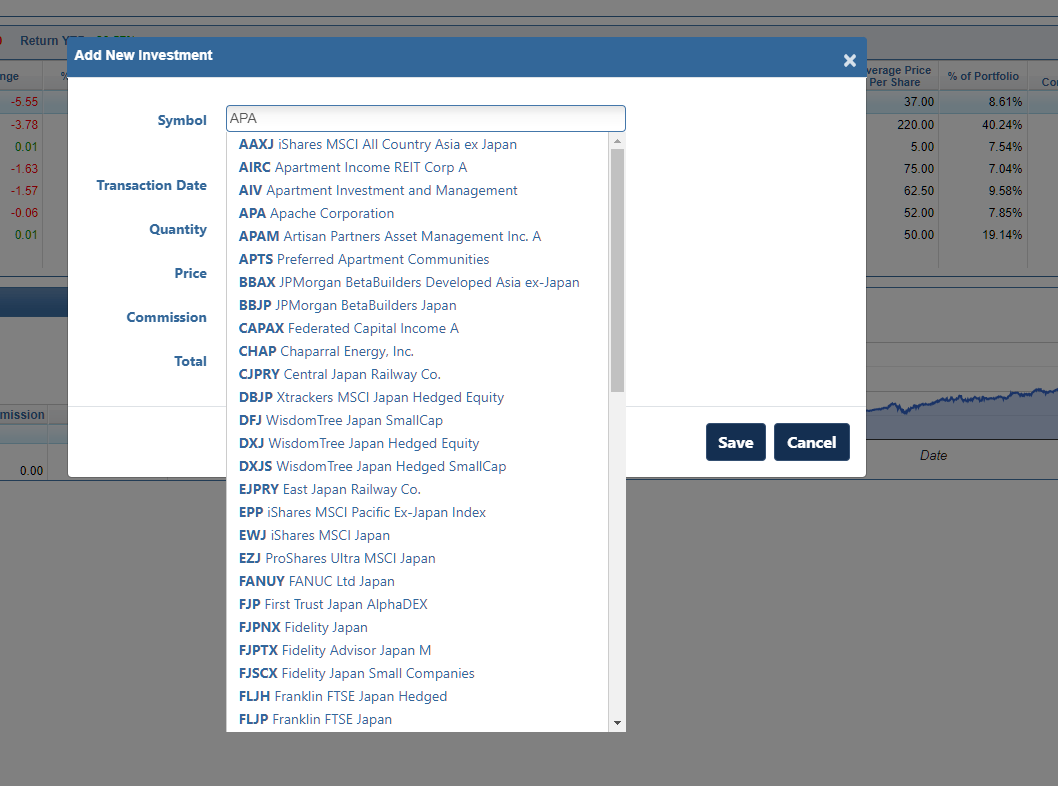
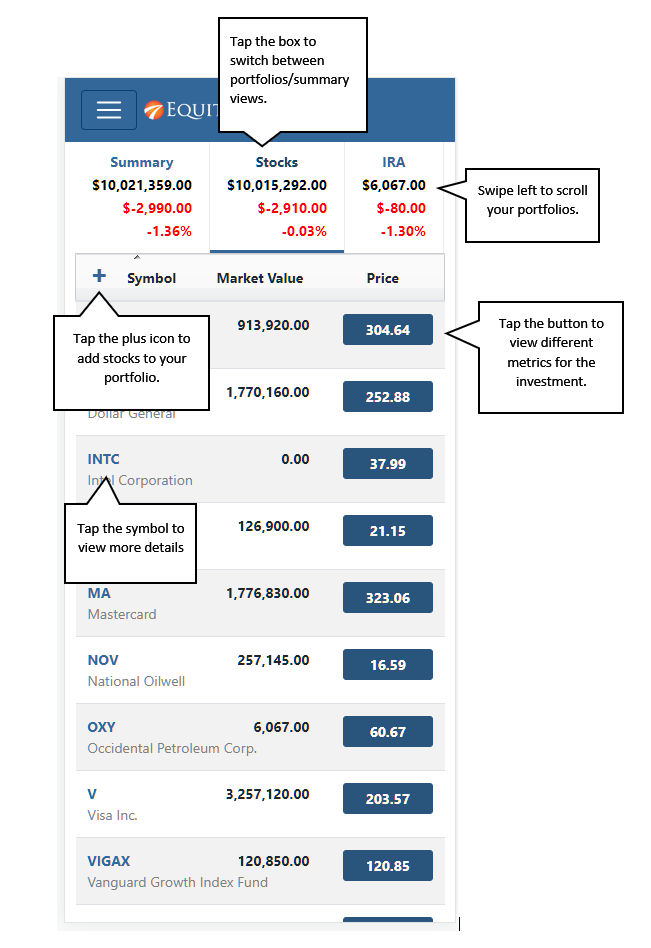
We have recently added a new feature to the mobile device user interface. When adding a new investment to your portfolio, you can easily lookup the investment to add. In the past when you added an investment to your portfolio, you needed to know the investment symbol. Now, in the Symbol field you can start typing, which will display all symbols and investment names that matches the text as you type. With this new feature the mobile phone user interface works similar to the desktop user interface.

Lookup a symbol when adding a new investment to your EquityStat stock portfolio on a mobile device.
Example of the new symbol lookup when adding a new investment on a mobile device.

For example, as seen in the screen shot above, if you start typing “A” in the symbol field you will get a list of symbols and investments that match this text. This will make finding your investment symbol much easier.

To choose a symbol, select the line that has the investment you want to add to your portfolio.

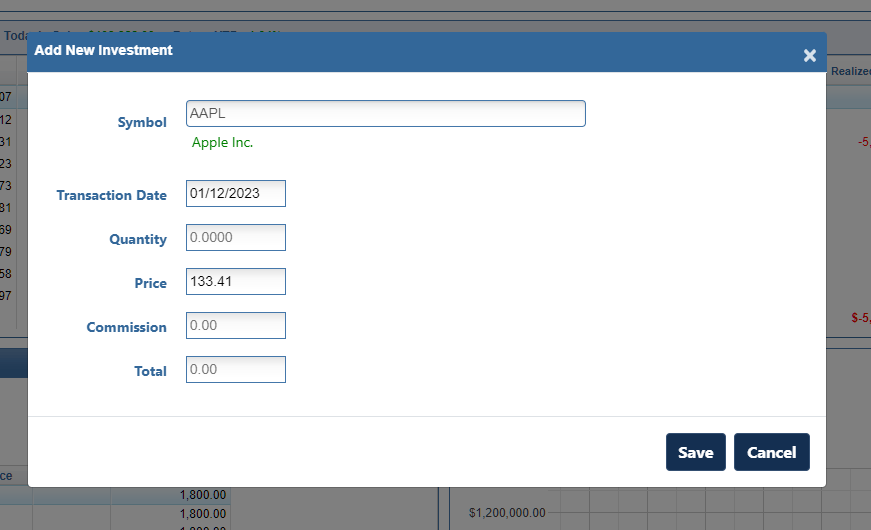
If you don’t find your symbol listed, just type in the symbol and tab to the next field. The symbol will then be checked to make sure it is a valid symbol. If it is not a valid symbol for an investment, you will get an “Invalid Symbol” message.

2023 8949 IRS Tax Form Released

We just released the 2023 8949 IRS tax form.  IRS Form 8949 is a form that reports your short and long term gains/losses for any sold investments in the tax year.  If you had any investment sales in 2023, this form is a great way to easily calculate your losses/gains from this investment sale.

To generate Form 8949 click the Tools menu and choose the “Generate Form 8949” menuitem. On the “Generate Form 8949” page, click the Generate button. Your short-term and long-term gains/losses on any investment sales will then be calculated. Then a pdf format of IRS Form 8949 will be generated. This form has a short-term gains/losses section and long-term gains/losses section, which is what you need when filing your taxes.

Calculate your gains/losses on any stock sale with EquityStat and generate IRS Form 8949.
IRS Form 8949 Example

Once this pdf form is generated, you can then send this pdf file to your tax preparer or print a copy of it.

New Feature – Share Your Portfolio

Have you ever wanted to display what stocks you own on a webpage? Or maybe you want to show what stocks you recommend on an online investment forum?  What about sharing your stock portfolio on X, Facebook or email?

With our new Share Portfolio feature you can do all of this.  

To get started sharing your portfolio, click the Tools menu at the top and choose Share Portfolio from the drop down menu.

On the Share Portfolio page, choose the portfolio you want to share and click the Generate button. An image of your portfolio will then be generated. You can then link to this image on a website or social media post. You can also download the image and send the image in an email or also use the image file in a social media post.

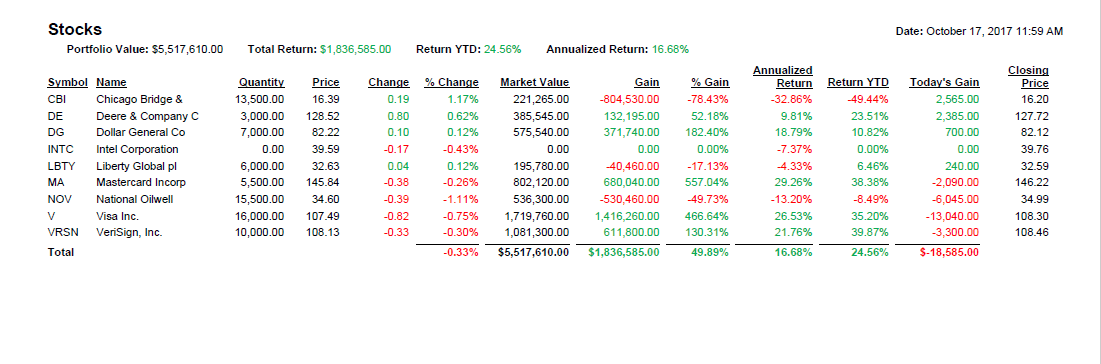
For example, here is an image of a portfolio for Berkshire Hathaway’s top stocks.

If you link to an image, the image will display the most recent prices for the stocks in your portfolio. If you share the image file, the prices will be the current price when the image was generated.

You can also choose what columns to display in the image by clicking the Select Columns link and then choosing the columns you want to display.