Explore Your Past Portfolio Performance with EquityStat’s “View On Date” Feature

Investing is not just about tracking today’s numbers—it’s about understanding your portfolio’s journey over time. That’s why EquityStat, your all-in-one stock portfolio tracker, is excited to introduce a powerful new feature: View On Date. Now, you can look back at your holdings and portfolio performance on any past date, giving you deeper insight into your investment strategy.

Introducing “View On Date”

The View On Date feature allows you to examine your portfolio exactly as it appeared on a specific past date. When you select a past date:

  • Only the investments you held on that date will be displayed.
  • Performance metrics are calculated using the closing prices from that date, giving you an accurate snapshot of your historical portfolio performance.

Whether you’re reviewing historical performance, analyzing past trades, or comparing growth over time, this tool gives you precise insight into your investment history.

How to Use “View On Date”

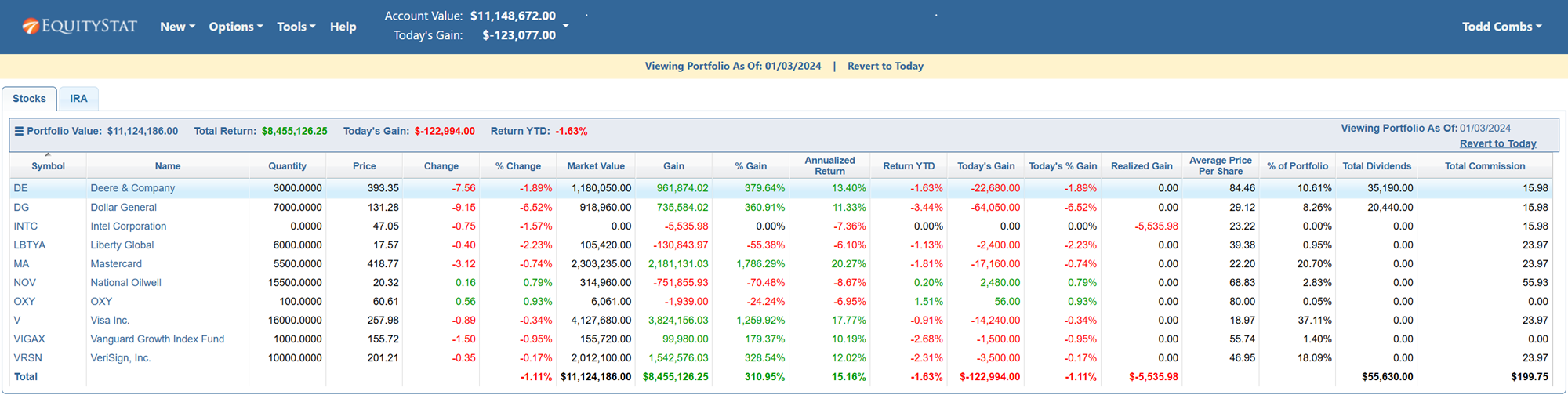
View your EquityStat stock portfolio on a past date.
  1. Via the Options Menu:
    • Click the Options menu at the top of your portfolio dashboard.
    • Select View On Date from the dropdown.
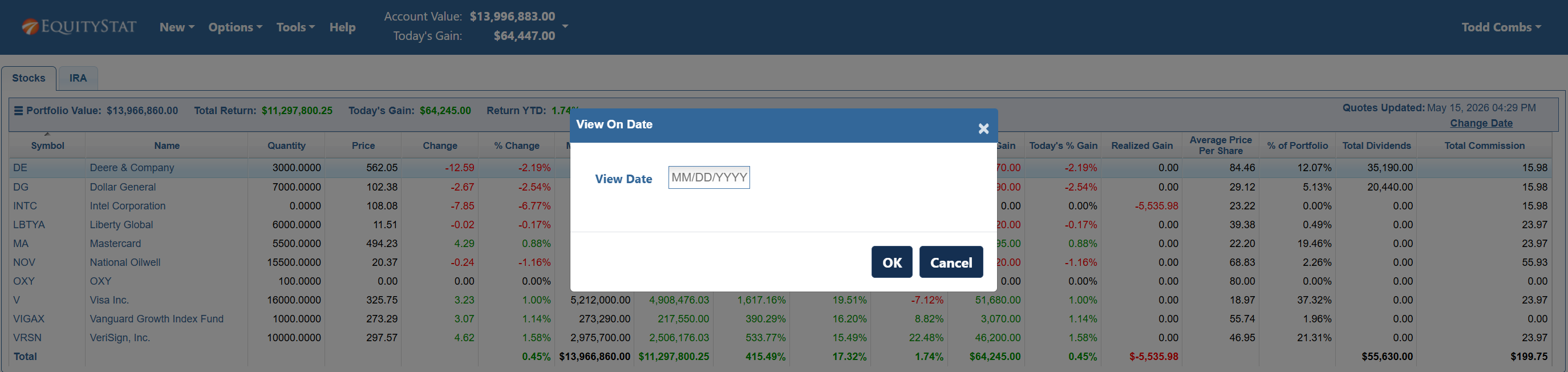
    • Enter the past date you want to review in the dialog box.

  2. Using the Change Date Link:
    • Underneath the “Quotes Updated” date, click Change Date to select a past date.

  3. Portfolio Analysis for Past Dates:
    • In the upper right-hand corner of your portfolio dashboard, click the View On Date link to access historical portfolio analysis.

Once you’re viewing your portfolio on a past date, a banner message at the top of the page will show the date you’re analyzing. To return to your current holdings, simply click Revert To Today.

View your EquityStat stock portfolio on a past date.

Why Investors Will Love This Feature

  • Historical Insights: Understand how your portfolio has performed over weeks, months, or even years.
  • Performance Analysis: Evaluate the impact of past decisions to refine your investment strategy.
  • Simplified Tracking: No more manual tracking or spreadsheets—see past performance directly in EquityStat.

This feature makes EquityStat not just a real-time portfolio tracker, but a historical analysis tool that empowers investors to make smarter decisions.

Start Exploring Your Portfolio History Today

With EquityStat’s View On Date feature, you have complete control over your portfolio insights—past, present, and future. Stay informed, track your progress, and make confident investment decisions all from a single platform.

‘Tis the Season For Dividends and Capital Gains

As year-end dividends and capital gains distributions arrive, you can easily track them using EquityStat’s portfolio manager.

With EquityStat’s powerful stock portfolio manager, handling these critical financial events across all your brokerage accounts is seamless and intuitive.

How to Record Distributions

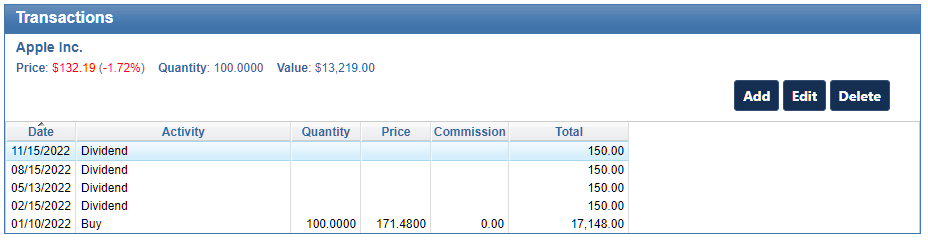
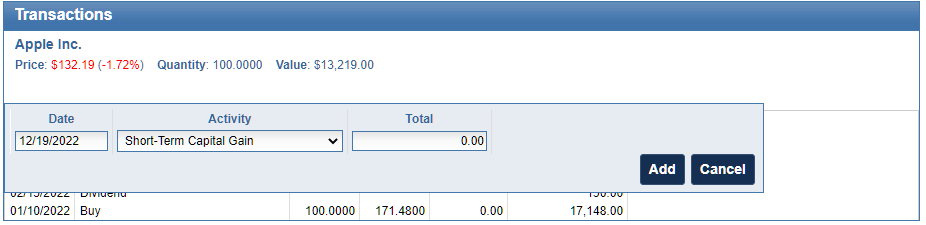
Add dividend, short-term capital gains and long-term capital gains to your EquityStat stock portfolio.
Transaction Panel Example

1. Select the investment from your portfolio list.
2. In the Transaction panel, click the Add button
3. Use the Activity dropdown to select the distribution type:
a. Cash Payments – Select Dividend, Short-Term Capital Gain, or Long-Term Capital Gain
b. Reinvestements – Select the “Re-Invested” version of these options if the funds were used to purchase more shares.
4. Enter the distribution details and click Add.

Add dividend, short-term capital gains and long-term capital gains to your EquityStat stock portfolio.
Example of entering a short-term capital gain.

How to View Your Dividend Totals
Knowledge is power. EquityStat helps you get a complete picture of dividends:

  • Customize Your View: Instantly see the Total Dividends (including capital gains) paid by each investment. Simply access the Options menu at the top and select Change Columns to add this key metric to your main portfolio display.
  • Analyze Your Entire Account: Get big-picture insights on your total income over time. The Analyze Portfolio page, found under the Tools menu, provides comprehensive, graphical performance metrics for your entire account or specific portfolios, helping you make better-informed decisions.

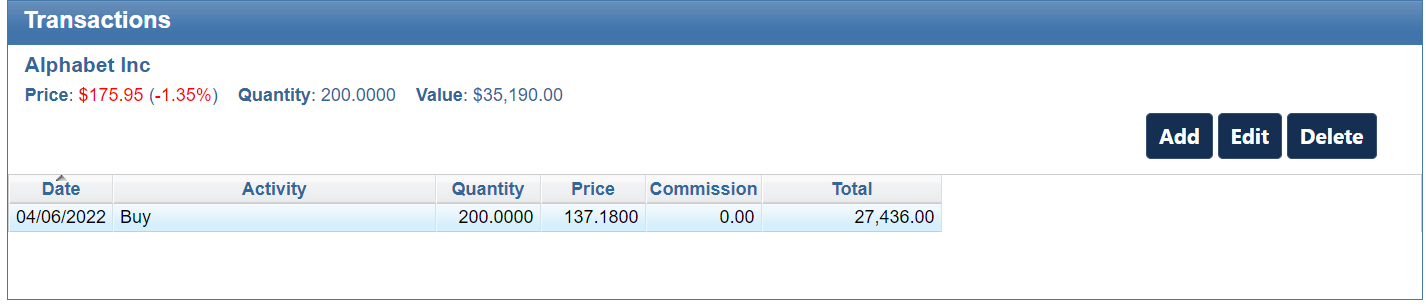
Alphabet/Google Dividend

On June 17, 2024, Alphabet (GOOGL/GOOG) will pay a $0.20 dividend per share. This is the first dividend paid by Alphabet in the history of the company.

With EquityStat’s stock portfolio manager, it is easy to add and track your dividends.

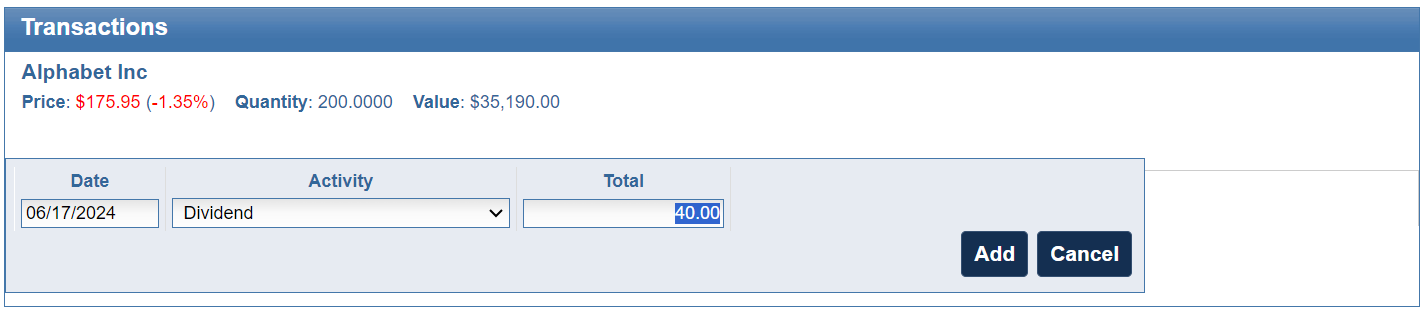
To add a dividend to your Alphabet investment, first select this investment in your investment panel. Then in the transactions panel, click the Add button to add a new transaction.

Add dividends to your EquityStat portfolio.
Alphabet dividend transactions example

Next, select either Dividend or Re-invested Dividend from the Activity drop down. If you didn’t re-invest the dividend, just enter the dividend amount in the Total field.

Add Alphabet dividend to your EquityStat portfolio.
Add Alphabet dividend transaction example

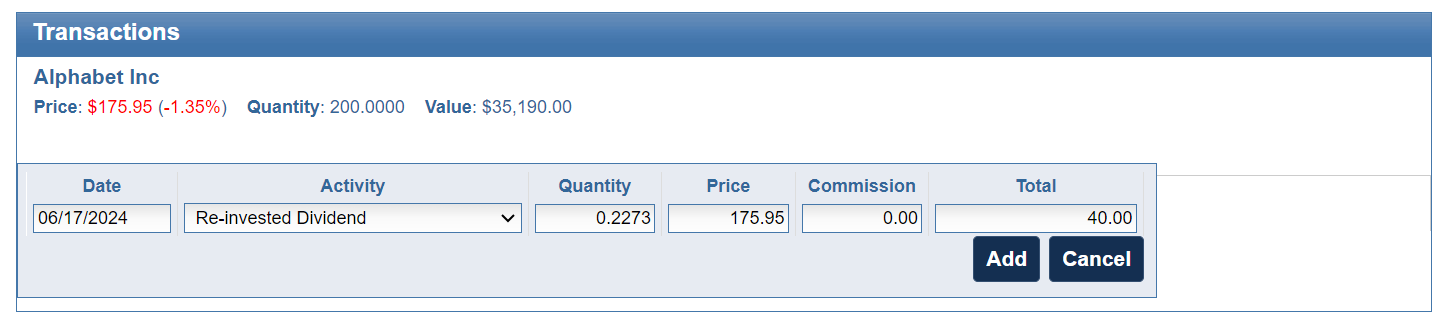
If you re-invested your Alphabet dividend, choose Re-invested Dividend from the Activity drop down. Enter the number of shares you purchased in the Quantity field and enter the price you paid for the shares.

Add a re-invested Alphabet dividend.
Add a Re-invested Dividend example

Once you have entered your dividend information, click the Add button to save the dividend transaction to your portfolio.

You can follow many of these same steps if you have a different investment that pays a dividend.

New Feature in EquityStat’s Stock Portfolio Tracker

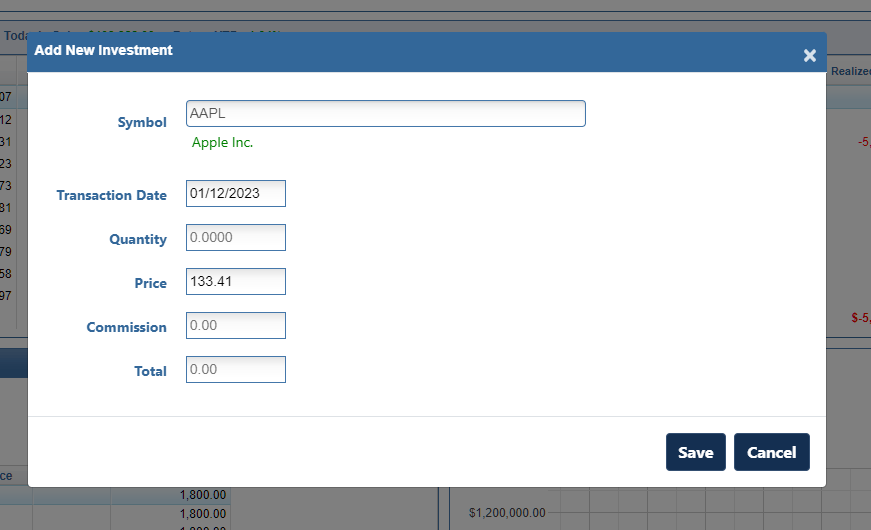
We have added a new feature to our Stock Portfolio Tracker application. When you enter a new stock/investment or add a new transaction for an existing stock/investment, the price of the investment is automatically displayed in the Price field. The price that is displayed is the closing or current price for the date of the transaction. If this price is not correct, you can override the price by entering the correct price.

This feature was designed in case you don’t know the exact price you purchased or sold a stock for, the price is automatically filled in for you and you don’t have to look it up. If you do know the exact price, you can override the filled in price with the correct price.

EquityStat Stock Portfolio Tracker New Feature - Auto Price
Example of Auto Price

For example, if your purchased Apple stock on January 12, 2023 the price of $134.56 will automatically be filled in since this was the closing price on January 12th. If you purchased Apple for a lower or higher price, you can edit the price to the correct price.

This feature also comes in handy when you want to see what price a stock was trading for a past date. Just select the stock, enter the date and you will see the price for that date.

EquityStat User Interface Changes

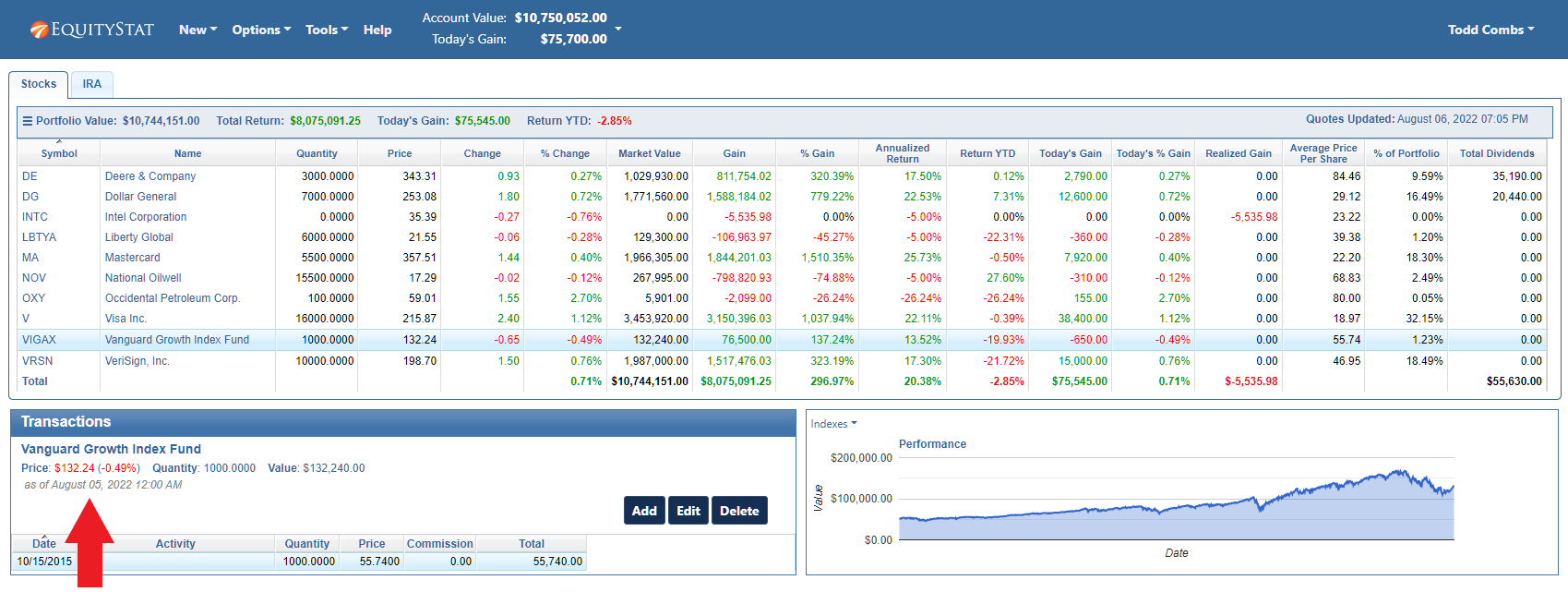
In the transaction panel, we now display the date the mutual fund price was last updated. Mutual fund prices are updated after market close. When viewing the price, you don’t know if the price is from the previous day or it is the current price. So, for mutual funds we have added the date the price was updated. This way you can know if the price is the current price or the price from the previous day.

EquityStat Mutual Fund Price Date

We have also added the percent change for the price for all investments and display the price in green if the price is up and red if the price is down.

Also, you can click on the name of the investment to view additional information about the investment on MSN Money.

Refresh User Interface For Mobile Phones

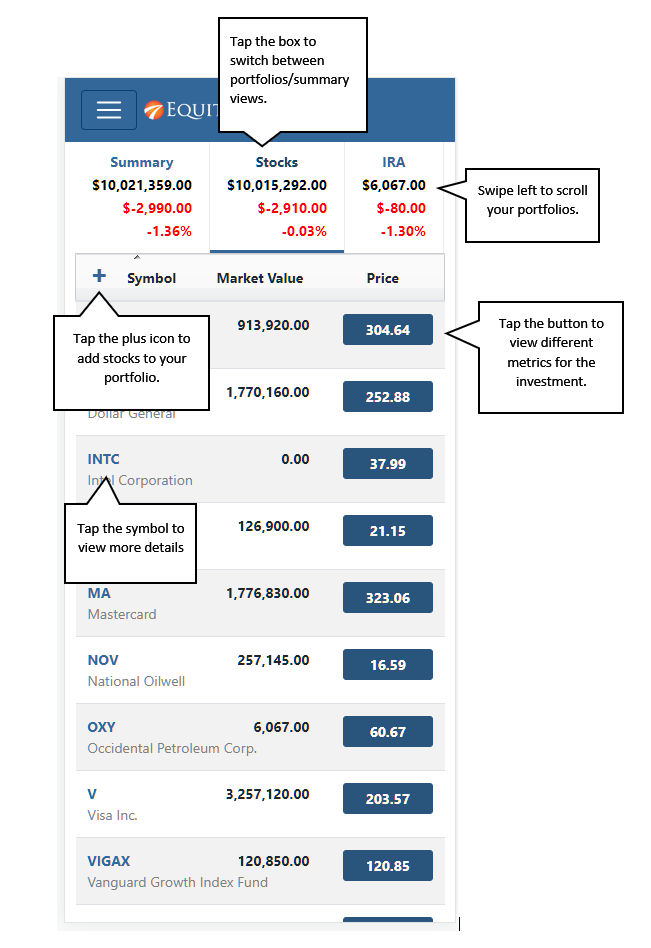
We have recently refreshed the user interface of your EquityStat portfolio on mobile devices. The user interface now looks, feels and works like a mobile app. If you have ever used the Weather Channel App or the ESPN App on your mobile phone, EquityStat works very similar.

To view your EquityStat account on a mobile phone, open up the phone’s web browser, go to www.equitystat.com and login to your account.

EquityStat stock portfolio tracker on a mobile phone.
Example EquityStat Account on a Mobile Phone.

You will then see a list of all your portfolios at the top. You can swipe left at the top to scroll through all of your portfolios. Tap a “portfolio box” to see the investments in each portfolio.

To see details about a specific investment, tap the symbol for the investment. To view metrics about a specific investment tap the price button. Continue tapping the button to cycle through all of the investment metrics.

To add a new investment to your portfolio, tap the plus icon.

Splitting a Stock in EquityStat

Amazon’s (AMZN) stock recently split. It was a 20 for 1 stock split. So, for each share you owned before the split, you got 20 shares.

If you owned Amazon (AMZN) stock before the split and you are tracking this stock in your EquityStat portfolio, how do you record the split?

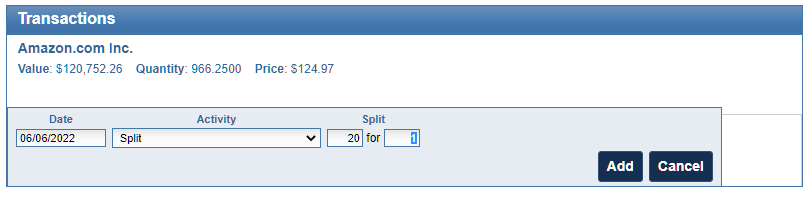
First, select the Amazon stock in your investment panel. Next, in the transaction panel, click the Add button to add a new transaction. In the Activity drop down, choose a “Split” transaction. Enter how many shares were split, in this case it is a 20 for 1 split, and click the Add button to save the transaction.

Add a split transaction in EquityStat's investment portfolio tracker.
Adding a split transaction in your EquityStat portfolio

When the split transaction is saved, each transaction will be adjusted to reflect this split. The number of shares will be increased twenty times and the price will be divided by twenty.

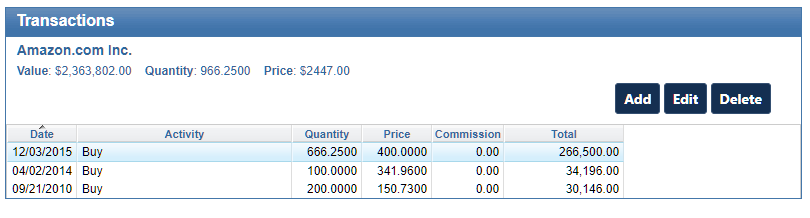
For example, if you had the following transactions before the split.

EquityStat transactions for Amazon (AMZN) before the 20 for 1 split
Amazon transactions before the split

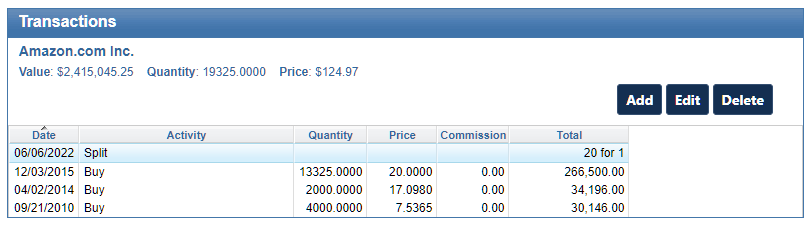
After the split your transactions will look like this.

EquityStat transactions for Amazon (AMZN) after the 20 for 1 split
Amazon transactions after the split

Notice that before the split there were three buy transactions. After the split, the number of shares has increased 20 times and the price has been reduced by a factor of twenty. For example, the initial buy on 4/02/2014 was for a quantity of 100 shares. After the split, the purchased quantity is 2000 shares. The price the shares were bought on 4/02/2014 was $341.96. After the split, the price paid was $17.098. These adjustments are all automatically done when you enter the split transaction.

If you have other stocks that have split, you can use the same steps to record your split. Just make sure that you enter the correct split information.

Feature Highlight – Compare Your Investment Performance to the Dow Jones, the Nasdaq or the S&P 500 Index

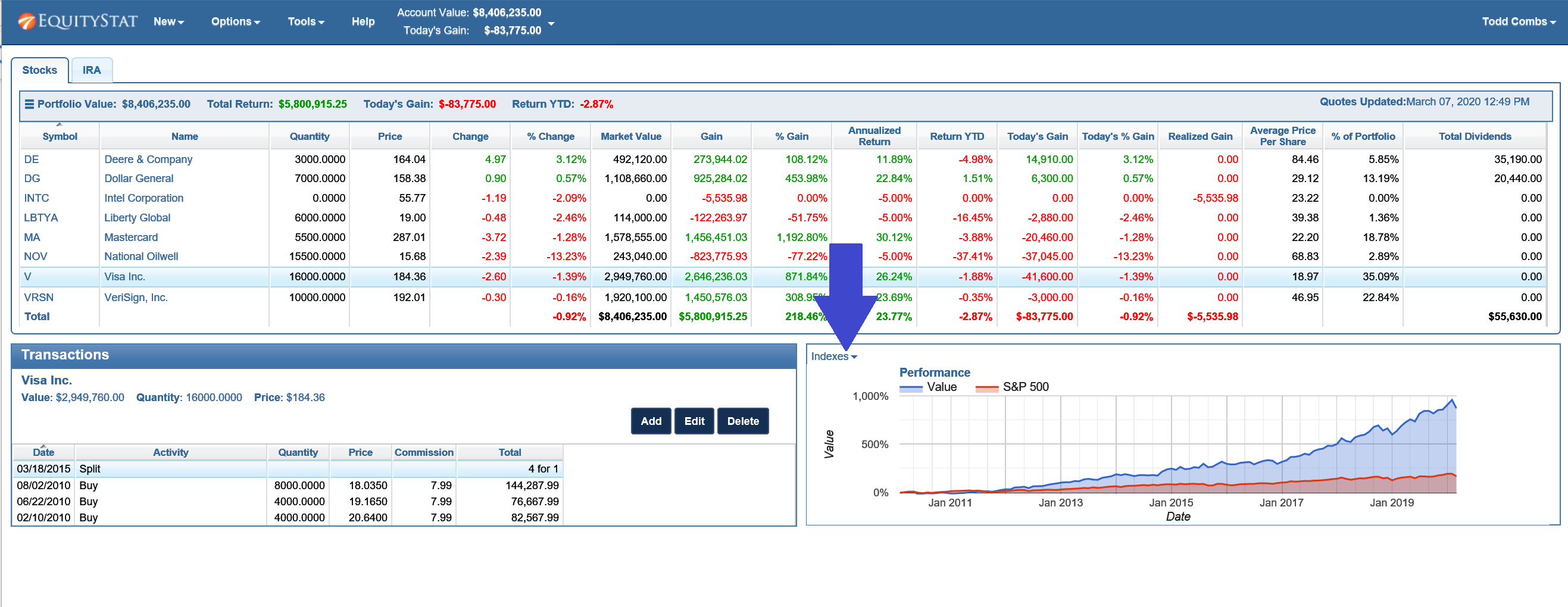
If you want to see how your investment performance is doing compared to an index, you can easily add an index to your investment’s performance graph.

To do this, select the index you want to compare, by clicking on the Indexes drop down menu link in the upper left hand corner of the performance graph.

Compare Stock Performance to Indexes
Compare Investment Performance to Indexes

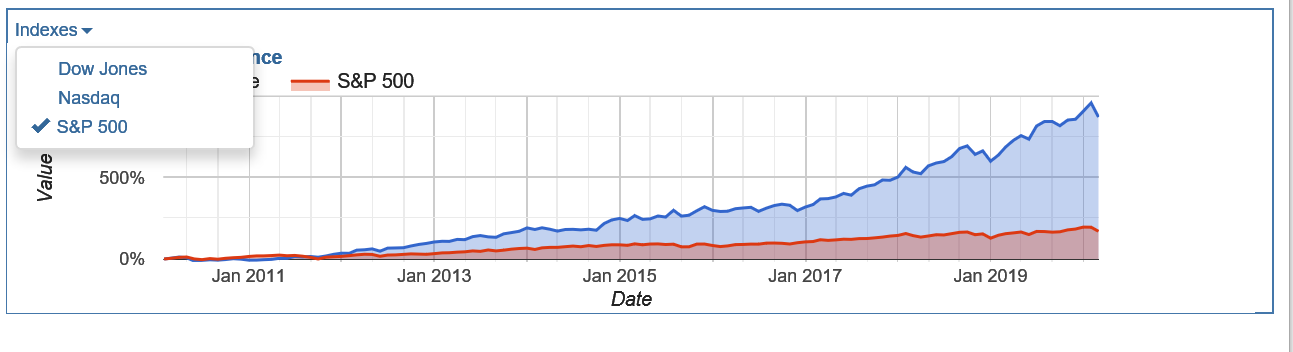
When you click on the Indexes drop down menu link, you can choose from a list of indexes.

Choose to compare your stock's performance to the Dow Jones index, the Nasdaq index or the S&P 500 index
Choose to compare your stock’s performance to the Dow Jones index, the Nasdaq index or the S&P 500 index

Choose the Dow Jones index, the Nasdaq index or the S&P 500 index. You can choose one index or multiple indexes. When you choose an index, you will see a checkbox next to the index.

Once an index is chosen, you will see the index in your performance graph and how it compares to your investment’s performance.

To remove an index, click on the Indexes drop down link and select the index again. This will remove the checkbox from the index menu item and remove the index from your performance graph.

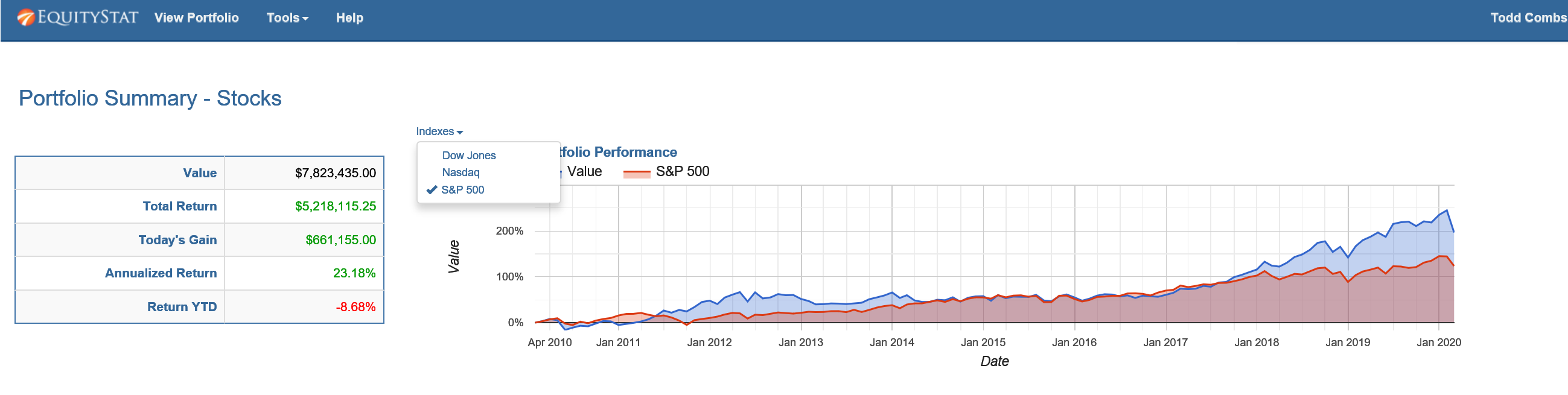
You can also compare your account/portfolio performance to an index. To do this, go to the Portfolio Analysis page by choosing the Tools menu at the top and selecting Analyze Portfolio from the drop down menu. From the Portfolio Analysis page, click the Indexes link above the performance graph and choose the index or indexes you want to compare.

Choose to compare your account/portfolio performance to the Dow Jones index, the Nasdaq index or the S&P 500 index

How to import your Google Finance Portfolio into EquityStat

As you know, Google Finance is discontinuing their portfolio manager.  If you are looking for an alternative you can easily import your Google portfolio into EquityStat.  Just follow these easy steps.

Step #1

Login to your Google Finance portfolio and click the Transactions link.

Step #2

On the Google Finance transactions page, click the Download to Spreadsheet link and save the downloaded file to your hard drive.

Step #3

Login to your EquityStat account and click the New menu at the top and choose Import Transactions from the drop down menu.

Step #4

On the import page, click the Browse button to locate the file saved in Step #2.  Next, click the Import button to import the file.  You will then see a summary of the transactions to be imported.  Correct any errors and verify what the import will do.  Click the Import Data button to import the Google Finance portfolio transactions into EquityStat.

Print Your Stock Portfolio

How to Print Your Portfolio

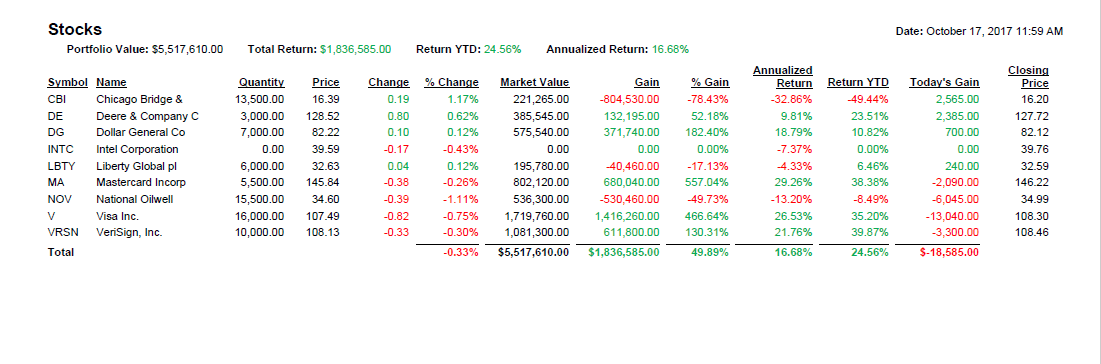
To begin, open your EquityStat account and navigate to the Tools menu located at the top of the screen. From the dropdown list, select Print Portfolio. This will take you to a dedicated printing page designed specifically for generating portfolio reports.

Choose What You Want to Print

On the print page, you’ll see options that let you decide exactly which portfolio—or portfolios—you want to include.

  • You can print a single portfolio if you only need information for one set of investments.
  • Or, if you manage several portfolios, you can choose to print all of them at once, making it easy to create a complete snapshot of your entire investment landscape.

This flexibility is especially helpful for users who track different strategies, accounts, or goals and want a consolidated view.

Generate a PDF

Example of the EquityStat portfolio printing page used to create PDF or printed reports.
Print Portfolio Example

Once you’ve selected your portfolio(s), click the Print button. EquityStat will automatically generate a PDF file containing your portfolio details. From there, you can:

  • Print the PDF directly to your home or office printer
  • Save the file to your computer for record‑keeping
  • Email or share the PDF with advisors, accountants, or anyone else who needs access

The PDF format ensures your portfolio is neatly formatted, easy to read, and consistent every time you print it.

Enhancing EquityStat to Better Support Modern Investors

The addition of this print feature is just one example of how we continue to evolve EquityStat to meet the needs of modern investors. Many users rely on printed reports for meetings, tax preparation, long‑term planning, or simply for peace of mind. By offering a fast, reliable way to generate PDFs or hard copies of your portfolios, we aim to make your investment management experience smoother, more flexible, and better aligned with the way you prefer to work.


View Your Portfolio On Your Mobile Device

We have recently added the ability to view your portfolio on your mobile device. To view your portfolio on your mobile phone, launch your phone’s web browser and go to www.equitystat.com. Next, login to your EquityStat account. You will then see a scaled version of your portfolio designed to display on your mobile device.

Watch the following video to learn more about the features of the mobile portfolio manager.

EquityStat and Taxes

It’s that dreaded time of year – tax time. EquityStat’s portfolio manager has several tools to help investors with their taxes.

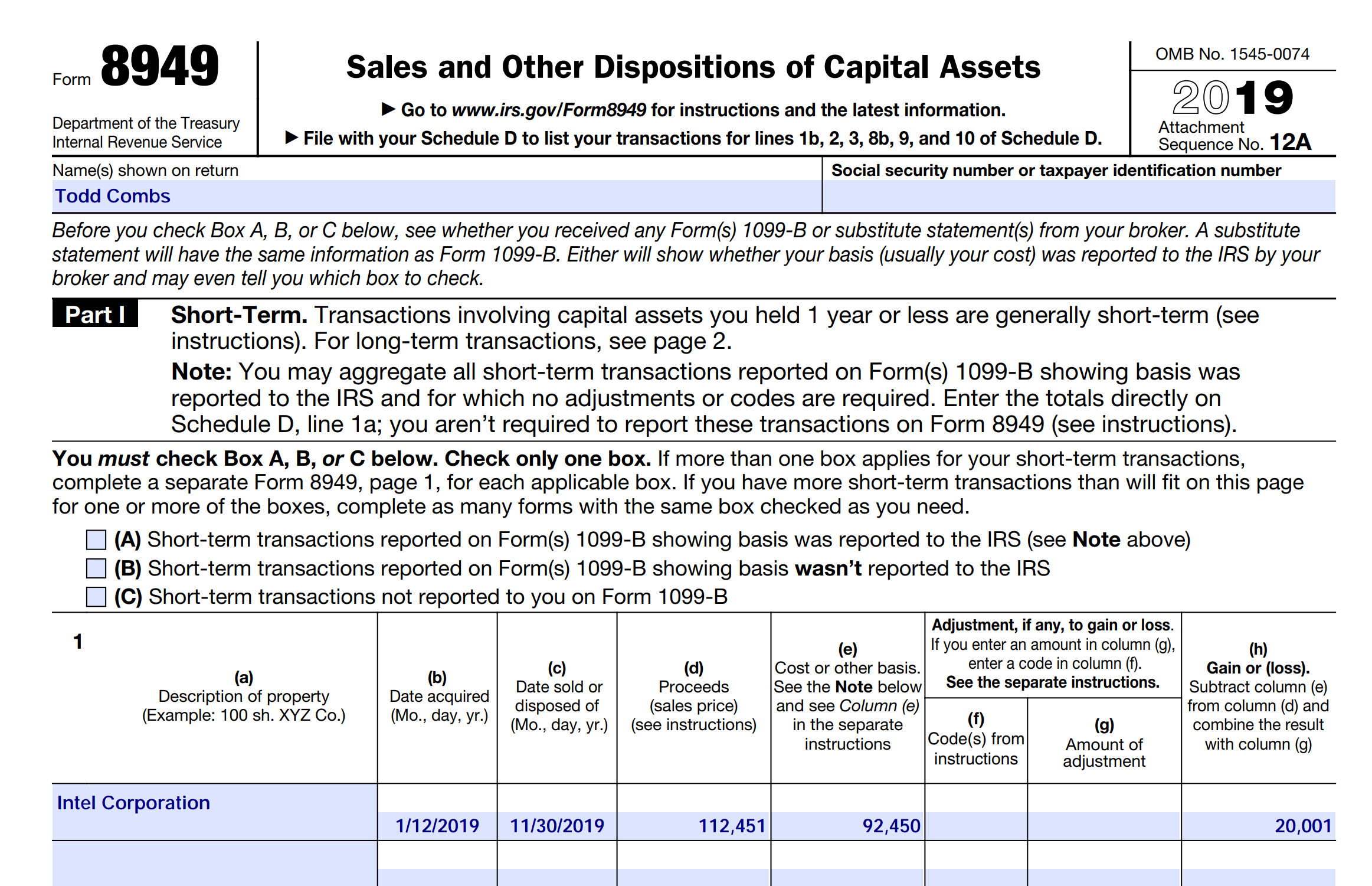
If you sold any shares last year, you can use EquityStat to generate IRS Form 8949.  IRS Form 8949 is a form that shows your short-term  and long-term capital gains on any investment sale.  EquityStat will automatically calculate these capital gains.  It will then generate a PDF of Form 8949 with all needed information that the IRS requires.  You can then give this form to your tax preparer when you are preparing your taxes.  To generate IRS Form 8949, click the Tools menu and then choose the Generate Form 8949 menuitem.

Use EquityStat To Print IRS Form 8949
IRS Form 8949 Example

Another tool to help you with your taxes is the ability to export your investment’s transactions to a spreadsheet. To export your transactions, click the Tools menu and then choose the Export Transactions menuitem. When you export your transactions, you will get a spreadsheet showing each transaction for the investment including the type of transaction it is (e.g. Buy, Sell, Dividend, etc). With this information, your tax preparer can calculate your taxable capital-gains and taxable dividends for all of your investments.

Best Stock of 2016

According to the Wall Street Journal the best S&P 500 stock of 2016 was Nvdia.  It was up 224%.

You can see the list of best stocks here:

http://blogs.wsj.com/briefly/2016/12/30/5-best-performers-in-the-sp-500-in-2016/

How did your investments do in 2016?  What was your best stock?  If you are not tracking your investment’s performance, consider using EquityStat.  With EquityStat you can track the overall performance of your portfolio/account as well as the performance of each individual investment.  EquityStat tracks the annualized return, year to date return, daily gain, overall gain and many other metrics of your investments.  With these metrics you can easily determine what are your best investments.

Many online brokerages and mutual funds track an individual stock or mutual fund’s performance but you cannot get the overall return of all your stocks or mutual funds.  With EquityStat not only can you get the return each investment, you can also get the return for your entire account.  This way you know how well your investments are performing at any time.


5 Frequently Asked Questions About EquityStat’s Portfolio Manager

5 Frequently Asked Questions

  1. How do I add a new investment?
    Click the New Menu and then choose New Investment from the dropdown menuitem.  A popup dialog will appear where you can add your new investment.
  2. How do I add/remove a portfolio column?
    Click the Options Menu and then choose Change Columns from the dropdown menuitem.  The Change Columns panel will appear.  To add a column select the column from the Available Columns list and click the Add button to add it to the Displayed Columns list.  To remove a column select the column from the Displayed Columns list and click the Remove button to remove it from the Displayed Columns list.  Click the Change button to save your columns.

    EquityStat Investment Portfolio Change Performance Metric Columns
    Change Stock Portfolio Columns
  3. How do I change the order of the displayed columns?
    Click the Options menu and choose the Change Columns dropdown menuitem.  The Change Columns panel will appear.  Select the column you want to change from the Displayed Columns list.  Use the up/down arrows on the right to change the order.   When finished click the Change button to save your changes.
  4. How do I sort the portfolio by Investment name?  How do I sort any column in the portfolio?
    To sort your portfolio by investment name, click on the Name column heading.  To sort any columns, such as Market Value, click on the column heading.  Clicking on the column heading will also toggle the sort between ascending and descending order.
  5. How do I sell an investment?
    To sell an investment add a “Sell” transaction.  To add a “Sell” Transaction, first select the investment you want to sell.  Next click the Add button in the Transactions section.  A popup panel will appear.  Enter your date, choose “Sell” from the Activity dropdown and enter how many shares you sold and the price you sold them at.  Click the Add button to save your changes.

    EquityStat Stock Market Portfolio Add Transaction
    Add Transaction Directions

New Column Options

We recently added two new column options to our portfolio manager.  You can now display the Ex-Dividend Date and Dividend Paid Date for each of your investments.  To display these columns in your portfolio, click the Options menu and then choose the Change Columns menuitem.  A drop down panel will then appear.  Select the column from the list of Available Columns and add it to the list of Displayed Columns.  Click the Change button and your new columns will display in the portfolio.

In addition to these two columns, we provide a whole range of other columns you can add to your portfolio.  These columns vary from information about your investment to performance metrics.  Just add/remove the columns to configure your portfolio to your specifications.

New Feature in the Portfolio Manager

EquityStat Portfolio Manager Stock Performance Graph

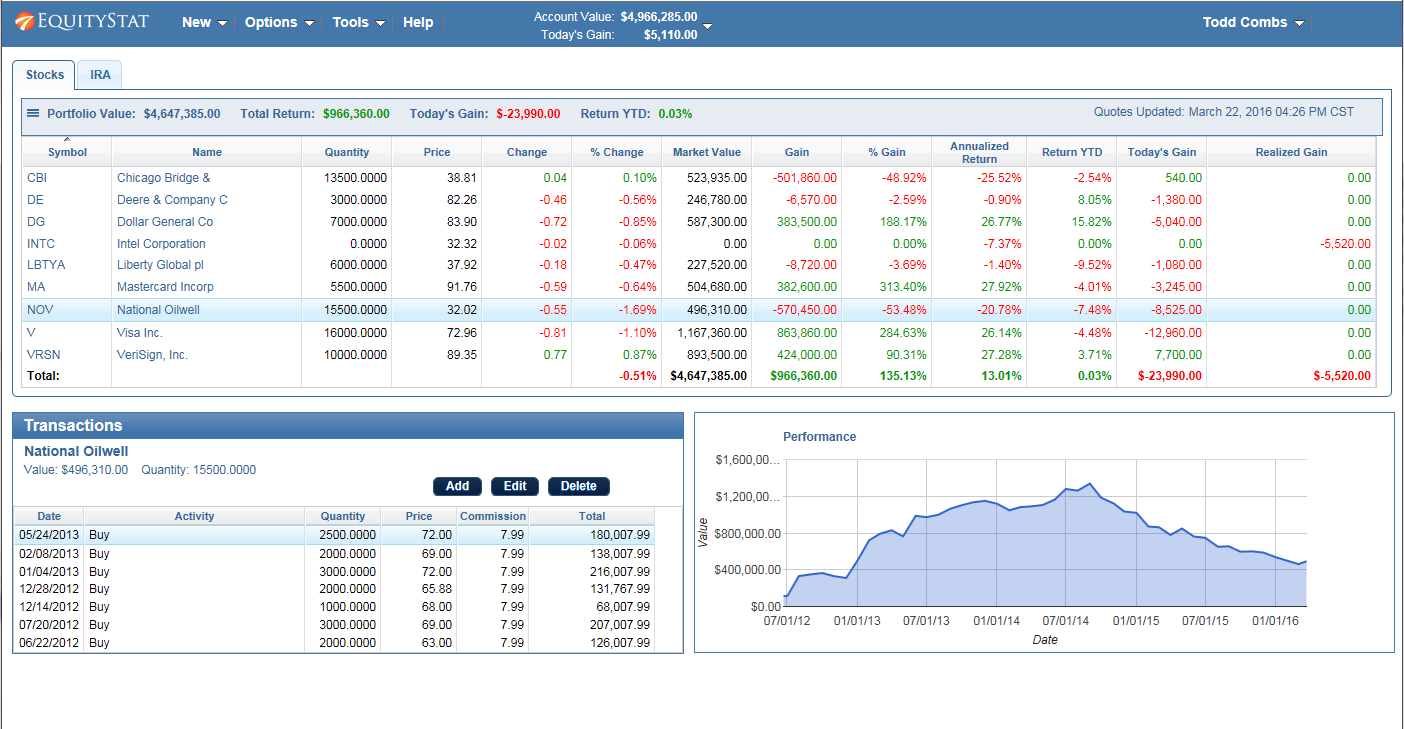
We have recently added a performance graph in the portfolio manager. For each investment in your portfolio you can see how that investment has performed over time. To see the investment graph, just click on an individual investment and the graph will display at the bottom right next to your list of transactions for the investment.

Ditch the Stock Spreadsheet

Many investors keep their stock portfolios in a spreadsheet. With a spreadsheet they can keep track of their investments and also calculate some performance metrics. This is a quick and easy way to track their investment portfolio’s net-worth without having to go to the websites where their stocks or mutual funds are held. In addition a stock spreadsheet is secure where only the owner of the computer has access to the stock spreadsheet.

In spite of the convenience, there are several drawbacks to using a spreadsheet to track your investments. One drawback is how do you update the prices for each investment in your portfolio? If you manually enter the prices, this could be a daily chore that is time consuming. You could use a stock service to provide real-time stock quotes. However, implementing this in a spreadsheet is not trivial. Also, what do you do if the stock service changes their user interface or the stock service goes down?

Another drawback to stock portfolio spreadsheets is you can only view your portfolio on the computer where the spreadsheet is located. If you have the spreadsheet on a home computer, you can’t view your portfolio at work. In addition if you have multiple computers and tablets at home you can only view your spreadsheet on one computer.

EquityStat’s portfolio manager was created to alleviate the problems of a spreadsheet. With our portfolio manager you can instantly see the real-time value of your investment portfolio. There is no need to enter the daily prices and you can let us worry about interfacing with the stock quote service.

Also, with EquityStat you can view your investment portfolio on any computer or device that supports a web browser. You can view your portfolio from home or work 24 hours a day, seven days a week. In addition you can view your portfolio on a Windows or Apple computer as well as any tablets like iPads.

EquityStat’s portfolio manager also provides many performance metrics such as annualized return, year-to-date return, quarterly return and average price per share.

You can learn more about EquityStat’s features here.

2015 8949 IRS Tax Forms Released

We just released the 2015 8949 IRS tax forms. If you have sold any stocks or mutual funds in 2015, then you can generate IRS Form 8949 to calculate your gain or loss on a stock sale. EquityStat will automatically calculate your short-term gains and losses and long-term gains and losses and generate a PDF 8949 form. You can then save or print out this form and give it to your accountant or tax preparer. To generate Form 8949 click the Tools menu and then select the Generate Form 8949 menuitem.

New and Improved Features in the EquityStat Portfolio Manager

Managing investments effectively requires tools that are flexible, intuitive, and powerful enough to handle real‑world portfolios. EquityStat has introduced several enhancements to its Portfolio Manager designed to give investors more control, better insights, and a smoother overall experience. These updates make it easier to organize multiple accounts, analyze performance, and view your investment data in a clean, streamlined layout.

Whether you’re tracking stocks, mutual funds, ETFs, or retirement accounts, these new features help you stay on top of your financial picture with greater accuracy and efficiency.

Create and Manage Multiple Portfolios with Ease

One of the most significant upgrades is the ability to create multiple portfolios within your EquityStat account. This feature is ideal for investors who want to separate or categorize their holdings across different accounts or investment strategies.

Why Multiple Portfolios Matter
  • Better organization — Keep your brokerage accounts, retirement accounts, and long‑term holdings separate.
  • Clearer insights — Compare performance between strategies (e.g., growth vs. income).
  • Simplified reporting — Generate cleaner summaries for taxes, advisors, or personal tracking.

How to Create a New Portfolio

You can create a new portfolio directly from the New menu by selecting New Portfolio. Once created, each portfolio can be customized with its own set of investments, performance metrics, and display preferences.

New Performance Metrics for Deeper Investment Analysis

To help investors make more informed decisions, EquityStat has added several new performance‑focused data columns:

Newly Added Metrics

  • Quarterly Return — Track short‑term performance trends and identify momentum.
  • P/E Ratio (Price‑to‑Earnings) — Evaluate whether a stock is undervalued or overvalued.
  • Dividend Yield — Quickly see which holdings generate income and how much.

These metrics can be enabled from the Options menu under Change Columns, allowing you to tailor your dashboard to the data that matters most to you.

Maximize Your Portfolio View for Better Visibility

Large portfolios can sometimes require scrolling or navigating between panes to see all your holdings. To solve this, EquityStat now includes a Maximize Portfolio feature that expands your investment list to fill more of your screen.

What Maximize Mode Does

  • Expands the investment section to show more rows at once
  • Moves the transaction section downward for a cleaner layout
  • Reduces the need for scrolling and window adjustments

This is especially useful for investors with extensive holdings or those working on smaller screens.

To activate it, click the three‑line menu icon in the upper‑left corner of your portfolio and select Maximize. You can return to the default pane layout anytime by choosing Restore.

Why These Updates Matter for Investors

These enhancements aren’t just cosmetic — they’re designed to improve the way you interact with your financial data:

  • Faster decision‑making thanks to clearer metrics
  • More efficient navigation with customizable portfolios
  • Better organization for multi‑account investors
  • Improved user experience across devices

As the investing landscape becomes more complex, having a flexible and powerful portfolio tracker is essential. EquityStat continues to evolve its tools to support both new and experienced investors.

Have Ideas for Future Features?

EquityStat actively welcomes feedback from its users. If you have suggestions for new tools, metrics, or improvements, the team encourages you to reach out and share your ideas. User input plays a key role in shaping future updates.

Contact us and let us know.


Creating multiple portfolios – New Feature

We recently added a new feature to your EquityStat portfolio manager. You can now create multiple portfolios for your account. Having multiple portfolios gives you the ability to group and separate your investments. For example, you can have a portfolio for your individual stocks, a portfolio for your mutual funds and a portfolio for your 401K.

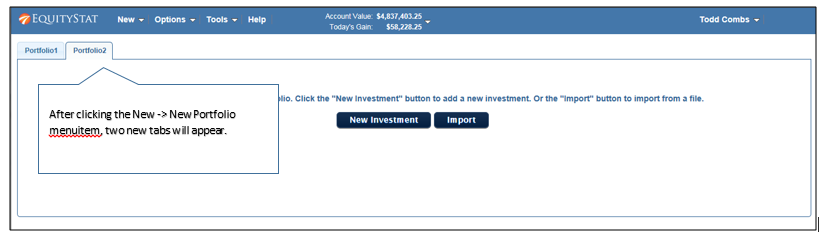
To add a new portfolio click the New menu and then chose the New Portfolio menuitem from the dropdown menu.

Create a New EquityStat Portfolio
How to create a new portfolio in EquityStat

You will then see two new tabs. A tab for your current portfolio and a tab for your new portfolio.

Change Portfolio Name EquityStat
How to change the portfolio name

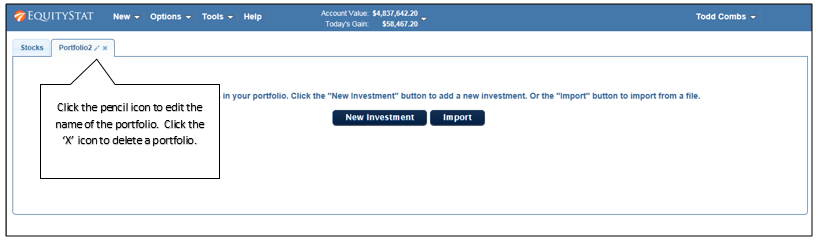
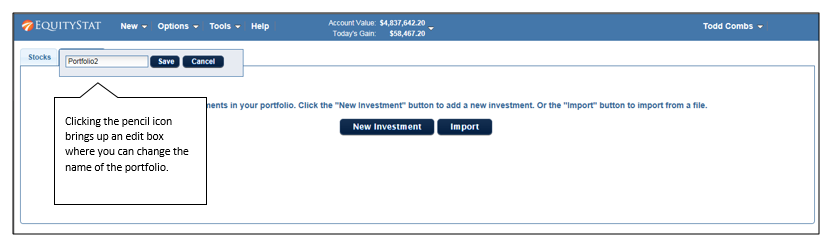
To edit the name of your portfolio click the pencil icon, which will display an edit box.

Edit Portfolio Name
How to edit a portfolio name.

Next type over the current portfolio name with the new portfolio name and click the Save button.

View portfolio investments
View a specific portfolio

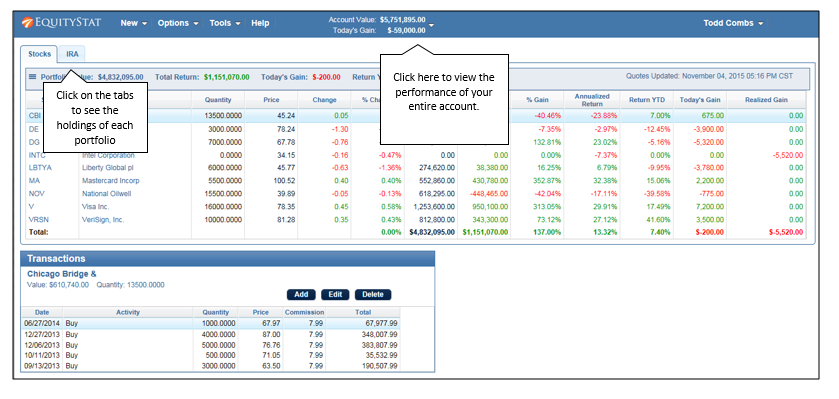
To view the investments of each portfolio click on the portfolio’s tab. From here you can also add new investments to the portfolio as well as edit investments.

To view the view the performance all your entire account (all portfolios) click the Account Value box at the top.

To delete a portfolio first delete all the investments in the portfolio. Once the portfolio is empty, click the ‘X’ icon in the portfolio tab.

Behind the Design

Behind the Design of EquityStat’s Portfolio Manager

EquityStat’s portfolio manager was built for investors by investors.  As investors we found many portfolio managers just didn’t work how we wanted them to.  Whether the portfolio manager was from a brokerage account, mutual fund or from a software company, many just didn’t work well.  This was a driving force for us building EquityStat’s portfolio manager.

One major problem of other portfolio managers is they don’t refresh your investment prices and portfolio value automatically.  To see your latest values, you have to manually refresh the page.

We didn’t want our portfolio manager to behave this way.  With our portfolio manager your prices and portfolio values are updated automatically without you having to refresh the page.  Every 15 minutes we query the latest prices of your investments and update your portfolio.  In the upper right hand corner, we even display the last time the quotes were updated.  All of this happens automatically without you having to constantly refresh the page to see how your investments are performing.

Another problem of other portfolio managers is entering transactions.  When entering transactions the portfolio manager will post back the transaction to the webserver and then do a page refresh with the new data. This is very cumbersome.

EquityStat’s portfolio manager does all of the saving in the background.  When you add or edit a transaction, the transaction is saved and updated behind the scene.  The only thing you see is notification at the top of the portfolio that the transaction has been saved.  The benefit of this is less page refreshing and a more natural, less cumbersome way of entering transactions.

In the coming weeks, we will highlight more design features or our portfolio manager and how it benefits our users.

Changing Columns in Your Portfolio

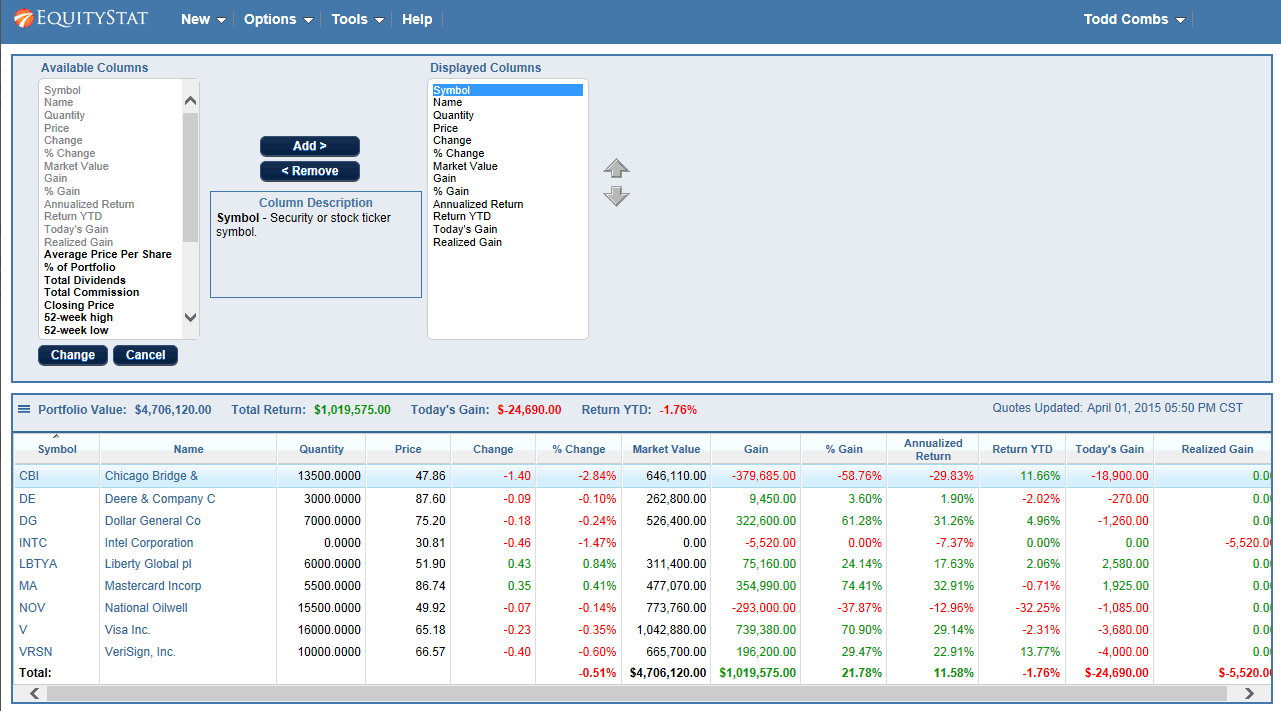
By default we display a pre-configured set of columns for your portfolio.  If you desire you can easily change the columns that are displayed in your portfolio.  To do this click the Options link at the top of your portfolio and choose the Change Columns menuitem.

Change Performance Metrics in EquityStat's Investment Portfolio Manager
Change Columns In Your Portfolio

Clicking the Change Columns menuitem will display a list of columns that are available and a list of columns your are currently using.  You can add and remove columns as well as change the order of your columns.  If you want a description of a column, just click on the column in either of the lists.

When you are finished change your columns, click the Change button to save your changes and get back to your portfolio.

Importing your transactions into EquityStat

Do you have a lot of transactions that you need to import into EquityStat that you don’t want to manually enter? If so then you can use EquityStat’s import feature to import these transactions.

To import your transactions first get these transactions into a CSV (comma separated variable) file. The easiest way to generate a CSV file is to use Excel or any other spreadsheet application. With Excel you can enter your data into a spreadsheet and then save the file as a CSV file.

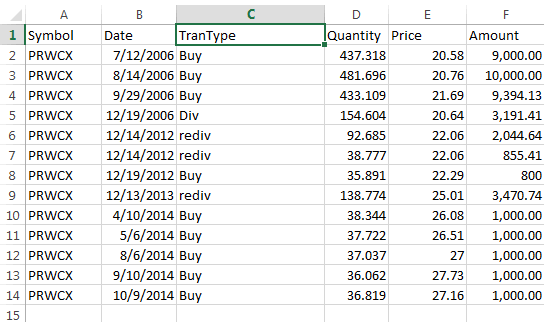
The CSV file must be in a certain format for you to import your transactions into your portfolio. The first line in the file must identify what each column is. The following column indentifiers are valid – Symbol, Date, TranType, Quantity, Price, Amount, Commission.

The valid values for the TranType column are Buy, Sell, Div, Rediv (Re-invested Dividend), Longcg (Long-Term Capital Gain), Shortcg (Short-Term Capital Gain), Relongcg (Re-Invest Long Term Capital Gain), Reshortcg (Re-Invest Short Term Capital Gain).

If you have a TranType value of Div then you will need an Amount column and you will not need the Quantity and Price column. If you have a TranType value of something other than a non re-invested dividend or non re-invested capital gain, you will need a Quantity and Price column. All rows must have a Symbol and Date column.

Here is a screen shot of a sample Excel file in the proper format.

Import Transactions into EquityStat's Stock Portfolio Tracker
Import transactions into EquityStat

Once you have your data entered in your spreadsheet, save it as a CSV file.

Next, login to your portfolio and  click the New menu and choose Import Transactions.  Then from the Import page, upload your CSV file from your computer.  The transactions that will be imported will then be displayed.  If everything is correct, continue the import process.

If you have any questions with how to do an import, feel free to contact our support desk by clicking the Help link from our home page.

Getting Started with EquityStat Portfolio Manager

Quick Start Guide

Here is a quick getting started guide for using EquityStat’s portfolio manager.

EquityStat Stock Portfolio Directions
Add transactions to EquityStat

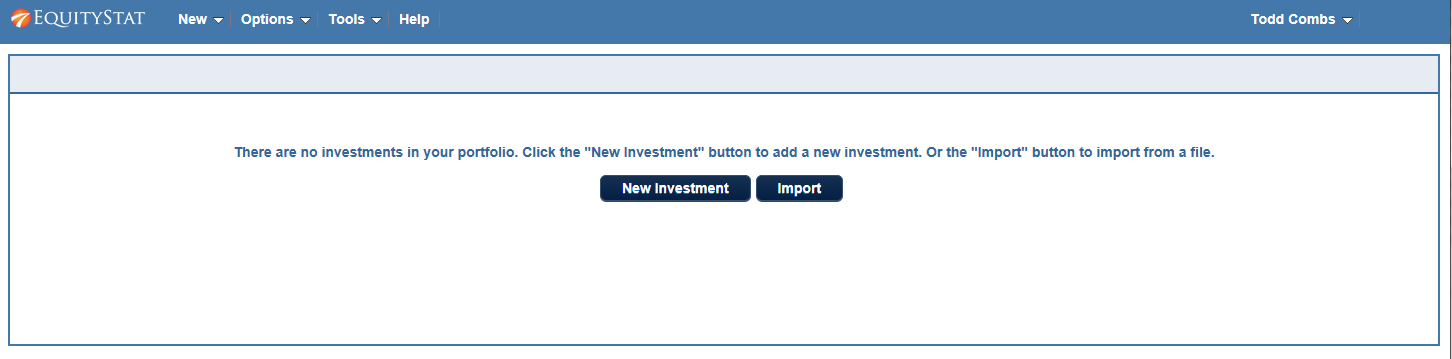
After you join EquityStat, you will be logged into your account.  Since you have no investments in your portfolio, you will see the page above.  From this page you can click the New Investment button to add a new investment to your portfolio.

After clicking the New Investment button, you will be presented a dialog where you can enter a buy transaction for your investment.  Using the dialog, enter the symbol of your investment, the date the purchase took place, the amount of shares purchased and the price for each share.  When finished click the Save button.  Once you have entered your first purchase, you can then enter other transactions such as other buys, sells and dividends.

Getting Start With EquityStat Portfolio Tracker
Directions on EquityStat’s Portfolio Manager

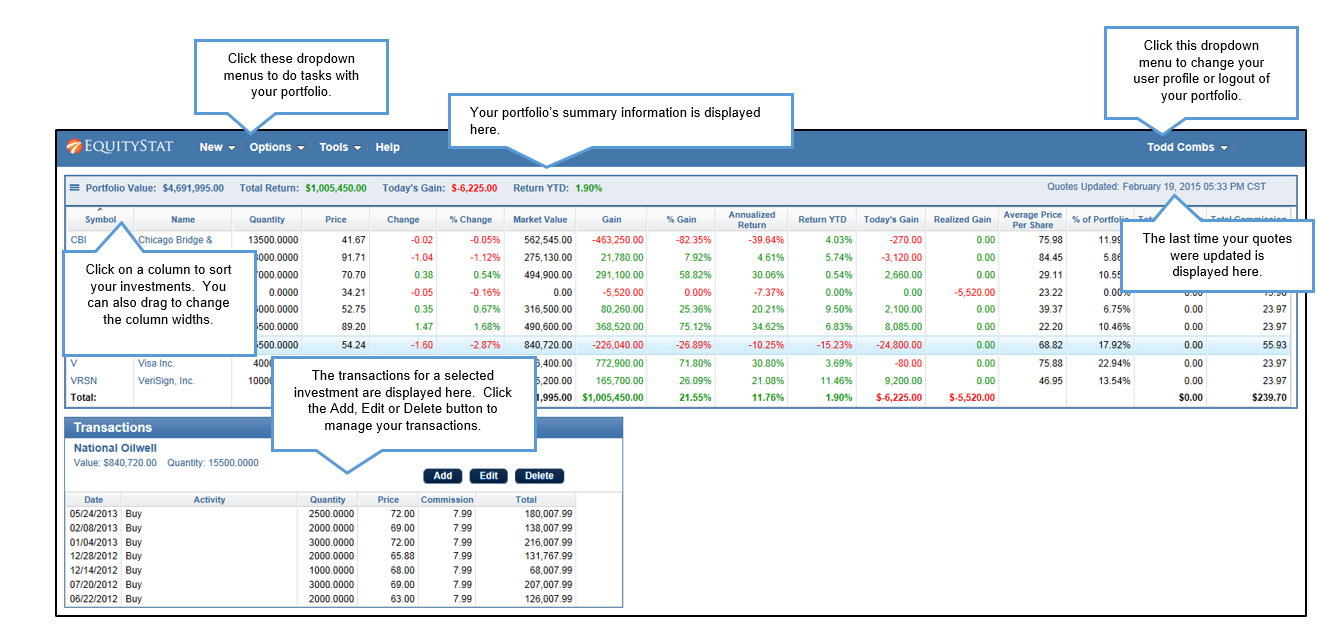
The image above shows a portfolio with several investments already entered.  The top table will show all of your investments along with data about the investments.  Below the investment table are the transactions for the selected investment.  You can sort your investments and transactions by clicking on a column heading.  In addition you can expand a column by putting your mouse between columns and then drag to lengthen the width of the column.  Above the investment table is a summary of the portfolio which will show you the total portfolio value, the total dollar return, the gain/loss for the day and the year-to-date return.

Add Transactions to EquityStat's Investment Portfolio
How to add transactions to EquityStat

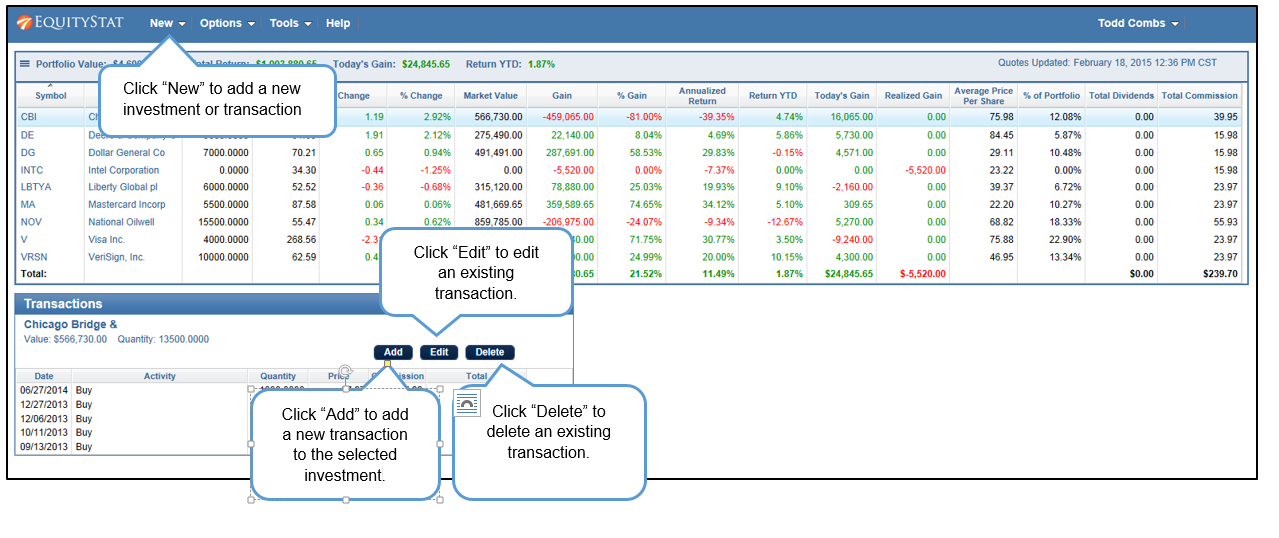
If you want to enter a new investment that is not in your portfolio, click the New menu and then choose the New Investment menuitem.  If you want to add transactions to an existing investment, go to the transaction table below the investment table and click the Add button.  A new row will then be added to the transaction table where you can add a new buy, sell, dividend transaction as well as many other transaction types.  You can also edit an individual transaction by selecting the transaction and clicking the Edit button.  If you want to remove a transaction, click the Delete button.

Hide Sold Investments in EquityStat's Stock Portfolio Tracker
How to hide sold investments in your portfolio

If you have investments in our portfolio that have been sold and you don’t want them to show, click the three line graphic at the left and choose Hide Sold Investments menuitem.  This will hide any sold investments.  To view your sold investments click the graphic again and choose View Sold Investments.

Cost Basis

What is Cost Basis?

Investopedia defines cost basis as:

The original value of an asset for tax purposes (usually the purchase price), adjusted for stock splits, dividends and return of capital distributions. This value is used to determine the capital gain, which is equal to the difference between the asset’s cost basis and the current market value. Also known as “tax basis”.

Why is it important?

The IRS is requiring more and more reporting of your cost basis of your investment.  They also require your report the capital gains/losses of your investments. To calculate your capital gains you need to know your cost basis.

How do you calculate it?

On the surface calculating cost basis sounds easy. Just use the price you paid for your stock. For example, if you purchased a 100 shares of XYZ company for $120 then your cost basis is $120. However, things get complicated if you had 3 for 2 stock split. Also, what if you purchase an additional 50 shares for $90? What if you have a split, reinvest capital gains and purchases in a given year? What is your cost basis? Now things get really complicated.

How EquityStat makes things easier

With EquityStat all you have to do is enter your purchases, splits, capital gains and we will calculate your cost basis. Then when you sell your stock whether all of your shares or just some of your shares, we can easily calculate your gain or loss. You can then generate IRS Form 8949 that will show your cost for each investment you sold in the last year.

Why Mutual Fund Investors Need a Portfolio Manager

If you own mutual funds why do you need a portfolio manager?  Why can’t you just use the tools your mutual fund provides?

Transaction History

Many mutual funds do not provide all of your transaction history.  They may provide up to 3 years of history but if you have owned your mutual fund longer than this, you do not have access to every transaction you have made.

Why is transaction history important?  One, you need a complete transaction history for tax purposes if you sell shares in your mutual fund.  Whenever you sell shares in a mutual fund you need to report to the IRS you gain or loss from to the sale.  Without a complete transaction history you cannot accurately report the gain or loss, which may effect your taxes.

You also want a complete transaction history so that you can track your mutual fund’s performance over the history of the investment, not just over a limited time.

Performance Evaluation

Many mutual funds will provide you the yearly return of the mutual fund but this may not be the return your investment has made.  For example, say you own the hypothetical mutual fund XRXRXR.  Let’s say XRXRXR price on January 1 is $100 a share and on December 31 it is $110 a share.  The mutual fund will report their yearly gain as 10%.  However, this does not take into account when you bought your shares.  Let’s say that on July 1 you buy shares at $90 a share.  Based on a closing price of $110/share, your gain is 22% and not 10%.  Or, let’s say you bought your shares at $120 a share.  Based on a closing price of $110/share, your loss is 8% and not a 10% gain.  If you rely on your mutual fund’s performance return it could be less or more than what you are actually earning.

EquityStat

With EquityStat you can view the complete history of your transactions.  In addition EquityStat gives you the ability to generate IRS form 8949 which will calculate any gains or losses on the sale of your mutual fund shares.

EquityStat will also calculate the annualized return on all of your investments.  This calculation is based on when you purchased and sold your shares, not what the mutual fund reports their return is.

EquityStat – Who, What and Why?

Who is EquityStat?

EquityStat is a powerful yet easy to use investment portfolio application. It was developed by investors for investors. The old adage “necessity is the mother of invention” was the driving force behind the founding of EquityStat. We found that the existing tools necessary to track, manage and financially evaluate investments were inadequate.

Why EquityStat?

EquityStat wanted a way to track and manage all of our investments in one application from the cloud. As many investors know, your investments are scattered about many brokerages, mutual funds and retirement plans. Our goal was to create an application where investors could manage all of their investments in a single location. In addition we wanted to be able to access investments from any computer or device. Whether at home, work or at the accountant’s office, we wanted to be able to access our investment portfolio.

What is EquityStat?

  • Manage all of your Financial InvestmentsHandles all of your stock, bond, ETF and mutual fund investments from all of your brokerages
  • Track the Performance of your InvestmentsAnalyze your individual investments and your overall portfolio
  • Generate Tax ReportsSupports IRS tax reporting requirements
  • View your Investment Portfolio on all of your DevicesWeb based portfolio management tool that you can view on any computer or tablet