Explore Your Past Portfolio Performance with EquityStat’s “View On Date” Feature

Investing is not just about tracking today’s numbers—it’s about understanding your portfolio’s journey over time. That’s why EquityStat, your all-in-one stock portfolio tracker, is excited to introduce a powerful new feature: View On Date. Now, you can look back at your holdings and portfolio performance on any past date, giving you deeper insight into your investment strategy.

Introducing “View On Date”

The View On Date feature allows you to examine your portfolio exactly as it appeared on a specific past date. When you select a past date:

  • Only the investments you held on that date will be displayed.
  • Performance metrics are calculated using the closing prices from that date, giving you an accurate snapshot of your historical portfolio performance.

Whether you’re reviewing historical performance, analyzing past trades, or comparing growth over time, this tool gives you precise insight into your investment history.

How to Use “View On Date”
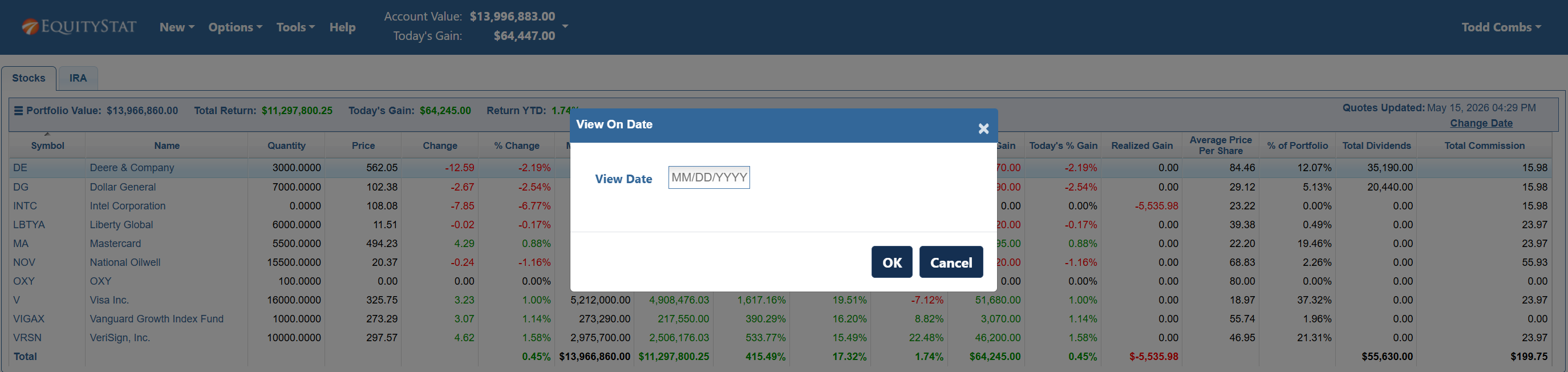
View your EquityStat stock portfolio on a past date.
  1. Via the Options Menu:
    • Click the Options menu at the top of your portfolio dashboard.
    • Select View On Date from the dropdown.
    • Enter the past date you want to review in the dialog box.

  2. Using the Change Date Link:
    • Underneath the “Quotes Updated” date, click Change Date to select a past date.

  3. Portfolio Analysis for Past Dates:
    • In the upper right-hand corner of your portfolio dashboard, click the View On Date link to access historical portfolio analysis.

Once you’re viewing your portfolio on a past date, a banner message at the top of the page will show the date you’re analyzing. To return to your current holdings, simply click Revert To Today.
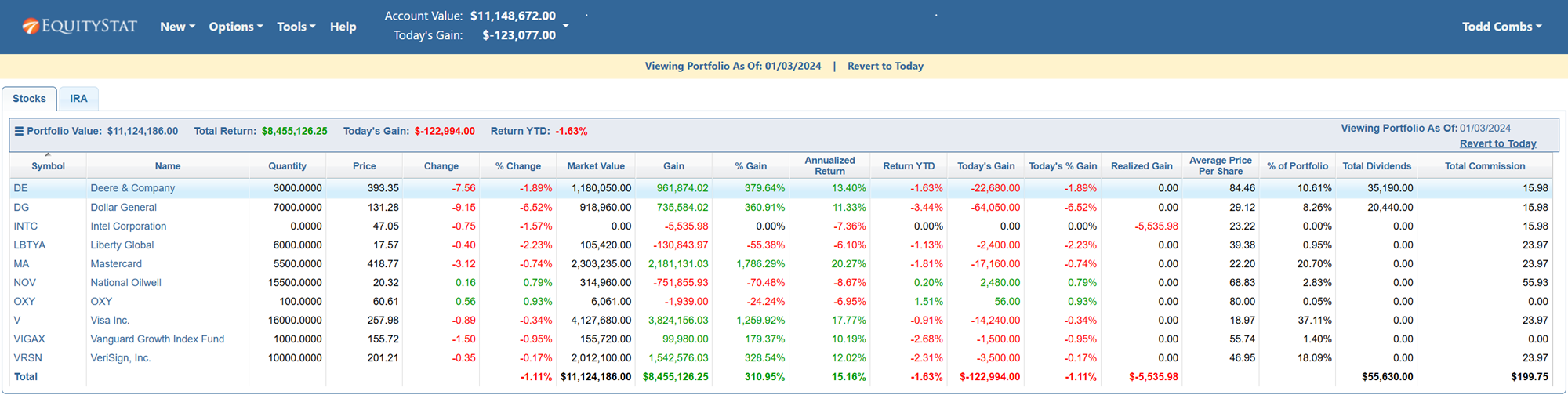
View your EquityStat stock portfolio on a past date.

Why Investors Will Love This Feature

  • Historical Insights: Understand how your portfolio has performed over weeks, months, or even years.
  • Performance Analysis: Evaluate the impact of past decisions to refine your investment strategy.
  • Simplified Tracking: No more manual tracking or spreadsheets—see past performance directly in EquityStat.

This feature makes EquityStat not just a real-time portfolio tracker, but a historical analysis tool that empowers investors to make smarter decisions.

Start Exploring Your Portfolio History Today

With EquityStat’s View On Date feature, you have complete control over your portfolio insights—past, present, and future. Stay informed, track your progress, and make confident investment decisions all from a single platform.
New Mobile Feature – Investment Symbol Search

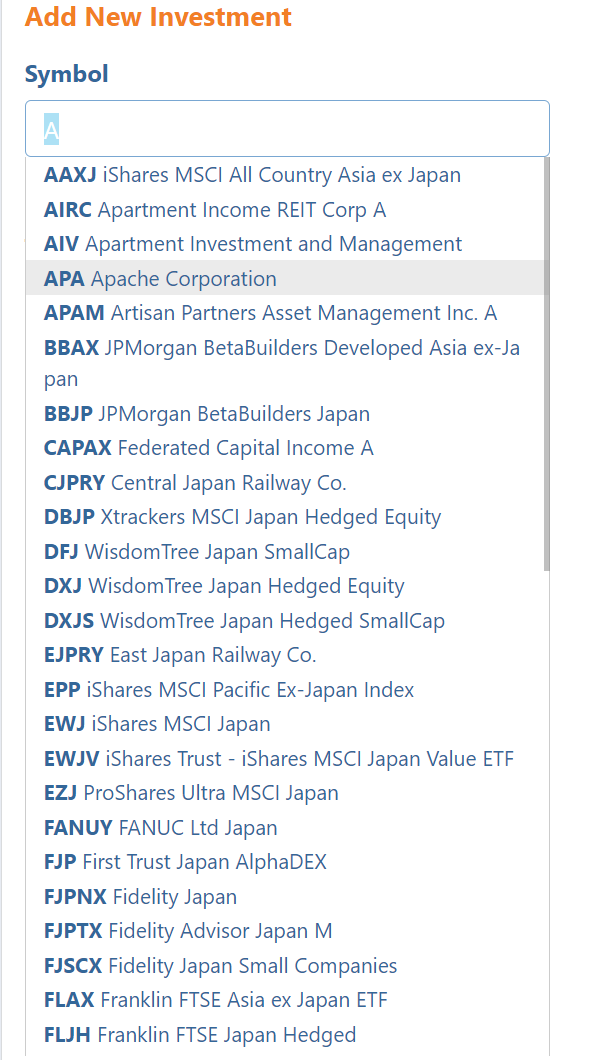
We have recently added a new feature to the mobile device user interface. When adding a new investment to your portfolio, you can easily lookup the investment to add. In the past when you added an investment to your portfolio, you needed to know the investment symbol. Now, in the Symbol field you can start typing, which will display all symbols and investment names that matches the text as you type. With this new feature the mobile phone user interface works similar to the desktop user interface.

Lookup a symbol when adding a new investment to your EquityStat stock portfolio on a mobile device.
Example of the new symbol lookup when adding a new investment on a mobile device.

For example, as seen in the screen shot above, if you start typing “A” in the symbol field you will get a list of symbols and investments that match this text. This will make finding your investment symbol much easier.

To choose a symbol, select the line that has the investment you want to add to your portfolio.

If you don’t find your symbol listed, just type in the symbol and tab to the next field. The symbol will then be checked to make sure it is a valid symbol. If it is not a valid symbol for an investment, you will get an “Invalid Symbol” message.

New Feature – Share Your Portfolio

Have you ever wanted to display what stocks you own on a webpage? Or maybe you want to show what stocks you recommend on an online investment forum?  What about sharing your stock portfolio on X, Facebook or email?

With our new Share Portfolio feature you can do all of this.  

To get started sharing your portfolio, click the Tools menu at the top and choose Share Portfolio from the drop down menu.

On the Share Portfolio page, choose the portfolio you want to share and click the Generate button. An image of your portfolio will then be generated. You can then link to this image on a website or social media post. You can also download the image and send the image in an email or also use the image file in a social media post.

For example, here is an image of a portfolio for Berkshire Hathaway’s top stocks.

If you link to an image, the image will display the most recent prices for the stocks in your portfolio. If you share the image file, the prices will be the current price when the image was generated.

You can also choose what columns to display in the image by clicking the Select Columns link and then choosing the columns you want to display.

New Feature – Investment Symbol Search

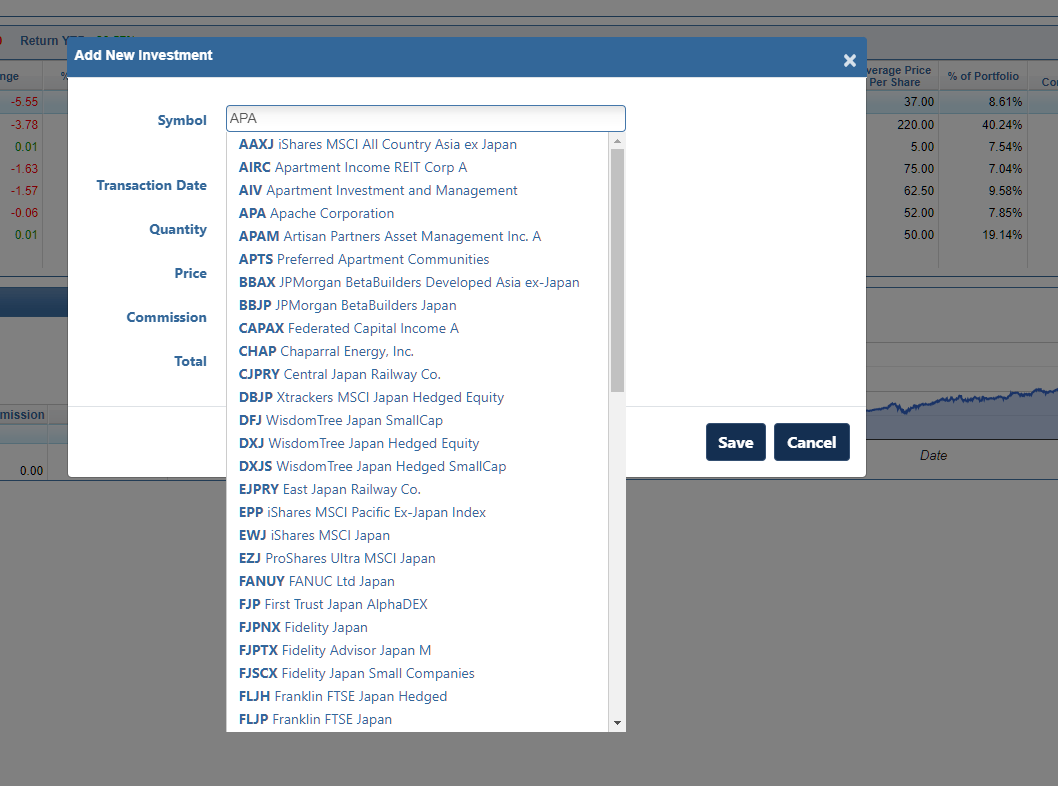
We have recently added a new feature. When adding a new investment to your portfolio, you can easily lookup the investment to add. In the past when you added an investment to your portfolio, you needed to know the investment symbol. Now, in the Symbol field you can start typing, which will display all symbols and investment names that matches the text as you type.

Lookup a symbol when adding a new investment to your EquityStat stock portfolio.
Example of the new symbol lookup when adding a new investment

For example, as seen in the screen shot above, if you start typing “APA” in the symbol field you will get a list of symbols and investments that match this text. This will make finding your investment symbol much easier.

To choose a symbol, select the line that has the investment you want to add to your portfolio.

If you don’t find your symbol listed, just type in the symbol and tab to the next field. The symbol will then be checked to make sure it is a valid symbol. If it is not a valid symbol for an investment, you will get an “Invalid Symbol” message.

EquityStat User Interface Changes

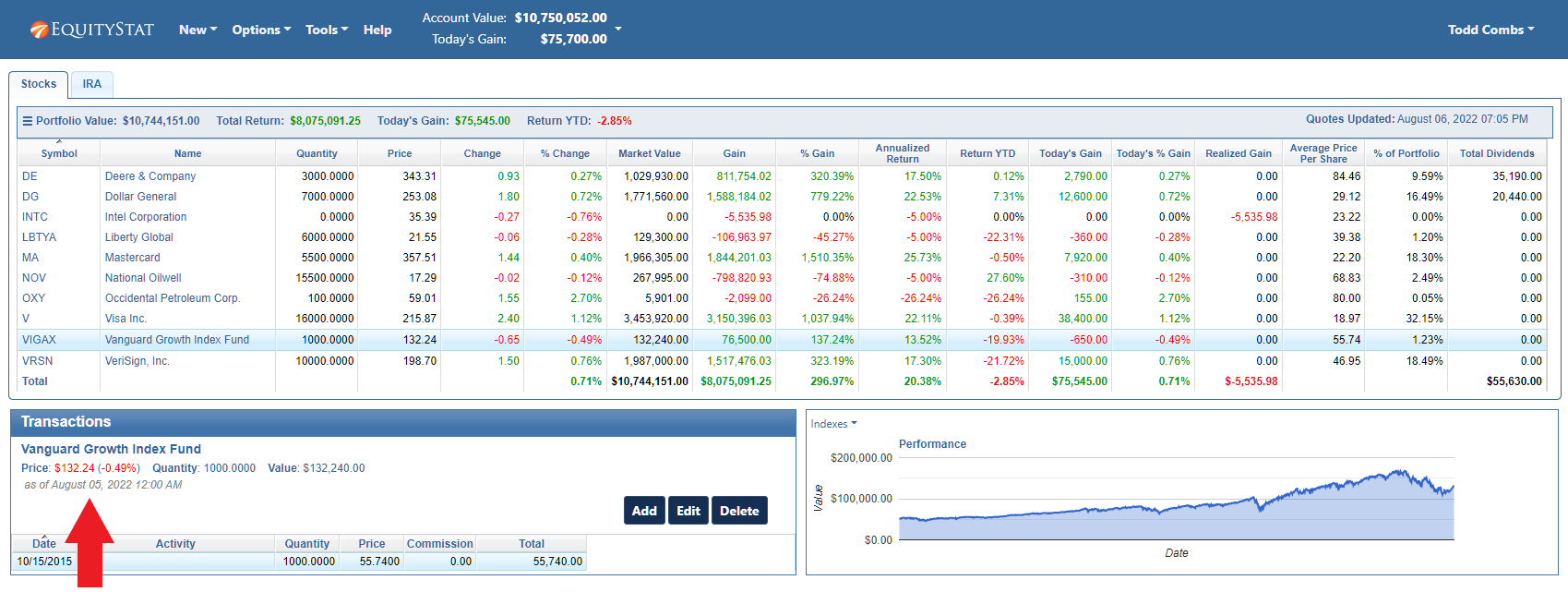
In the transaction panel, we now display the date the mutual fund price was last updated. Mutual fund prices are updated after market close. When viewing the price, you don’t know if the price is from the previous day or it is the current price. So, for mutual funds we have added the date the price was updated. This way you can know if the price is the current price or the price from the previous day.

EquityStat Mutual Fund Price Date

We have also added the percent change for the price for all investments and display the price in green if the price is up and red if the price is down.

Also, you can click on the name of the investment to view additional information about the investment on MSN Money.

Feature Highlight – Compare Your Investment Performance to the Dow Jones, the Nasdaq or the S&P 500 Index

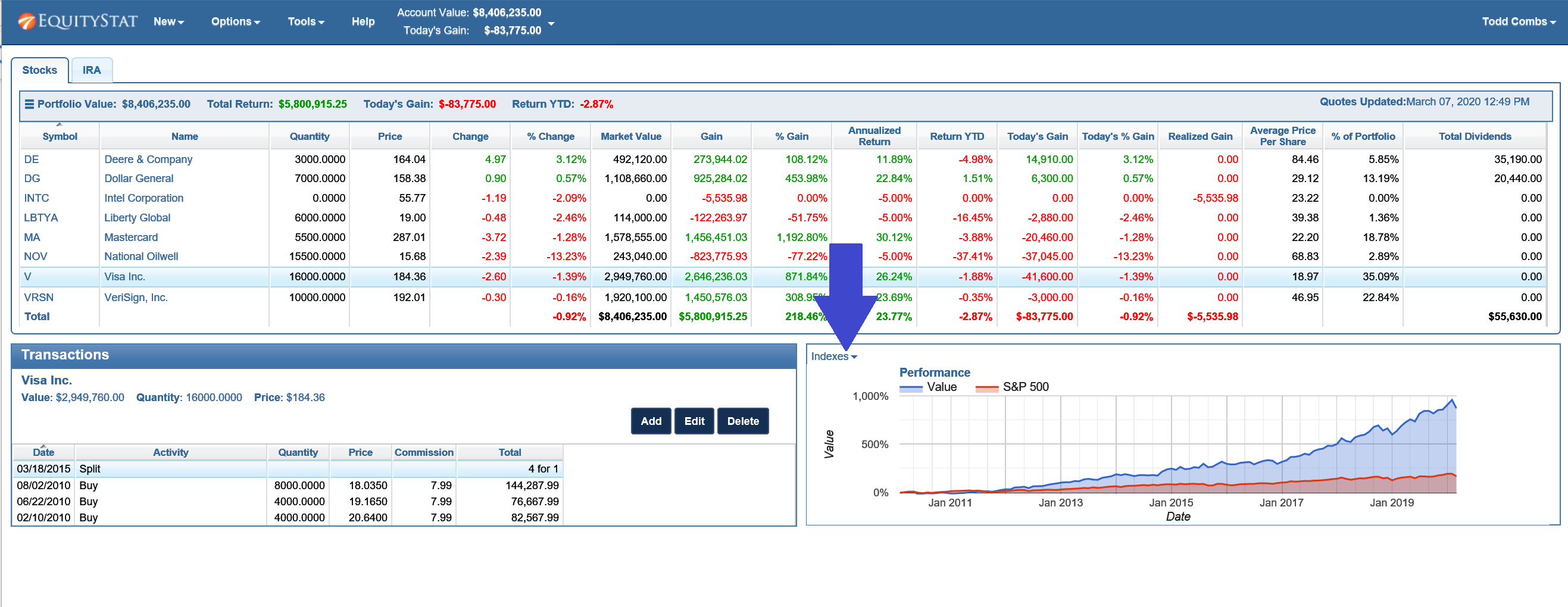
If you want to see how your investment performance is doing compared to an index, you can easily add an index to your investment’s performance graph.

To do this, select the index you want to compare, by clicking on the Indexes drop down menu link in the upper left hand corner of the performance graph.

Compare Stock Performance to Indexes
Compare Investment Performance to Indexes

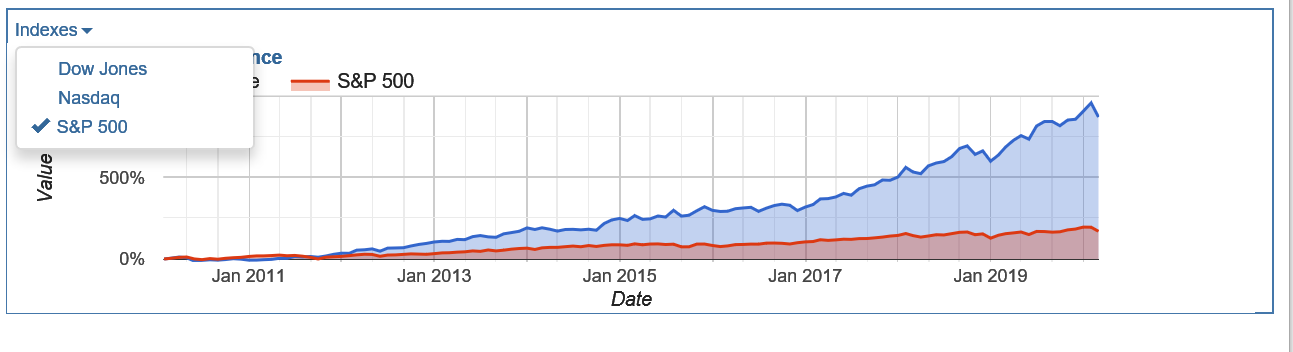
When you click on the Indexes drop down menu link, you can choose from a list of indexes.

Choose to compare your stock's performance to the Dow Jones index, the Nasdaq index or the S&P 500 index
Choose to compare your stock’s performance to the Dow Jones index, the Nasdaq index or the S&P 500 index

Choose the Dow Jones index, the Nasdaq index or the S&P 500 index. You can choose one index or multiple indexes. When you choose an index, you will see a checkbox next to the index.

Once an index is chosen, you will see the index in your performance graph and how it compares to your investment’s performance.

To remove an index, click on the Indexes drop down link and select the index again. This will remove the checkbox from the index menu item and remove the index from your performance graph.

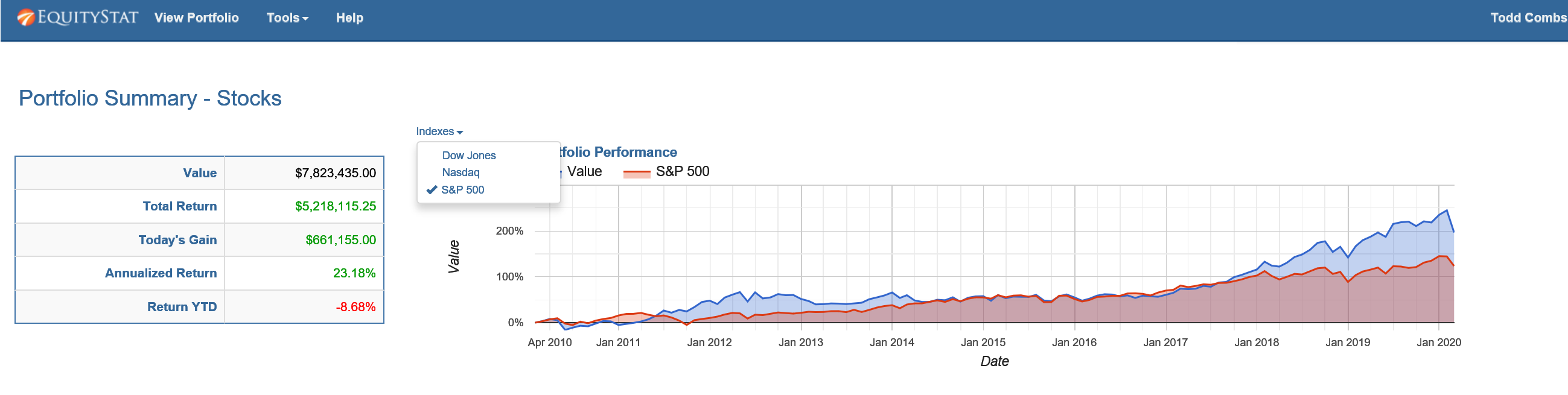
You can also compare your account/portfolio performance to an index. To do this, go to the Portfolio Analysis page by choosing the Tools menu at the top and selecting Analyze Portfolio from the drop down menu. From the Portfolio Analysis page, click the Indexes link above the performance graph and choose the index or indexes you want to compare.

Choose to compare your account/portfolio performance to the Dow Jones index, the Nasdaq index or the S&P 500 index

View Your Portfolio On Your Mobile Device

We have recently added the ability to view your portfolio on your mobile device. To view your portfolio on your mobile phone, launch your phone’s web browser and go to www.equitystat.com. Next, login to your EquityStat account. You will then see a scaled version of your portfolio designed to display on your mobile device.

Watch the following video to learn more about the features of the mobile portfolio manager.

New Feature – Cash Transactions

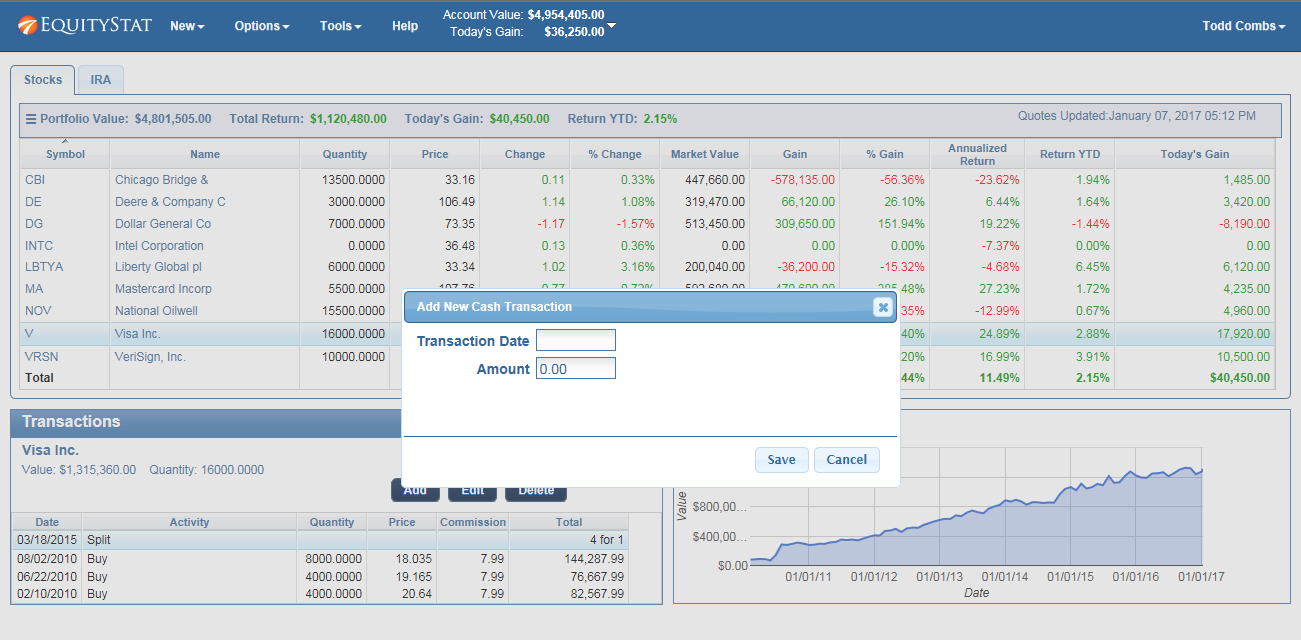
We have recently added a new feature.   You can now add cash transactions to your portfolio.  To add a cash transaction, click the New menu and then choose the “New Cash Transaction” menuitem from the drop down menu.  In the popup dialog, add the date of the cash transaction and the amount of the transaction.

Add Cash to Your EquityStat Portfolio
Add Cash To Your Investment Portfolio

Once you have added a cash transaction, any non-reinvested dividends added to your other investments will be added to your cash.

New and Improved Features in the EquityStat Portfolio Manager

Managing investments effectively requires tools that are flexible, intuitive, and powerful enough to handle real‑world portfolios. EquityStat has introduced several enhancements to its Portfolio Manager designed to give investors more control, better insights, and a smoother overall experience. These updates make it easier to organize multiple accounts, analyze performance, and view your investment data in a clean, streamlined layout.

Whether you’re tracking stocks, mutual funds, ETFs, or retirement accounts, these new features help you stay on top of your financial picture with greater accuracy and efficiency.

Create and Manage Multiple Portfolios with Ease

One of the most significant upgrades is the ability to create multiple portfolios within your EquityStat account. This feature is ideal for investors who want to separate or categorize their holdings across different accounts or investment strategies.

Why Multiple Portfolios Matter
  • Better organization — Keep your brokerage accounts, retirement accounts, and long‑term holdings separate.
  • Clearer insights — Compare performance between strategies (e.g., growth vs. income).
  • Simplified reporting — Generate cleaner summaries for taxes, advisors, or personal tracking.

How to Create a New Portfolio

You can create a new portfolio directly from the New menu by selecting New Portfolio. Once created, each portfolio can be customized with its own set of investments, performance metrics, and display preferences.

New Performance Metrics for Deeper Investment Analysis

To help investors make more informed decisions, EquityStat has added several new performance‑focused data columns:

Newly Added Metrics

  • Quarterly Return — Track short‑term performance trends and identify momentum.
  • P/E Ratio (Price‑to‑Earnings) — Evaluate whether a stock is undervalued or overvalued.
  • Dividend Yield — Quickly see which holdings generate income and how much.

These metrics can be enabled from the Options menu under Change Columns, allowing you to tailor your dashboard to the data that matters most to you.

Maximize Your Portfolio View for Better Visibility

Large portfolios can sometimes require scrolling or navigating between panes to see all your holdings. To solve this, EquityStat now includes a Maximize Portfolio feature that expands your investment list to fill more of your screen.

What Maximize Mode Does

  • Expands the investment section to show more rows at once
  • Moves the transaction section downward for a cleaner layout
  • Reduces the need for scrolling and window adjustments

This is especially useful for investors with extensive holdings or those working on smaller screens.

To activate it, click the three‑line menu icon in the upper‑left corner of your portfolio and select Maximize. You can return to the default pane layout anytime by choosing Restore.

Why These Updates Matter for Investors

These enhancements aren’t just cosmetic — they’re designed to improve the way you interact with your financial data:

  • Faster decision‑making thanks to clearer metrics
  • More efficient navigation with customizable portfolios
  • Better organization for multi‑account investors
  • Improved user experience across devices

As the investing landscape becomes more complex, having a flexible and powerful portfolio tracker is essential. EquityStat continues to evolve its tools to support both new and experienced investors.

Have Ideas for Future Features?

EquityStat actively welcomes feedback from its users. If you have suggestions for new tools, metrics, or improvements, the team encourages you to reach out and share your ideas. User input plays a key role in shaping future updates.

Contact us and let us know.


Creating multiple portfolios – New Feature

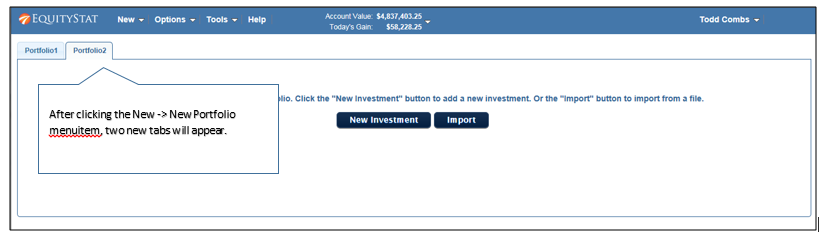
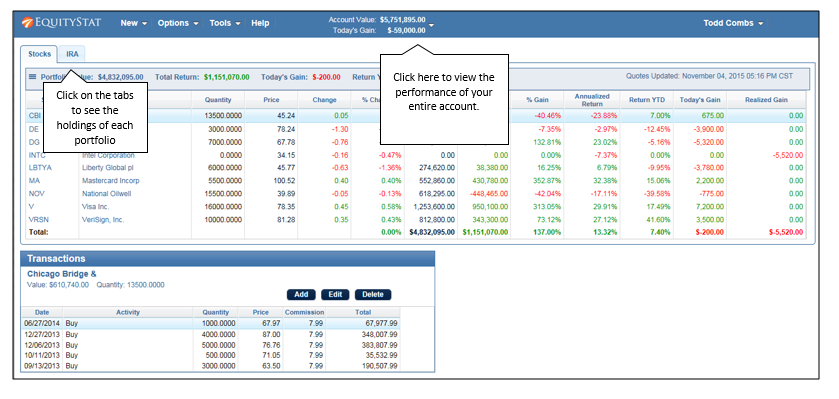
We recently added a new feature to your EquityStat portfolio manager. You can now create multiple portfolios for your account. Having multiple portfolios gives you the ability to group and separate your investments. For example, you can have a portfolio for your individual stocks, a portfolio for your mutual funds and a portfolio for your 401K.

To add a new portfolio click the New menu and then chose the New Portfolio menuitem from the dropdown menu.

Create a New EquityStat Portfolio
How to create a new portfolio in EquityStat

You will then see two new tabs. A tab for your current portfolio and a tab for your new portfolio.

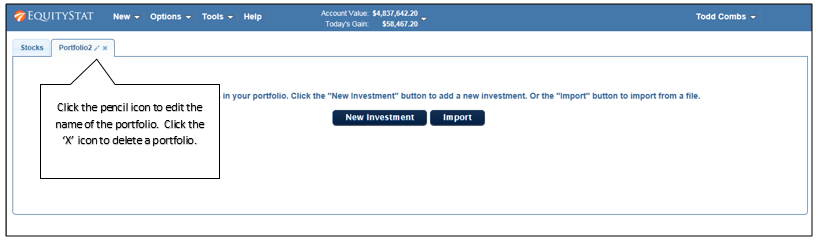
Change Portfolio Name EquityStat
How to change the portfolio name

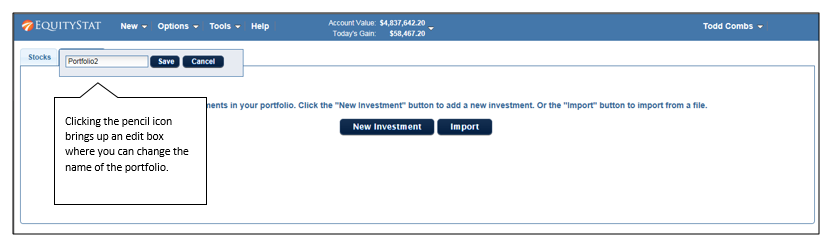
To edit the name of your portfolio click the pencil icon, which will display an edit box.

Edit Portfolio Name
How to edit a portfolio name.

Next type over the current portfolio name with the new portfolio name and click the Save button.

View portfolio investments
View a specific portfolio

To view the investments of each portfolio click on the portfolio’s tab. From here you can also add new investments to the portfolio as well as edit investments.

To view the view the performance all your entire account (all portfolios) click the Account Value box at the top.

To delete a portfolio first delete all the investments in the portfolio. Once the portfolio is empty, click the ‘X’ icon in the portfolio tab.