Yahoo Finance Portfolio Manager Changes — Best Alternatives and How EquityStat Compares

Yahoo Finance Has Changed Its Portfolio Manager

Yahoo Finance recently updated its investment portfolio manager, and many long‑time users are finding the new version harder to use or missing key features. If you relied on Yahoo Finance to track your stocks, ETFs, or mutual funds, EquityStat offers a powerful, easy‑to‑use alternative with more flexibility and better performance tracking.

Why Many Investors Are Looking for a Yahoo Finance Alternative

Yahoo Finance’s portfolio manager was once one of the most popular online tools for tracking investments. But recent changes have removed features, altered layouts, and made the interface less intuitive for many users.

If you’re searching for a replacement that feels familiar but offers more control, EquityStat is designed for exactly that.

EquityStat: A Modern, Feature‑Rich Alternative to Yahoo Finance Portfolios

EquityStat includes many of the same features Yahoo Finance users expect — plus several advanced tools Yahoo does not offer.

Core Features Similar to Yahoo Finance

  • Track stocks, ETFs, and mutual funds
  • View current portfolio value
  • Monitor daily gain/loss
  • See percentage gain since purchase
  • Review realized gains
  • Access full transaction history

These features make the transition from Yahoo Finance smooth and familiar.

Features EquityStat Offers That Yahoo Finance Does Not

EquityStat includes several powerful tools that go beyond Yahoo’s capabilities:

1. Clear, At‑a‑Glance Portfolio Performance

At the top of your dashboard, you immediately see:

  • Total portfolio value
  • Total return
  • Today’s gain/loss

No extra clicks. No digging through menus.

2. Create Multiple Portfolios

Organize your investments into separate portfolios such as:

  • Personal brokerage
  • 401(k) or IRA
  • Joint accounts
  • Taxable vs. tax‑advantaged accounts

Track each portfolio individually or view your entire account’s performance.

3. Less Scrolling, More Data

EquityStat automatically adjusts to your screen size, making it easier to view all your data without endless scrolling — something Yahoo’s layout struggles with.

4. Detailed Performance Calculations

For each investment, portfolio, and your overall account, you can view:

  • Current market value
  • Total gain
  • Today’s gain
  • Annualized return
  • Cost basis
  • And more

These metrics help you understand exactly how your investments are performing.

5. Full Transaction Management

For each investment, you can easily:

  • View all transactions
  • Add new transactions
  • Edit existing entries
  • Delete incorrect entries

Everything is grouped neatly for fast access.

6. Hide or Show Sold Investments

Toggle between:

  • A clean view of current holdings, or
  • A full historical view including sold positions

Perfect for tax planning and performance review.

7. Customize Your Portfolio Columns

Add or remove data columns such as:

  • 52‑week high
  • 52‑week low
  • Dividend yield
  • Market cap
  • Sector

Build the exact view you want — something Yahoo Finance does not allow.

8. Import Your Data Easily

Upload your transactions using:

  • A spreadsheet
  • A CSV file

No need to re‑enter years of history manually.

9. Generate IRS Tax Forms

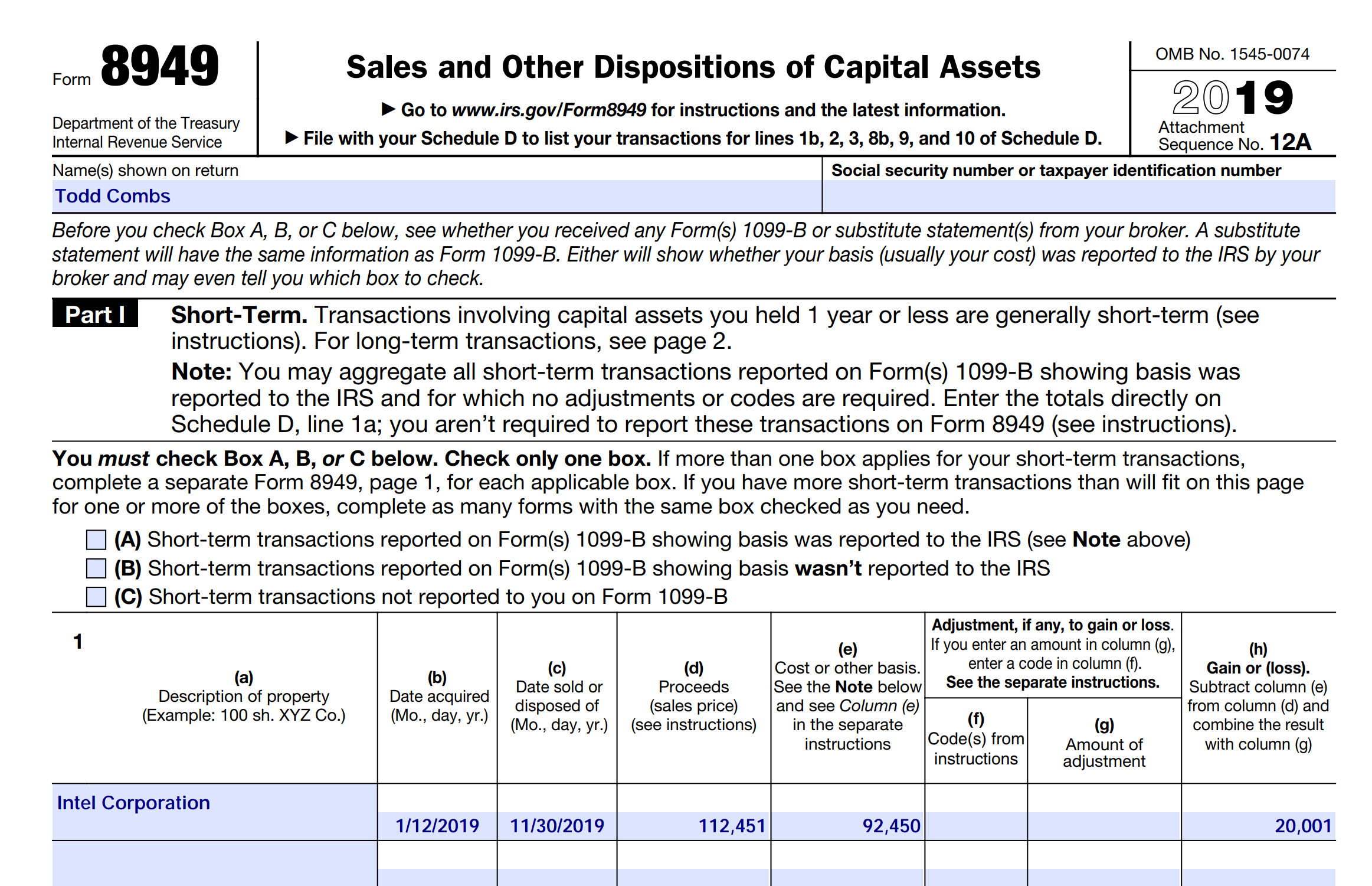
If you sold investments, EquityStat can generate IRS Form 8949, which tax preparers use to calculate capital gains. Yahoo Finance does not offer this.

10. Export Your Data for Safekeeping

Download your transactions to a spreadsheet for backup or offline analysis.

11. 24/7 Support

Have a question? EquityStat’s support team is available 24 hours a day, 7 days a week.

12. Works on Any Device

Because EquityStat is built with modern web technology, you can access your portfolio on:

  • Desktop
  • Laptop
  • Tablet
  • Mobile phone

No plugins. No compatibility issues.
EquityStat and Taxes

It’s that dreaded time of year – tax time. EquityStat’s portfolio manager has several tools to help investors with their taxes.

If you sold any shares last year, you can use EquityStat to generate IRS Form 8949.  IRS Form 8949 is a form that shows your short-term  and long-term capital gains on any investment sale.  EquityStat will automatically calculate these capital gains.  It will then generate a PDF of Form 8949 with all needed information that the IRS requires.  You can then give this form to your tax preparer when you are preparing your taxes.  To generate IRS Form 8949, click the Tools menu and then choose the Generate Form 8949 menuitem.

Use EquityStat To Print IRS Form 8949
IRS Form 8949 Example

Another tool to help you with your taxes is the ability to export your investment’s transactions to a spreadsheet. To export your transactions, click the Tools menu and then choose the Export Transactions menuitem. When you export your transactions, you will get a spreadsheet showing each transaction for the investment including the type of transaction it is (e.g. Buy, Sell, Dividend, etc). With this information, your tax preparer can calculate your taxable capital-gains and taxable dividends for all of your investments.

2016 8949 IRS Tax Form Released

We just released the 2016 8949 IRS tax forms.  IRS Form 8949 is a form that reports your short and long term gains for any sold investments in the tax year.  You can give Form 8949 to your tax preparer which assists in preparing Schedule D on your tax return.  To generate Form 8949 click the Tools menu and choose the “Generate Form 8949” menuitem.

Print IRS Form 8949 with EquityStat's Investment Portfolio Manager
IRS Form 8949

Worst Stock of 2016

According to the Wall Street Journal the worst S&P 500 stock of 2016 was Endo International.  It was down 73%.

You can see the list of worst stocks here:

http://blogs.wsj.com/briefly/2016/12/30/5-worst-performers-in-the-sp-500-in-2016/

How did your investments do in 2016?  What was your worst stock?  If you are not tracking your investment’s performance, consider using EquityStat.  With EquityStat you can track the overall performance of your portfolio/account as well as the performance of each individual investment.  EquityStat tracks the annualized return, year to date return, daily gain, overall gain and many other metrics of your investments.  With these metrics you can easily determine what are your best investments.

Many online brokerages and mutual funds track an individual stock or mutual fund’s performance but you cannot get the overall return of all your stocks or mutual funds.  With EquityStat not only can you get the return each investment, you can also get the return for your entire account.  This way you know how well your investments are performing at any time.

Best Stock of 2016

According to the Wall Street Journal the best S&P 500 stock of 2016 was Nvdia.  It was up 224%.

You can see the list of best stocks here:

http://blogs.wsj.com/briefly/2016/12/30/5-best-performers-in-the-sp-500-in-2016/

How did your investments do in 2016?  What was your best stock?  If you are not tracking your investment’s performance, consider using EquityStat.  With EquityStat you can track the overall performance of your portfolio/account as well as the performance of each individual investment.  EquityStat tracks the annualized return, year to date return, daily gain, overall gain and many other metrics of your investments.  With these metrics you can easily determine what are your best investments.

Many online brokerages and mutual funds track an individual stock or mutual fund’s performance but you cannot get the overall return of all your stocks or mutual funds.  With EquityStat not only can you get the return each investment, you can also get the return for your entire account.  This way you know how well your investments are performing at any time.


New Feature – Cash Transactions

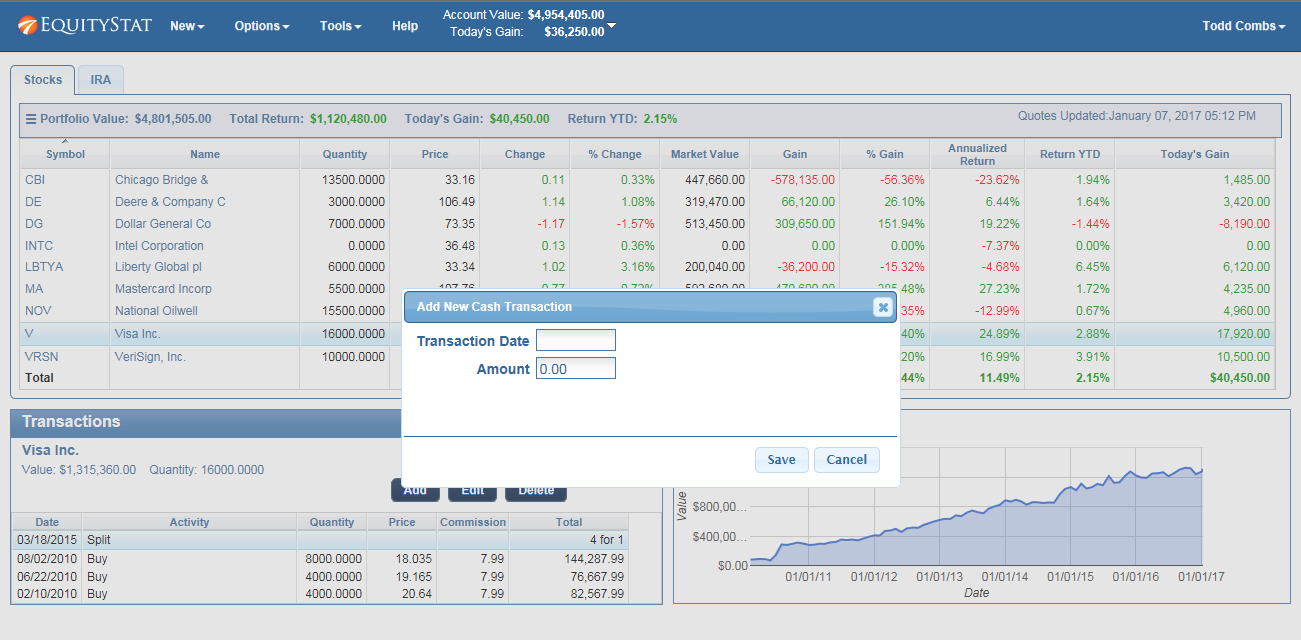
We have recently added a new feature.   You can now add cash transactions to your portfolio.  To add a cash transaction, click the New menu and then choose the “New Cash Transaction” menuitem from the drop down menu.  In the popup dialog, add the date of the cash transaction and the amount of the transaction.

Add Cash to Your EquityStat Portfolio
Add Cash To Your Investment Portfolio

Once you have added a cash transaction, any non-reinvested dividends added to your other investments will be added to your cash.

How did your investments perform in 2016?

How did your investments do in 2016?  What was your best stock?  What was your worst?

If you are not tracking your investment’s performance, consider using EquityStat.  With EquityStat you can track the overall performance of your portfolio as well as the performance of each individual investment.  EquityStat tracks the annualized return, daily gain, overall gain and many other metrics of your investments.  With these metrics you can easily determine what are your best investments and what are your worst investments.

EquityStat Financial Portfolio Analysis
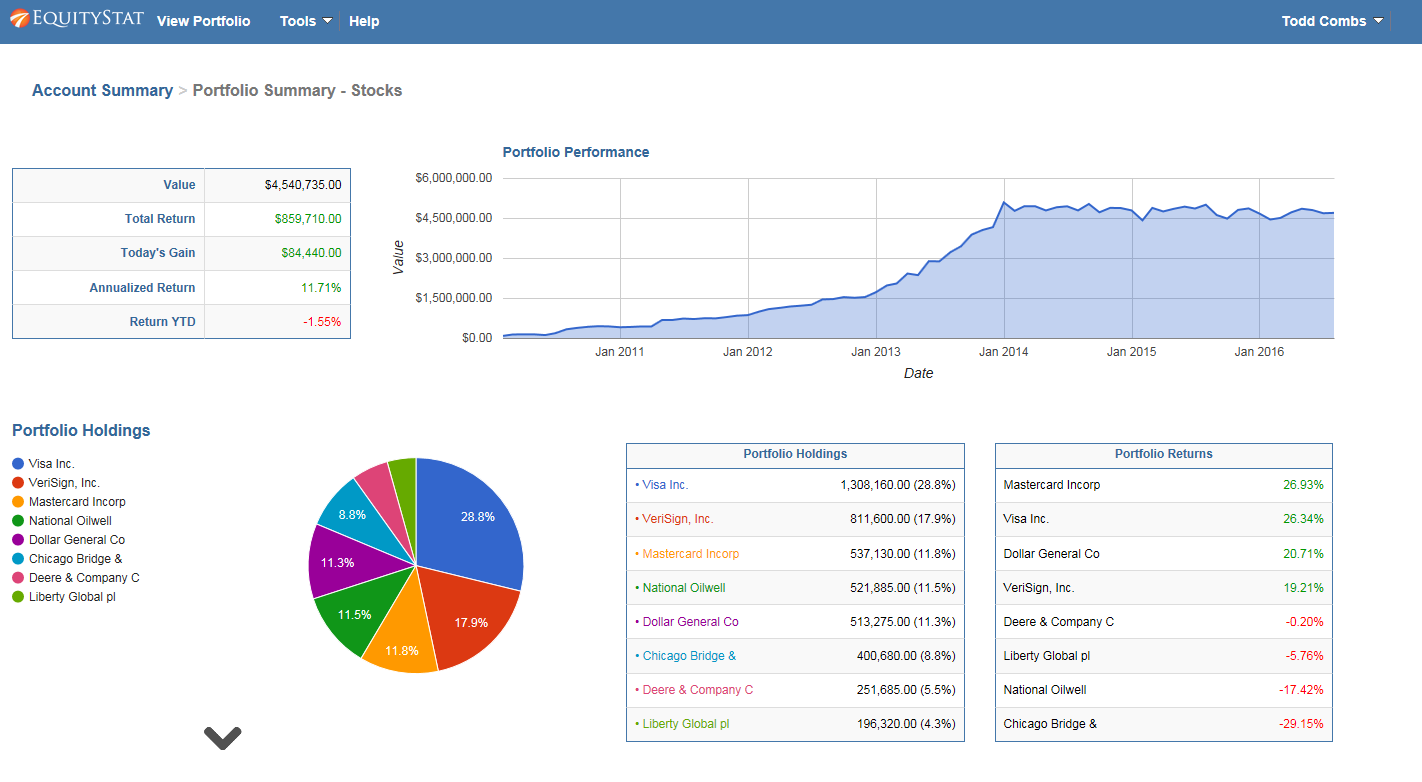
Portfolio Analysis Example

In addition EquityStat provides an analysis of your account and portfolios.  With our account/portfolio analysis you can get a graphical and tableuare view of the performance of your investments.  For example, you can see the performance of your account/portfolio overtime.  Using the account/portfolio analysis you can also see which investments were your best performing investments and which investments were your least performing investments.

Portfolio Analysis – New Feature

How to Analyze Your Investment Portfolio in EquityStat

EquityStat has introduced a powerful Portfolio Analysis tool that helps investors evaluate performance, track holdings, and compare returns across multiple portfolios. This feature gives you a clear, data‑driven view of how your investments are performing over time.

What the Portfolio Analysis Tool Does

The Portfolio Analysis page provides a complete performance overview of your account and individual portfolios. You can quickly see:

  • Overall account performance over time
  • Portfolio‑level performance metrics
  • Investment holdings and allocation
  • Daily, quarterly, and yearly performance rankings
  • Best‑ and worst‑performing investments

This makes it easy to understand which assets are driving your returns and where adjustments may be needed.

How to Access Portfolio Analysis in EquityStat

To run a portfolio analysis:

  1. Click the Tools menu at the top navigation bar.
  2. Select Analyze Portfolio from the dropdown.
  3. The system will generate a detailed analysis of your account and portfolios.

What You’ll See on the Portfolio Analysis Page

Analyze your investment portfolio using EquityStat.
Analyze Portfolio Example

1. Account‑Level Performance Overview

If you manage multiple portfolios, the analysis begins with a full account‑wide performance summary, including:

  • A performance graph showing account growth over time
  • A breakdown of each portfolio’s performance
  • A ranked list of investment returns
  • A summary of all holdings across your account

2. Portfolio‑Specific Analysis

Click any portfolio name in the summary table to view:

  • Portfolio‑specific performance charts
  • Individual investment metrics
  • Best and lowest performers for the day, quarter, and year
  • A complete holdings list for that portfolio

If you only have one portfolio, the system automatically displays its analysis.

Key Performance Metrics Provided

The analysis includes detailed metrics such as:

  • Total return
  • Daily return
  • Quarterly return
  • Year‑to‑date return
  • Investment rankings
  • Growth charts

These insights help you understand how each investment contributes to your overall performance.

Why This Matters for Investors

Whether you’re a beginner or an experienced investor, having a clear view of your portfolio’s performance is essential. EquityStat’s Portfolio Analysis tool helps you:

  • Track long‑term investment growth
  • Identify top‑performing investment
  • Spot underperforming investments
  • Make informed decisions based on real data
  • Manage multiple portfolios with ease
  • Track dividend income across all portfolios

5 Frequently Asked Questions About EquityStat’s Portfolio Manager

5 Frequently Asked Questions

  1. How do I add a new investment?
    Click the New Menu and then choose New Investment from the dropdown menuitem.  A popup dialog will appear where you can add your new investment.
  2. How do I add/remove a portfolio column?
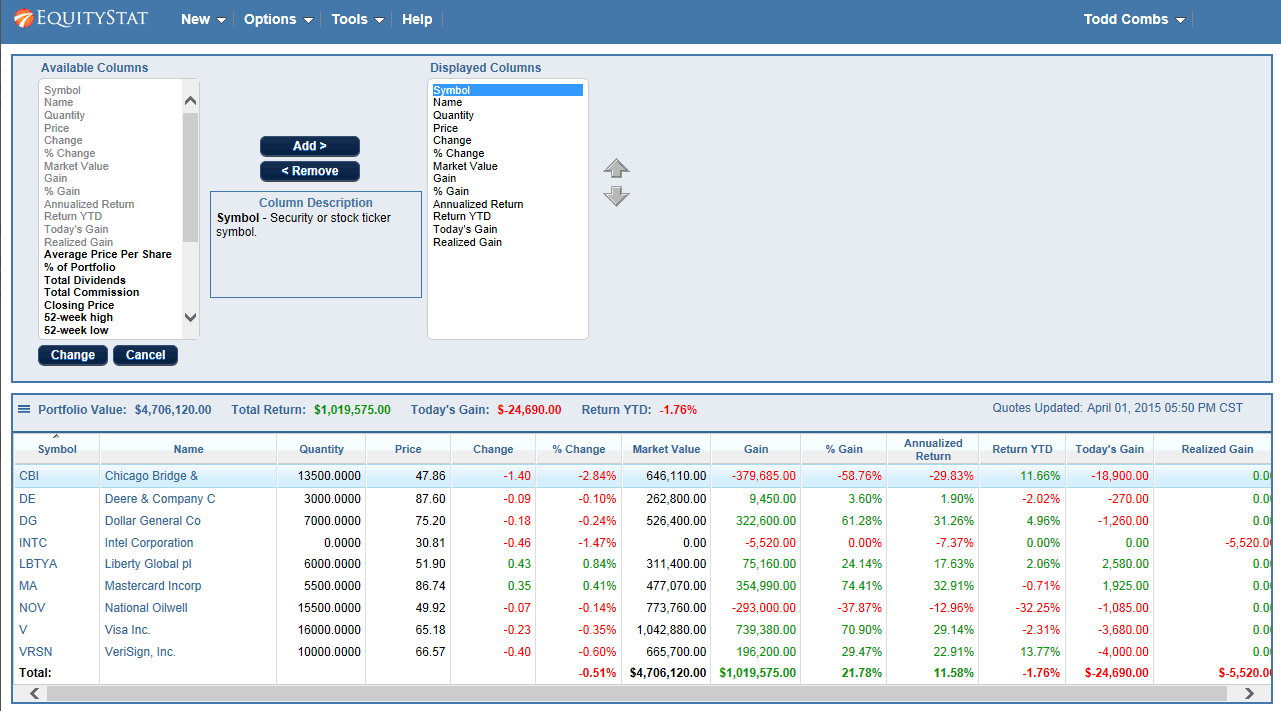
    Click the Options Menu and then choose Change Columns from the dropdown menuitem.  The Change Columns panel will appear.  To add a column select the column from the Available Columns list and click the Add button to add it to the Displayed Columns list.  To remove a column select the column from the Displayed Columns list and click the Remove button to remove it from the Displayed Columns list.  Click the Change button to save your columns.

    EquityStat Investment Portfolio Change Performance Metric Columns
    Change Stock Portfolio Columns
  3. How do I change the order of the displayed columns?
    Click the Options menu and choose the Change Columns dropdown menuitem.  The Change Columns panel will appear.  Select the column you want to change from the Displayed Columns list.  Use the up/down arrows on the right to change the order.   When finished click the Change button to save your changes.
  4. How do I sort the portfolio by Investment name?  How do I sort any column in the portfolio?
    To sort your portfolio by investment name, click on the Name column heading.  To sort any columns, such as Market Value, click on the column heading.  Clicking on the column heading will also toggle the sort between ascending and descending order.
  5. How do I sell an investment?
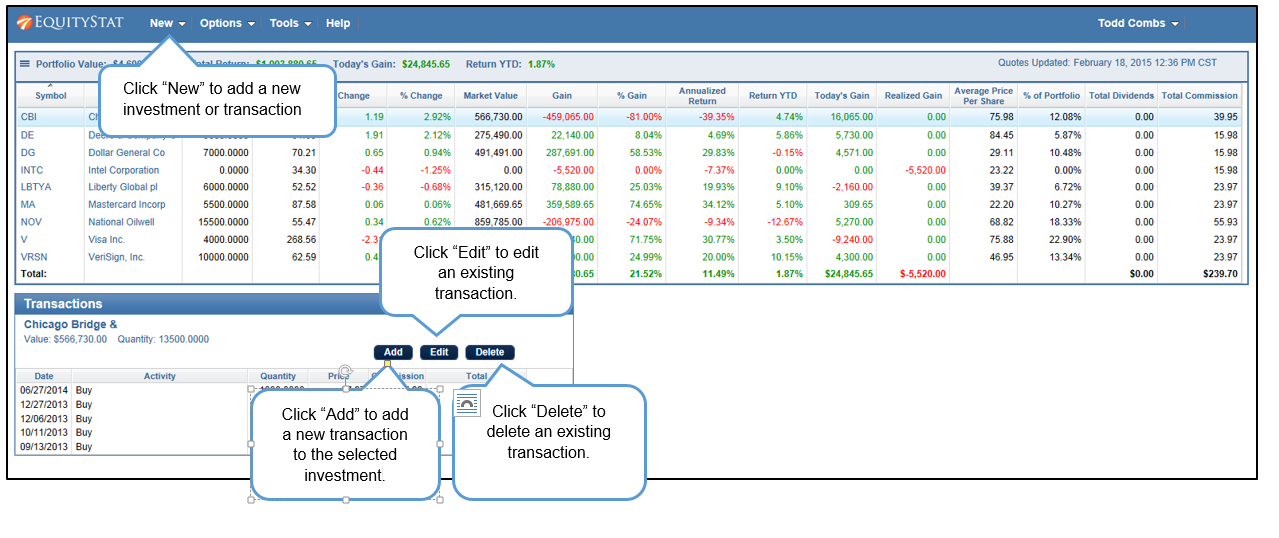
    To sell an investment add a “Sell” transaction.  To add a “Sell” Transaction, first select the investment you want to sell.  Next click the Add button in the Transactions section.  A popup panel will appear.  Enter your date, choose “Sell” from the Activity dropdown and enter how many shares you sold and the price you sold them at.  Click the Add button to save your changes.

    EquityStat Stock Market Portfolio Add Transaction
    Add Transaction Directions