Google Stock Split in EquityStat

Google’s (GOOG/GOOGL) stock is scheduled to split on July 15, 2022. It is a 20 for 1 stock split. So, for each share you own before the split, you get 20 shares.

If you owned Google (GOOG/GOOGL) stock before the split and you are tracking this stock in your EquityStat portfolio, how do you record the split?

First, select the Google stock in your investment panel. Next, in the transaction panel, click the Add button to add a new transaction. In the Activity drop down, choose a “Split” transaction. Enter how many shares were split, in this case it is a 20 for 1 split, and click the Add button to save the transaction.
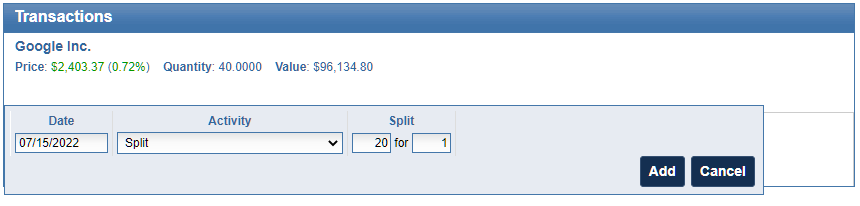
Add a split transaction in EquityStat's investment portfolio tracker.
Adding a split transaction in your EquityStat stock portfolio tracker

When the split transaction is saved, each transaction will be adjusted to reflect this split. The number of shares will be increased twenty times and the price will be divided by twenty.

For example, if you had the following transactions before the split.
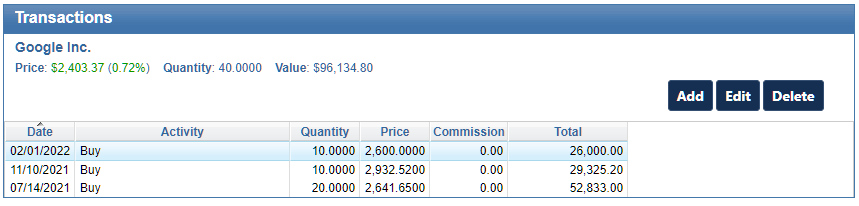
EquityStat transactions for Google (GOOG) before the 20 for 1 split
Google transactions before the split

After the split your transactions will look like this.
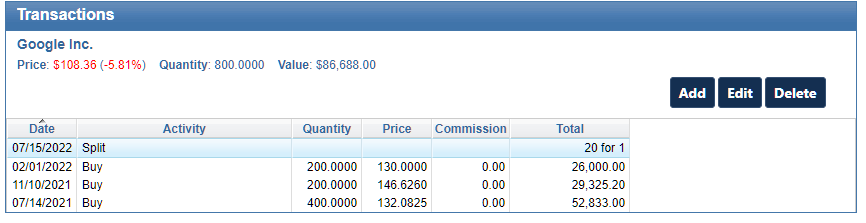
EquityStat transactions for Google (GOOG) after the 20 for 1 split
Google transactions after the split

Notice that before the split there were three buy transactions. After the split, the number of shares has increased 20 times and the price has been reduced by a factor of twenty. For example, the initial buy on 7/14/2021 was for a quantity of 20 shares. After the split, the purchased quantity is 400 shares. The price the shares were bought on 7/14/2021 was $2641.65. After the split, the price paid was $132.08. These adjustments are all automatically done when you enter the split transaction.

If you have other stocks that have split, you can use the same steps to record your split. Just make sure that you enter the correct split information.
Refresh User Interface For Mobile Phones

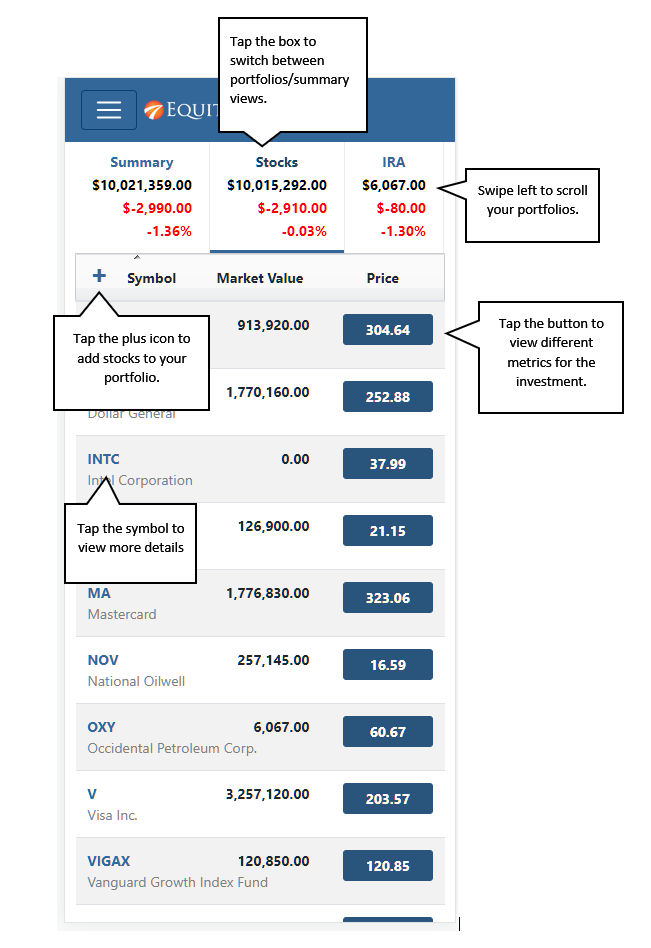
We have recently refreshed the user interface of your EquityStat portfolio on mobile devices. The user interface now looks, feels and works like a mobile app. If you have ever used the Weather Channel App or the ESPN App on your mobile phone, EquityStat works very similar.

To view your EquityStat account on a mobile phone, open up the phone’s web browser, go to www.equitystat.com and login to your account.

EquityStat stock portfolio tracker on a mobile phone.
Example EquityStat Account on a Mobile Phone.

You will then see a list of all your portfolios at the top. You can swipe left at the top to scroll through all of your portfolios. Tap a “portfolio box” to see the investments in each portfolio.

To see details about a specific investment, tap the symbol for the investment. To view metrics about a specific investment tap the price button. Continue tapping the button to cycle through all of the investment metrics.

To add a new investment to your portfolio, tap the plus icon.

Splitting a Stock in EquityStat

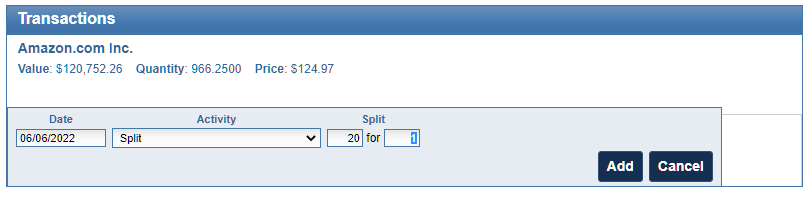
Amazon’s (AMZN) stock recently split. It was a 20 for 1 stock split. So, for each share you owned before the split, you got 20 shares.

If you owned Amazon (AMZN) stock before the split and you are tracking this stock in your EquityStat portfolio, how do you record the split?

First, select the Amazon stock in your investment panel. Next, in the transaction panel, click the Add button to add a new transaction. In the Activity drop down, choose a “Split” transaction. Enter how many shares were split, in this case it is a 20 for 1 split, and click the Add button to save the transaction.

Add a split transaction in EquityStat's investment portfolio tracker.
Adding a split transaction in your EquityStat portfolio

When the split transaction is saved, each transaction will be adjusted to reflect this split. The number of shares will be increased twenty times and the price will be divided by twenty.

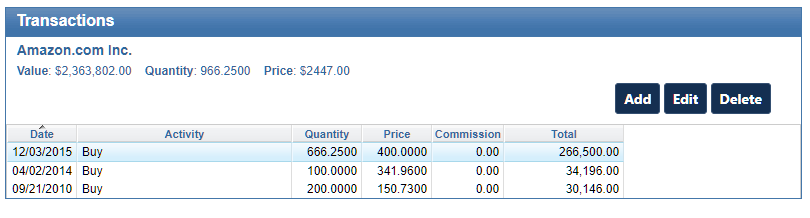
For example, if you had the following transactions before the split.

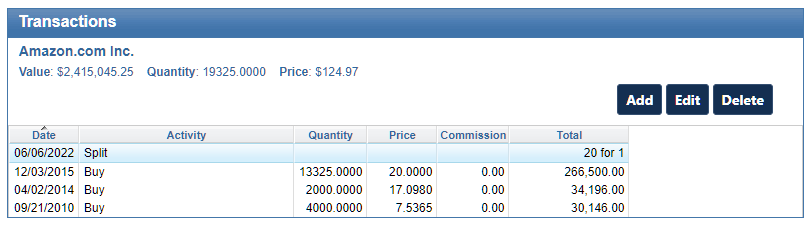
EquityStat transactions for Amazon (AMZN) before the 20 for 1 split
Amazon transactions before the split

After the split your transactions will look like this.

EquityStat transactions for Amazon (AMZN) after the 20 for 1 split
Amazon transactions after the split

Notice that before the split there were three buy transactions. After the split, the number of shares has increased 20 times and the price has been reduced by a factor of twenty. For example, the initial buy on 4/02/2014 was for a quantity of 100 shares. After the split, the purchased quantity is 2000 shares. The price the shares were bought on 4/02/2014 was $341.96. After the split, the price paid was $17.098. These adjustments are all automatically done when you enter the split transaction.

If you have other stocks that have split, you can use the same steps to record your split. Just make sure that you enter the correct split information.
Feature Highlight – Compare Your Investment Performance to the Dow Jones, the Nasdaq or the S&P 500 Index

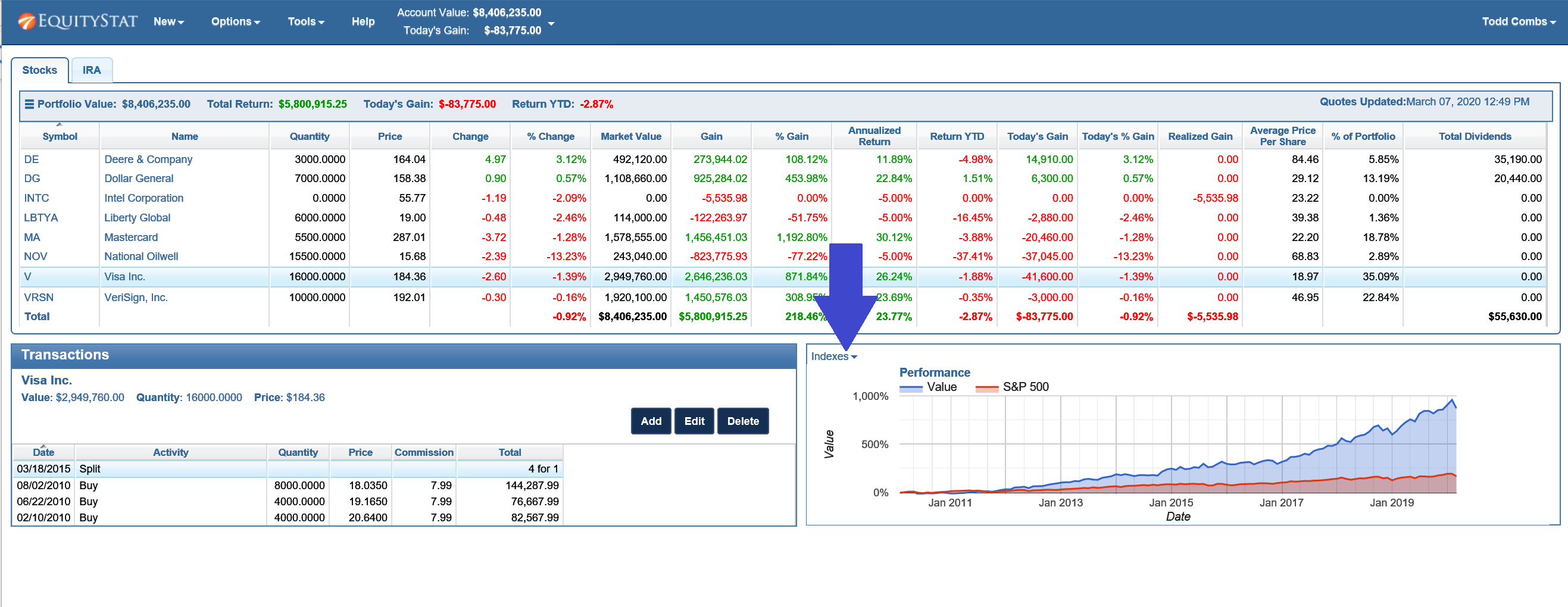
If you want to see how your investment performance is doing compared to an index, you can easily add an index to your investment’s performance graph.

To do this, select the index you want to compare, by clicking on the Indexes drop down menu link in the upper left hand corner of the performance graph.

Compare Stock Performance to Indexes
Compare Investment Performance to Indexes

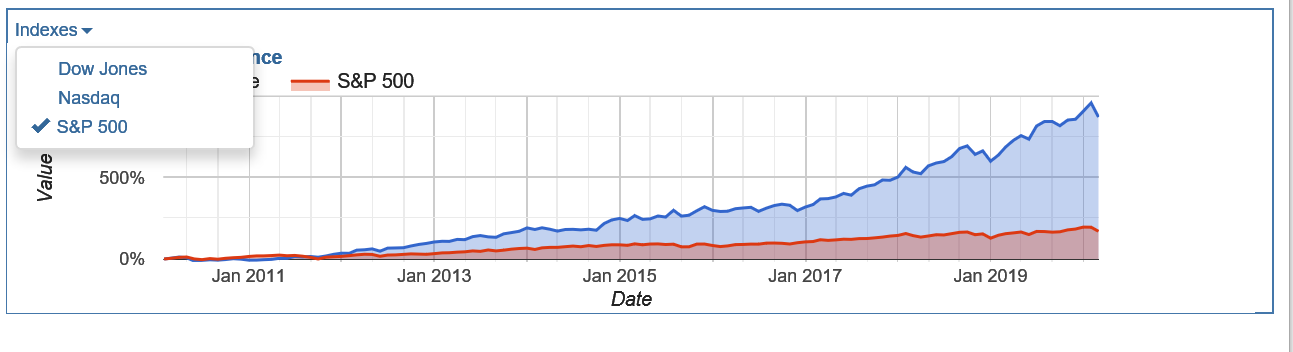
When you click on the Indexes drop down menu link, you can choose from a list of indexes.

Choose to compare your stock's performance to the Dow Jones index, the Nasdaq index or the S&P 500 index
Choose to compare your stock’s performance to the Dow Jones index, the Nasdaq index or the S&P 500 index

Choose the Dow Jones index, the Nasdaq index or the S&P 500 index. You can choose one index or multiple indexes. When you choose an index, you will see a checkbox next to the index.

Once an index is chosen, you will see the index in your performance graph and how it compares to your investment’s performance.

To remove an index, click on the Indexes drop down link and select the index again. This will remove the checkbox from the index menu item and remove the index from your performance graph.

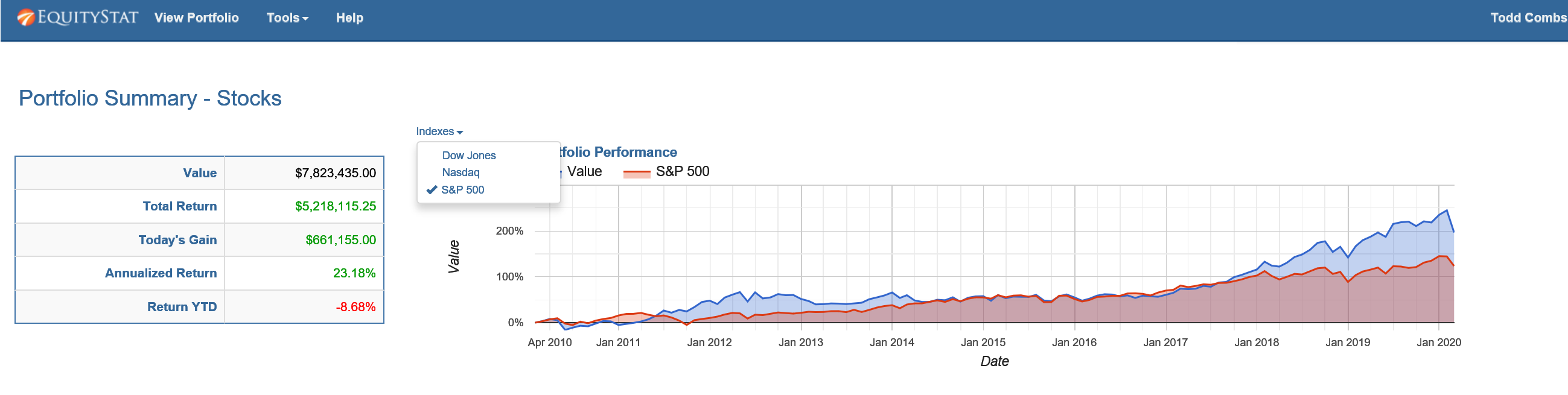
You can also compare your account/portfolio performance to an index. To do this, go to the Portfolio Analysis page by choosing the Tools menu at the top and selecting Analyze Portfolio from the drop down menu. From the Portfolio Analysis page, click the Indexes link above the performance graph and choose the index or indexes you want to compare.

Choose to compare your account/portfolio performance to the Dow Jones index, the Nasdaq index or the S&P 500 index

Best Stock of 2017

The best S&P 500 stock of 2017 was Align Technology.  It was up 135.6%.

You can see the list of best stocks here:

https://www.benzinga.com/general/education/17/12/10968828/10-best-stocks-of-2017

How did your investments do in 2017?  What was your best stock?  If you are not tracking your investment’s performance, consider using EquityStat.  With EquityStat you can track the overall performance of your portfolio/account as well as the performance of each individual investment.  EquityStat tracks the annualized return, year to date return, daily gain, overall gain and many other metrics of your investments.  With these metrics you can easily determine what are your best investments.

Many online brokerages and mutual funds track an individual stock or mutual fund’s performance but you cannot get the overall return of all your stocks or mutual funds.  With EquityStat not only can you get the return each investment, you can also get the return for your entire account.  This way you know how well your investments are performing at any time.


How to import your Google Finance Portfolio into EquityStat

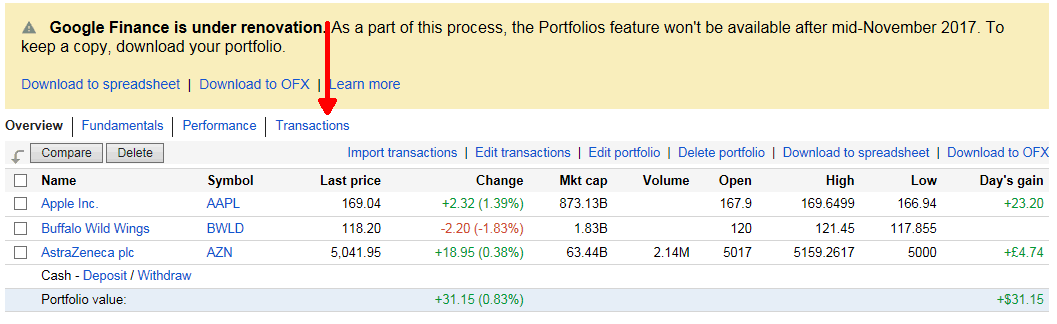
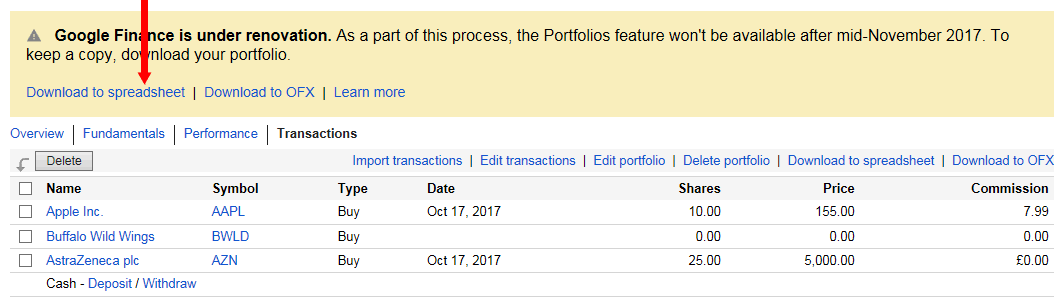
As you know, Google Finance is discontinuing their portfolio manager.  If you are looking for an alternative you can easily import your Google portfolio into EquityStat.  Just follow these easy steps.

Step #1

Login to your Google Finance portfolio and click the Transactions link.

Step #2

On the Google Finance transactions page, click the Download to Spreadsheet link and save the downloaded file to your hard drive.

Step #3

Login to your EquityStat account and click the New menu at the top and choose Import Transactions from the drop down menu.

Step #4

On the import page, click the Browse button to locate the file saved in Step #2.  Next, click the Import button to import the file.  You will then see a summary of the transactions to be imported.  Correct any errors and verify what the import will do.  Click the Import Data button to import the Google Finance portfolio transactions into EquityStat.

Google Finance Portfolios Are Going Away — Here’s the Best Alternative

Google Finance Is Discontinuing Its Portfolio Manager

Google has officially discontinued the Google Finance stock portfolio manager, leaving many investors searching for a reliable replacement. If you relied on Google Finance to track your stocks, ETFs, or mutual funds, EquityStat offers a powerful, easy‑to‑use alternative with many of the same features — and more.

Why EquityStat Is a Strong Replacement for Google Finance Portfolios

EquityStat provides a clean, intuitive interface designed for investors who want accurate performance tracking without complexity.

Key Features Comparable to Google Finance

  • View the total value of your portfolio
  • Track daily gain/loss
  • See percentage gain since purchase
  • Review realized gains
  • View annualized return for each investment
  • Track stocks, ETFs, and mutual funds
  • Access complete transaction history for each holding

EquityStat gives you the same visibility you had in Google Finance — plus deeper analytics.

Importing Your Google Finance Portfolio Into EquityStat

Transitioning from Google Finance is simple.

You can import your portfolio by:

  • Manually entering transactions, or
  • Uploading a spreadsheet with your historical data

If you need help, EquityStat’s support team can guide you through the process.

More Tools to Manage and Analyze Your Portfolio

EquityStat includes additional features that go beyond what Google Finance offered:

  • Create multiple portfolios
  • View performance graphs over time
  • Analyze portfolio holdings and allocation
  • Edit or delete transactions at any time
  • Track performance across all your investments in one place

These tools help you understand your portfolio’s performance with greater accuracy and detail.

Why Investors Choose EquityStat To Replace Google Finance

  • Simple, fast, and user‑friendly
  • Accurate performance calculations
  • Ideal for long‑term investors and active traders
  • Built specifically for stock, ETF, and mutual fund tracking
  • A dependable replacement for Google Finance’s discontinued portfolio manager

If you miss the old Google Finance portfolio tool, EquityStat is one of the best alternatives available today.

Print Your Stock Portfolio

How to Print Your Portfolio

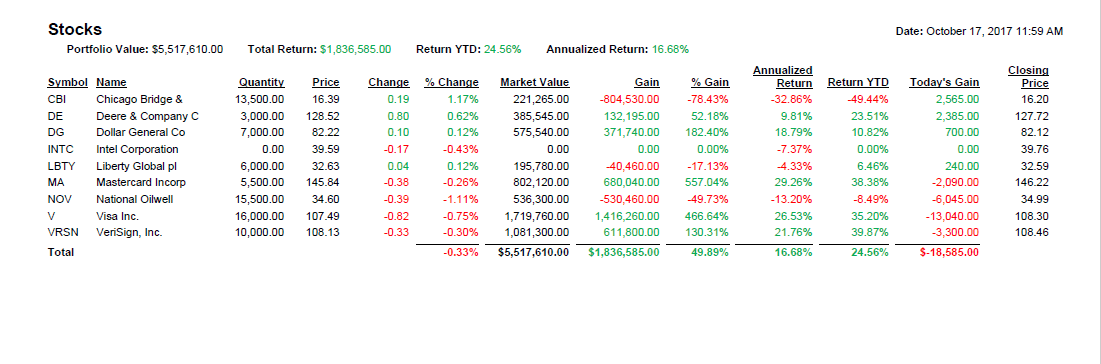
To begin, open your EquityStat account and navigate to the Tools menu located at the top of the screen. From the dropdown list, select Print Portfolio. This will take you to a dedicated printing page designed specifically for generating portfolio reports.

Choose What You Want to Print

On the print page, you’ll see options that let you decide exactly which portfolio—or portfolios—you want to include.

  • You can print a single portfolio if you only need information for one set of investments.
  • Or, if you manage several portfolios, you can choose to print all of them at once, making it easy to create a complete snapshot of your entire investment landscape.

This flexibility is especially helpful for users who track different strategies, accounts, or goals and want a consolidated view.

Generate a PDF

Example of the EquityStat portfolio printing page used to create PDF or printed reports.
Print Portfolio Example

Once you’ve selected your portfolio(s), click the Print button. EquityStat will automatically generate a PDF file containing your portfolio details. From there, you can:

  • Print the PDF directly to your home or office printer
  • Save the file to your computer for record‑keeping
  • Email or share the PDF with advisors, accountants, or anyone else who needs access

The PDF format ensures your portfolio is neatly formatted, easy to read, and consistent every time you print it.

Enhancing EquityStat to Better Support Modern Investors

The addition of this print feature is just one example of how we continue to evolve EquityStat to meet the needs of modern investors. Many users rely on printed reports for meetings, tax preparation, long‑term planning, or simply for peace of mind. By offering a fast, reliable way to generate PDFs or hard copies of your portfolios, we aim to make your investment management experience smoother, more flexible, and better aligned with the way you prefer to work.


EquityStat – An Alternative to Yahoo Finance Stock Portfolio

We are hearing from a lot of frustrated Yahoo Finance Portfolio users. The latest changes to “improve” the portfolio manager have actually made the product worse. If you are looking for an alternative to Yahoo Finance stock portfolio, we encourage you to take a look at EquityStat’s portfolio manager.

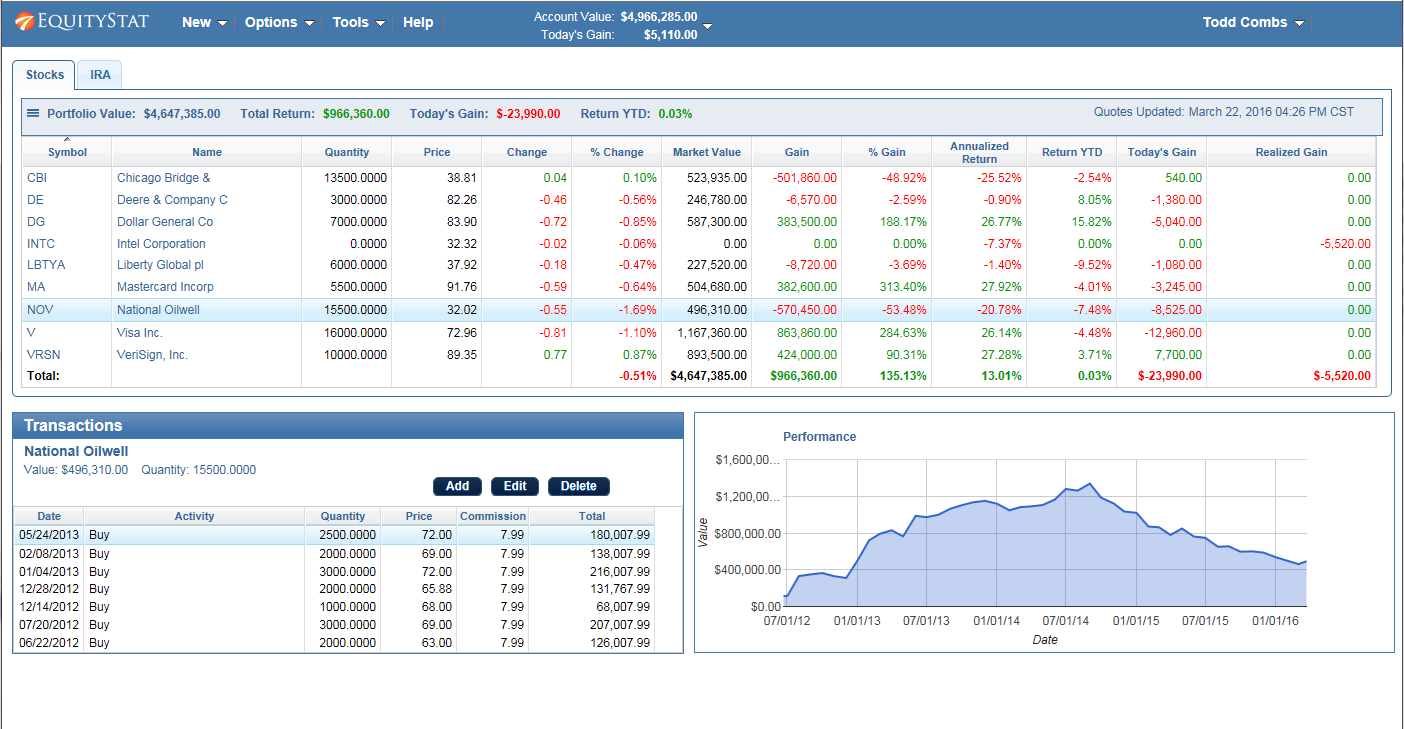
EquityStat was founded by investors. As investors we understand what other investors are looking for in a portfolio manager. For example, one of our goals was to make EquityStat’s Portfolio manager show as much information on your screen without you having to constantly scroll around to see your data. Unlike Yahoo, EquityStat does not show ads, so this gives us more room to show more information about your investments and how they are performing.

EquityStat Financial Stock Portfolio
Stock Portfolio Example

You can learn more about the similarities and differences between Yahoo Finance’s portfolio manager  and EquityStat’s portfolio manager here.

In addition if there is any feature that you liked in Yahoo Finance’s portfolio manager that is missing in EquityStat, let us know. We will seriously consider adding this feature as well as any other feature you might find useful. Our goal is to keep enhancing EquityStat to give our users the features and services they want!

View Your Portfolio On Your Mobile Device

We have recently added the ability to view your portfolio on your mobile device. To view your portfolio on your mobile phone, launch your phone’s web browser and go to www.equitystat.com. Next, login to your EquityStat account. You will then see a scaled version of your portfolio designed to display on your mobile device.

Watch the following video to learn more about the features of the mobile portfolio manager.